Having problems with setting up your Office 365 email?
Office 365 emailing should be easy, but most users get themselves entangled in problems related to email delivery, misconfigured settings, and sometimes even problems in syncing between devices. If that’s your case, don’t worry, you’re in the right place.
Watch this video to understand why Gmail and Outlook are not a good fit for cold outreach:
That is why it’s very much important to understand the SMTP settings of Office 365 and the configuration of POP3 and IMAP for smooth email management
If you’re asking yourself, “How do I configure my Office 365 email for better sending and receiving of email messages?”—look no further.
Here’s what you’ll find in this guide:
By the end of this article, you will know how to set up your Office 365 SMTP settings, including POP3 and IMAP settings for better and efficient email management.
Now let’s dive in and make frustrations about email setup a thing of the past!

Any issue you ever encountered that made your email fail to send or sync across devices was because the Office 365 SMTP settings or other email server settings had not been set right.
And without these settings, either your emails will not deliver at all, or worse yet, your precious emails may end up going into the Spam folder
Recommended Read: Gmail SMTP Settings
Following are the reasons as to why you would need the Office 365 SMTP settings:
Along with SMTP, proper POP3 and IMAP settings are also needed to receive email and for their synchronization across all platforms.
The next sections will give you a review on how to configure Office 365 SMTP settings, including POP3 and IMAP.
Struggling with emails not sending correctly? Chances are, your Office 365 SMTP settings or other email server settings are not set up properly. Don’t worry—configuring these settings is easy and will solve your email delivery problems.
In this section, I’ll guide you through the process of configuring Office 365 SMTP settings, including the correct port numbers, username, and authentication options, so you can send emails smoothly from your preferred email client.

Here are the essential Office 365 SMTP settings:
This will allow you to send emails seamlessly through Office 365 SMTP settings, ensuring your messages are securely delivered.
Now that your SMTP settings are ready, let’s look at how to configure POP3 and IMAP settings for Office 365, ensuring smooth email reception and synchronization across devices.

Properly configuring your Office 365 email server settings, including POP3 and IMAP, is crucial for smooth email access, to receive email, and for synchronization across devices.
These settings ensure emails are retrieved and managed efficiently, whether on a single device or multiple platforms. When setting up how you receive email, it's also important to check your MX record, as it determines how emails are routed to your Office 365 account.
Also Read: What Is SPF, DKIM, DMARC, & How to Set It Up Correctly?
Here’s a step-by-step guide to get everything set up correctly:
The POP3 settings for Office 365 allow you to download email messages to a single device. This is useful if you don’t need synchronization across multiple platforms.
Here’s the configuration you need (ensure you use the correct port numbers for successful connection):
POP3 is ideal for users who prefer storing email messages locally on their device while freeing up server space. However, if you need to sync emails across devices, IMAP is a better choice.
The IMAP settings for Office 365 let you access email messages on multiple devices, with real-time synchronization.
This means any action—like reading, deleting, or flagging an email—updates across all devices instantly, keeping your email messages consistent everywhere.
Here’s what you’ll need for IMAP (make sure to use the correct port numbers to avoid connection issues):
IMAP is perfect for business professionals or teams who need consistent access to updated email messages across devices.
Also Read: How to Set Up Domain & Mailbox for Cold Email?
By setting up the correct POP3 settings for Office 365 or IMAP settings, and verifying the right port numbers, you’ll avoid common email retrieval issues.
Next, we’ll ensure your Outlook is configured to maximize these settings for a smoother workflow.
Having trouble setting up Outlook to work seamlessly with your Office 365 account?
Configuring Outlook properly is essential for sending and receiving emails efficiently, especially if you want to integrate Office 365 SMTP settings, POP3, and IMAP.
When accessing your account settings in the Microsoft 365 admin center, be sure to navigate to the 'Mail' tab to enable SMTP authentication. For secure login, consider using modern authentication methods such as OAuth.
Additionally, you can use 'direct send' as an alternative to SMTP relay for certain scenarios, though it has different requirements and limitations.
Here’s how to set up Outlook for Microsoft 365 step by step.
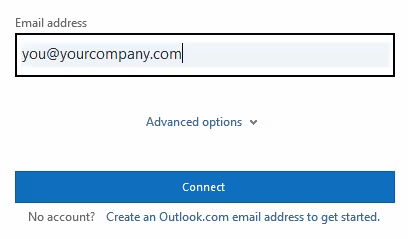
If automatic configuration doesn’t work, set up your account manually:
Also Read: Google Workspace vs Office 365: Which One is Best for Cold Email?
By configuring Outlook with the correct Office 365 SMTP settings, POP3, and IMAP settings, you ensure:
With Outlook configured, let's explore the key benefits of using Office 365 SMTP settings for seamless email management and enhanced productivity.
Struggling with delayed or undelivered emails? Whether you’re managing a business, running email campaigns, or handling customer queries, reliable email delivery is essential.
That’s where Office 365 SMTP settings come in, ensuring your emails are sent efficiently and securely.
If you’ve set up your Office 365 SMTP settings correctly, you’re already on the path to better email performance.
For advanced sending options, you can also use SMTP relay to send emails from devices or applications, allowing for organization-controlled sending and integration with on-premises or third-party servers.
When it comes to integration and scalability, Microsoft Azure provides a robust platform for building custom email solutions and managing authentication, making it easier to connect your applications or services with Office 365 email.
But what exactly makes it so beneficial? Let me break it down for you.
Using Office 365 SMTP settings offers more than just smooth email delivery—it provides a secure, scalable, and reliable communication system for individuals and businesses alike.
Also Read: What are the 3 Best Email Service Providers (ESPs) for Cold Email in 2024?
With these benefits in place, let's look at common troubleshooting tips to resolve any SMTP-related issues you might encounter.
Issues with Office 365 SMTP settings can cause email delivery failures or connection problems. Misconfigured details, including incorrect port numbers, are often the root cause.
Also Read: 45+ Cold Email Deliverability Checklist Based On Google Latest Guidelines [2024]
Here’s how to identify and fix the most common issues:
These troubleshooting steps will help resolve configuration issues with Office 365 SMTP settings and ensure seamless email delivery.
Email sending issues can be frustrating, especially when you think everything is set up correctly.
This problem often occurs due to incorrect configuration of the Office 365 SMTP settings or network restrictions.
Here's what you can check:
If these steps don't resolve the issue, test your configuration using the "Test Account Settings" feature in Outlook or your email client.
When setting up email clients, you might wonder whether to use Office 365 POP3 settings or IMAP. The choice depends on how you want to access and sync your emails.
IMAP is generally recommended for most users unless you need local email storage without syncing across devices.
These FAQs should help clarify common concerns about Office 365 SMTP settings, POP3, and IMAP configurations, ensuring your email system works efficiently.
Email mismanagement can be a headache, but with the right setup, you can ensure smooth communication across all your devices.
That's why getting your Office 365 SMTP settings, along with POP3 and IMAP settings, configured correctly is essential.
Whether you're sending emails, retrieving them on multiple devices, or syncing them seamlessly, these settings are the key to hassle-free email functionality
You came here to resolve issues and learn how to set up your Office 365 SMTP settings, and I hope this guide has made the process clear and straightforward.
Let's quickly recap what you've achieved:
By following these steps, you can handle your email setup confidently, avoid common pitfalls, and improve communication efficiency.
If you're looking for tools to further optimize your email deliverability and performance, check out Salesforge, your partner for powerful email solutions that make every email count.