Every week, a company somewhere sends one email to 1,000 people and puts every address in the To field instead of Bcc.
Customers can see competitors. Candidates can see rival applicants. The recipient list becomes public to everyone on it, and one Reply All is enough to turn it into a support fire.
Under GDPR, that kind of leak is a reportable data breach, not just an embarrassment. And it is preventable in about 10 seconds once you know what you are doing.
If you email groups for work, you have probably felt one version of that stress. Sales teams, recruiters, HR leads, event organizers, and small-business owners all hit it. You have a list of 20, 200, or 2,000 people, you want each of them to feel like the message was written for them, and you do not want to spend a Sunday pasting the same email 40 times.
I have sent individualized email to multiple recipients across Gmail, Outlook, and dedicated tools for years.
In this guide I will walk through four methods, BCC, Gmail mail merge, Outlook mail merge, and an automation tool, with exact steps, current 2026 sending limits, and the honest limits of each.
Each method below does the same core job in a different way.
The right pick depends on how many people you are emailing, whether you need each message personalized, and how often you run the send.
I will start with the simplest and work up to the one I use for anything recurring.
BCC is the fastest way to email a group without exposing everyone's address to each other.
When you put addresses in the BCC field, each recipient sees only their own name in the header, and nobody can reply-all to the whole list.
It works well for a short one-off, like a schedule update to 15 parents or an announcement to a small group who do not need personalization.
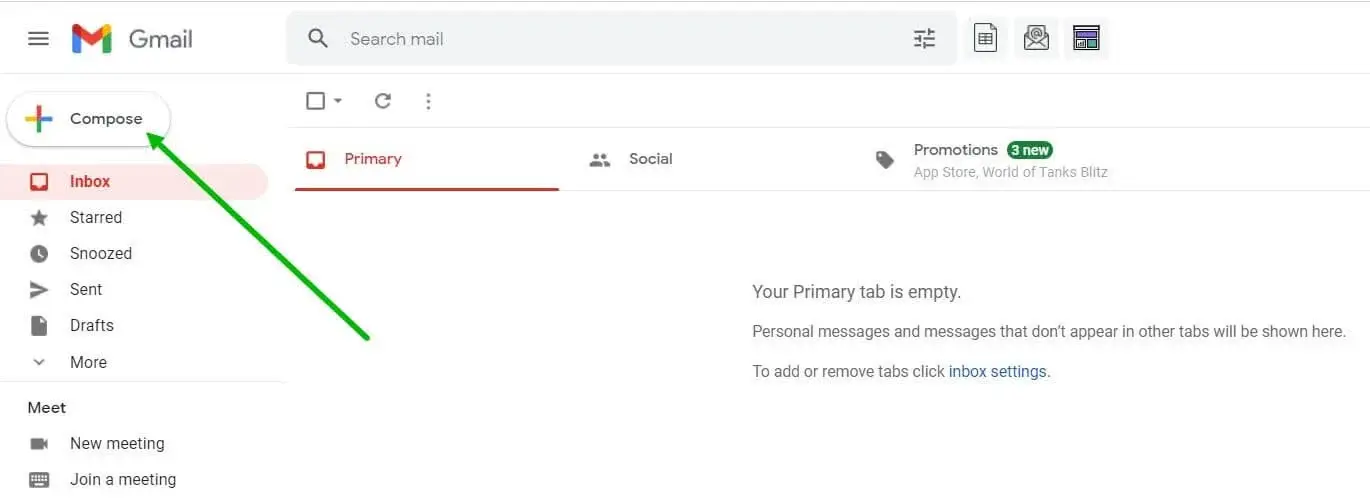
Step 1 - Open Gmail and click Compose.
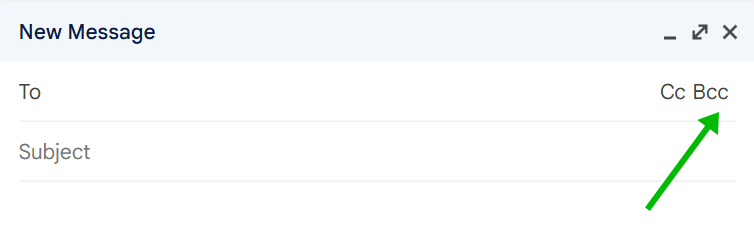
Step 2 - Click Bcc on the right of the To line.
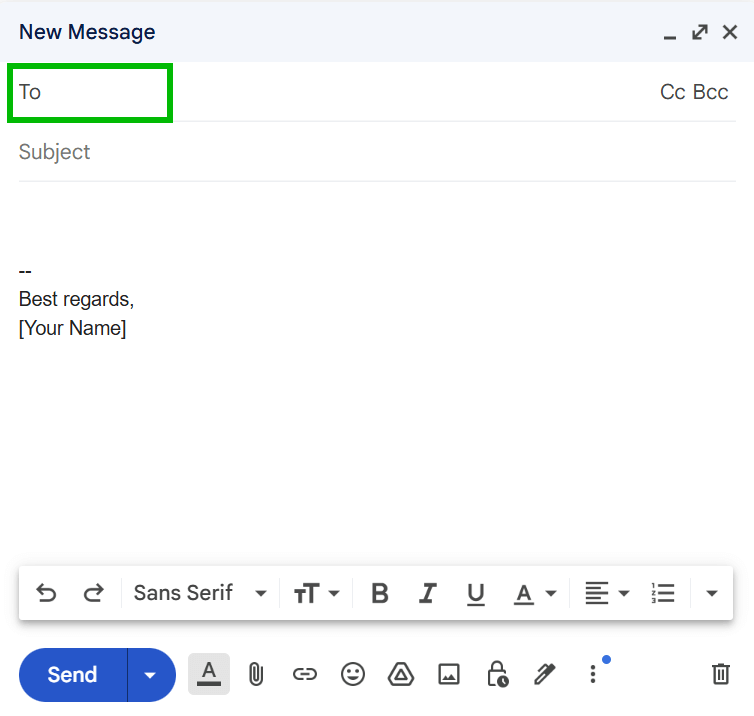
Step 3 - Put your own address in the To field.
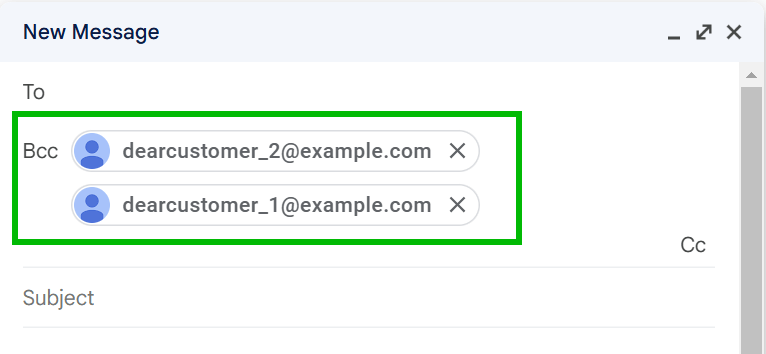
Step 4 - Add all your recipients in the Bcc field.
Step 5 - Write your subject and message, then click Send.
Step 1 - Click New Email (or New mail).
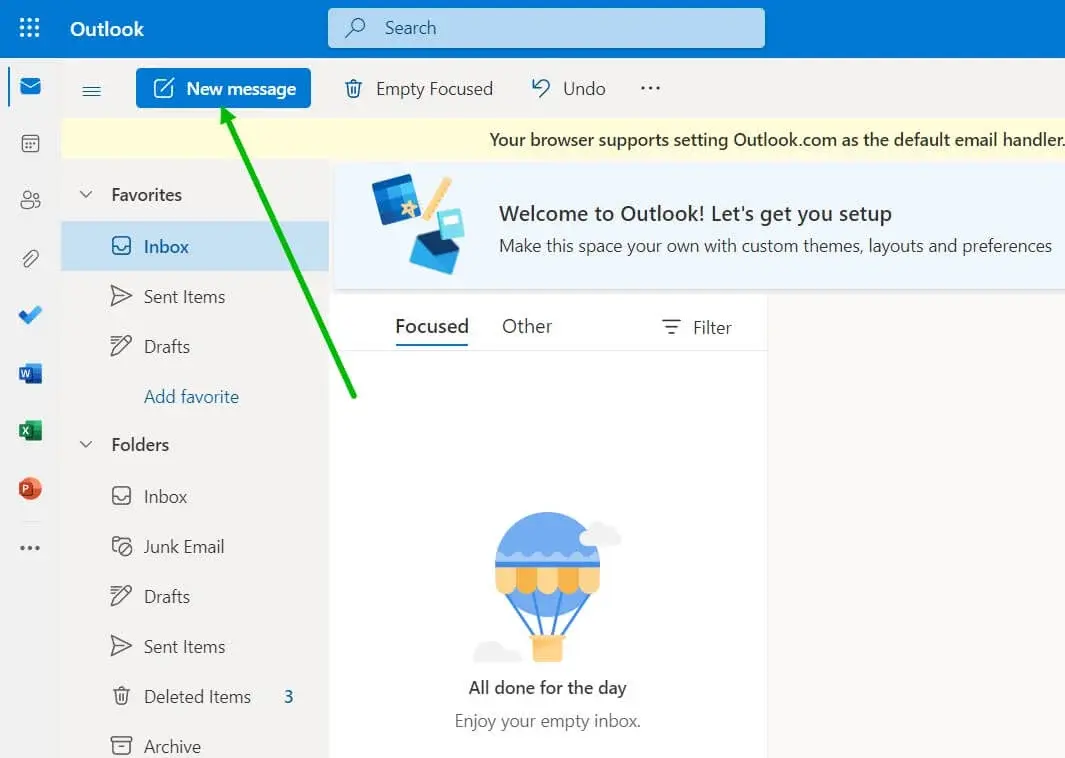
Step 2 - Open the Options tab and click Bcc to reveal the field.
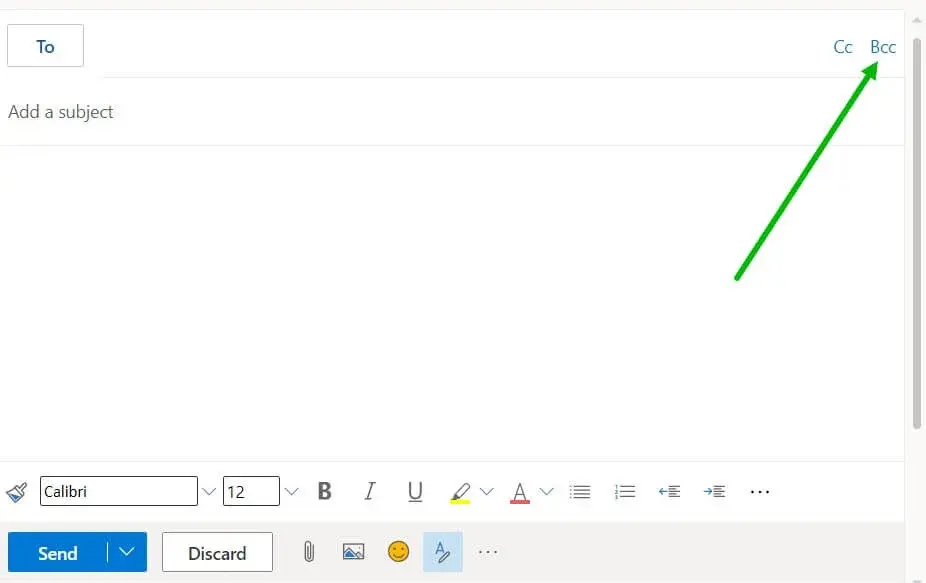
Step 3 - Put your own address in To and your recipients in Bcc.
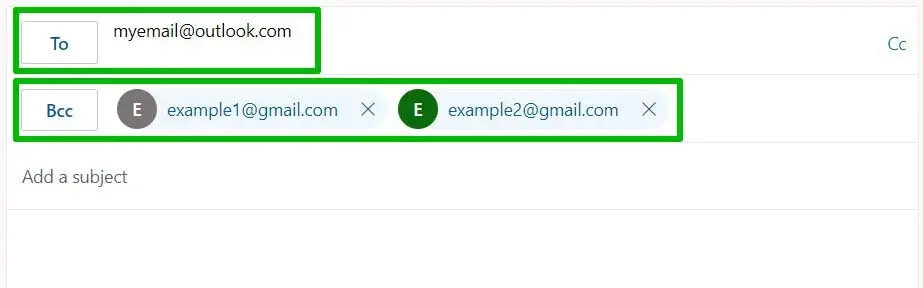
Step 4 - Write your message and send.
The limits are where BCC doesn't work.
Every recipient gets the exact same message, so there is no personalization, no way to say "Hi Sarah" to one person and "Hi Marcus" to the next.
Mailbox providers treat one identical body sent to dozens of hidden recipients as a classic spam pattern, so a large BCC blast often lands in spam even when the content is fine. Gmail counts every address across To, Cc, and Bcc toward your daily cap, and I keep BCC sends under 50 to 100 recipients to stay safe even though the technical limit is higher.
For anything that could be called outreach, or any list where people expect a personal note, BCC looks careless.
Gmail has a native mail merge built into the compose window.
It gives each recipient a separate copy of your email with their name filled in and a unique unsubscribe link. Replies come back to you in separate threads, and recipients cannot see who else you emailed.
This is a good middle option when you need light personalization for a medium-size list and you already pay for Google Workspace.
Although, mail merge is a paid Workspace feature. It works on Workspace Individual, Business Standard, Business Plus, Enterprise Standard, Enterprise Plus, Education Standard, and Education Plus.
A free personal gmail.com account does not have it.
Here is how to send it:
On limits, standard Gmail accounts cap at 500 outgoing messages a day, while work, school, and Workspace Individual accounts get 2,000 a day (trial accounts are held to 500).
Mail merge lets you add up to 1,500 recipients per message and send to 1,500 recipients a day. Once you send 1,500 combined regular and mail merge emails in a day, mail merge is paused until the quota resets, and the remaining 500 sends are reserved for regular email only.
But there are several downsides.
For starters, the merge tags are limited to the basic contact fields, you cannot use merge tags in subject lines or hyperlinked text, and you cannot use mail merge in a reply, a forward, a scheduled send, or confidential mode.
Secondly, there are no follow-ups, no open or reply tracking, and no deliverability tooling.
It is a communication feature, not an outreach system, and if you are emailing strangers you will outgrow it quickly.
Outlook does not run mail merge on its own.
The classic method uses three Microsoft apps together: Excel holds your recipient data, Word writes the message and inserts the personalized fields, and Outlook sends each individual email in the background.
Each recipient gets their own copy, so it is another solid option for a medium personalized send if you live in the Microsoft world.
Here is the process:
However, this workflow only runs on Classic Outlook, which must be your default mail app.
The New Outlook for Windows is not MAPI compliant, so Word's Send Email Messages step will not work through it, and users on the new client keep hitting a grayed-out or looping merge.
If your merge stalls, check the toggle in the top right corner of Outlook and switch back to Classic Outlook. Microsoft has a mail merge feature for the New Outlook on its roadmap, with preview timing pushed into 2026, but the reliable path today is still the classic app.
But just like Gmail mail merge, outlook mail merge has downsides too.
First of all, setup is fiddly across three programs, it requires the desktop apps, and the subject line is a static value you cannot personalize through the normal workflow.
Moreover, there is no tracking, no automated follow-ups, and no analytics.
Everything above works for a one-time or occasional send.
The moment individualized emailing becomes a regular campaign such as a weekly sales cadence, the manual methods start costing you more time and deliverability than they save.
This is where a dedicated tool like Salesforge helps, because it treats "send each person their own email" as the default, not a workaround.
The core value is that Salesforge sends every recipient a unique, personalized email from your own mailbox, then handles the parts BCC and mail merge ignore. The platform's AI personalization writes copy tailored to each lead in 21 or more languages, including a localized greeting, so a message to a prospect in Berlin does not read like a translated template.
That matters because personalized emails that reference something specific about the recipient pull far more replies than a generic blast.
Apart from this, you connect unlimited mailboxes across unlimited workspaces and users, and Salesforge rotates sends across them automatically so no single inbox looks like it is blasting volume. Every new mailbox gets free unlimited warm-up through Warmforge, which builds sender reputation before you send anything real.
Before a send, email validation and Bounce Shield screen out bad addresses so a stale list does not tank your reputation.
Replies land in Primebox, a single inbox across every connected mailbox, with sentiment analysis tagging threads so you are not logging into ten accounts to find who answered. You can run it in Auto-Pilot or Co-Pilot mode, add conditional follow-ups, and mix in LinkedIn for multichannel sequences.
There is even an MCP endpoint if you want to drive campaigns programmatically.
Here is how a send actually works:
Salesforge starts at $40 a month on the Pro plan (billed annually) and $80 a month on the Growth plan (billed annually), where annual billing gives you two months free.
Pro includes unlimited mailboxes and warm-up, and Growth adds unlimited LinkedIn senders, multi-language sequences, A/B testing, ESP matching, API access, and integrations.
There is a 14-day free trial, no credit card required.
Each Forge product is billed as its own subscription under one login, and Warmforge warm-up is included free inside Salesforge.
There are a couple of steps everyone needs to perform in order to stay out of spam when sending cold emails at scale.
Focus on the practices below to keep individualized mail landing in the inbox at scale:
BCC and mail merge each have a real place.
If you are sending a handful of one-off messages, BCC hides addresses in seconds, and Gmail or Outlook mail merge adds names to a medium list without fuss.
What changes the choice of method is frequency.
The first time you find yourself pasting the same email again, rebuilding a merge in Word, or wondering why half your batch landed in spam, you have crossed from a quick task into a repeating campaign, and the manual tools were never built for that.
They cannot warm your mailboxes, rotate sends, personalize per lead, chase follow-ups, or show you who replied.
Salesforge covers that gap by making individual, personalized email the default and putting deliverability, warm-up, and reply management (via Primebox) in one place.
If your sending is turning into a weekly campaign, it is the natural next step.
You can try it with a 14-day free trial, no credit card required.
1) How do I send an email to multiple recipients individually in Gmail?
Use BCC for a quick private send, or turn on Gmail's mail merge in the compose window if you have a paid Google Workspace plan. Mail merge gives each person a separate copy with their name and a unique unsubscribe link.
2) Can I send the same email to multiple recipients without them knowing?
Yes. Put your own address in the To field and everyone else in the Bcc field, and each recipient sees only their own address. For anything personalized or recurring, use mail merge or a tool that sends each person a separate email.
3) What is the difference between BCC and mail merge?
BCC sends one identical message to everyone at once with addresses hidden, but no personalization. Mail merge generates a separate email per recipient with their name filled in, which reads more personally and helps deliverability.
4) How many recipients can I send to at once in Gmail or Outlook?
Free Gmail allows 500 recipients per day and Google Workspace allows 2,000. Free Outlook.com sits around 300 a day (about 100 per message), while Microsoft 365 business accounts allow up to 10,000 recipients a day with 500 per message, though brand-new tenants are capped near 1,000 a day.
5) Does BCC show recipients each other's addresses?
No. Recipients in the Bcc field are hidden from everyone, including each other, and a reply-all only reaches the people in the To and Cc fields plus you.
6) Is mail merge free in Gmail?
No. Gmail's native mail merge requires a paid Google Workspace plan such as Individual, Business Standard, or Enterprise. Free personal gmail.com accounts do not have the feature.
7) How do I send individualized bulk emails without landing in spam?
Authenticate your domain with SPF, DKIM, and DMARC, warm up your mailbox for at least two weeks, verify your list, personalize each email, and keep the first touch in plain text. Tools like Salesforge automate warm-up and validation so this runs in the background.
8) What is the best tool to send personalized emails to multiple recipients?
For recurring, personalized outreach at scale, a dedicated platform like Salesforge sends each recipient a unique email from your mailbox with AI personalization, warm-up, follow-ups, and reply tracking. It starts at $40 a month on the Pro plan (billed annually) with a 14-day free trial, no credit card required.
.png)

.jpg)

.jpg)