LinkedIn is where B2B outbound actually happens in 2026.
I've watched it firsthand across the last few years running cold email and LinkedIn campaigns in parallel.
The LinkedIn side quietly became the more reliable half of the outbound stack. Better reply rates, warmer conversations, cleaner conversions to booked meetings.
The numbers back this up. 89% of B2B marketers use LinkedIn for lead generation, per Wpromote's State of B2B Marketing Report, and 62% say it generates them leads directly.
That's more than double any other social channel.
But LinkedIn doesn't make it easy to build lists from other companies' audiences.
For any company page you administer, LinkedIn's Analytics dashboard shows you follower demographics and a limited number of recent profile-level followers.
For competitor pages, LinkedIn shows you nothing at all. No follower list. No export button. No admin view.
Follower scraping still works. The honest playbook just has four methods, not one, and each carries a different risk profile.
This article covers both use cases: scraping competitor followers and scraping your own.
Each has its own set of methods, TOS risk profile, and enrichment plus outreach playbook that turns follower names into pipeline conversations.
LinkedIn shows you a partial view of your own page's followers if you administer the page, and nothing at all for individual competitor followers.
Every method below is either a workaround built on top of a LinkedIn feature you already have access to, or a third-party tool that sources follower data independently.
Competitor-follower scraping is the harder half of this problem.
Since LinkedIn shows you nothing for competitor pages, the tool you pick decides how much account risk you carry and how usable the output is.
Two methods work in 2026: a dedicated provider that keeps data collection independent of your LinkedIn session, and a manual Sales Navigator workflow that requires a fake LinkedIn profile.
The primary path here uses a dedicated B2B data provider that keeps follower-relationship data in its own infrastructure, independent of your LinkedIn session.
Leadsforge is where GTM teams, SDR orgs, and outbound agencies land when they need competitor-follower extraction at any real volume. The platform is built around competitor-audience workflows as a core use case, not a side feature retrofitted onto a general-purpose scraper.
This helps in two places: coverage depth on established competitor pages, and the Waterfall Enrichment step that attaches verified contact data on the same lookup.
For the broader vendor options, see the Salesforge lead scraping tools roundup.
All three share the same core advantage over browser automation running on your own account: your LinkedIn stays out of the request loop.
1. Sign in to your Leadsforge account and click on "Followers".
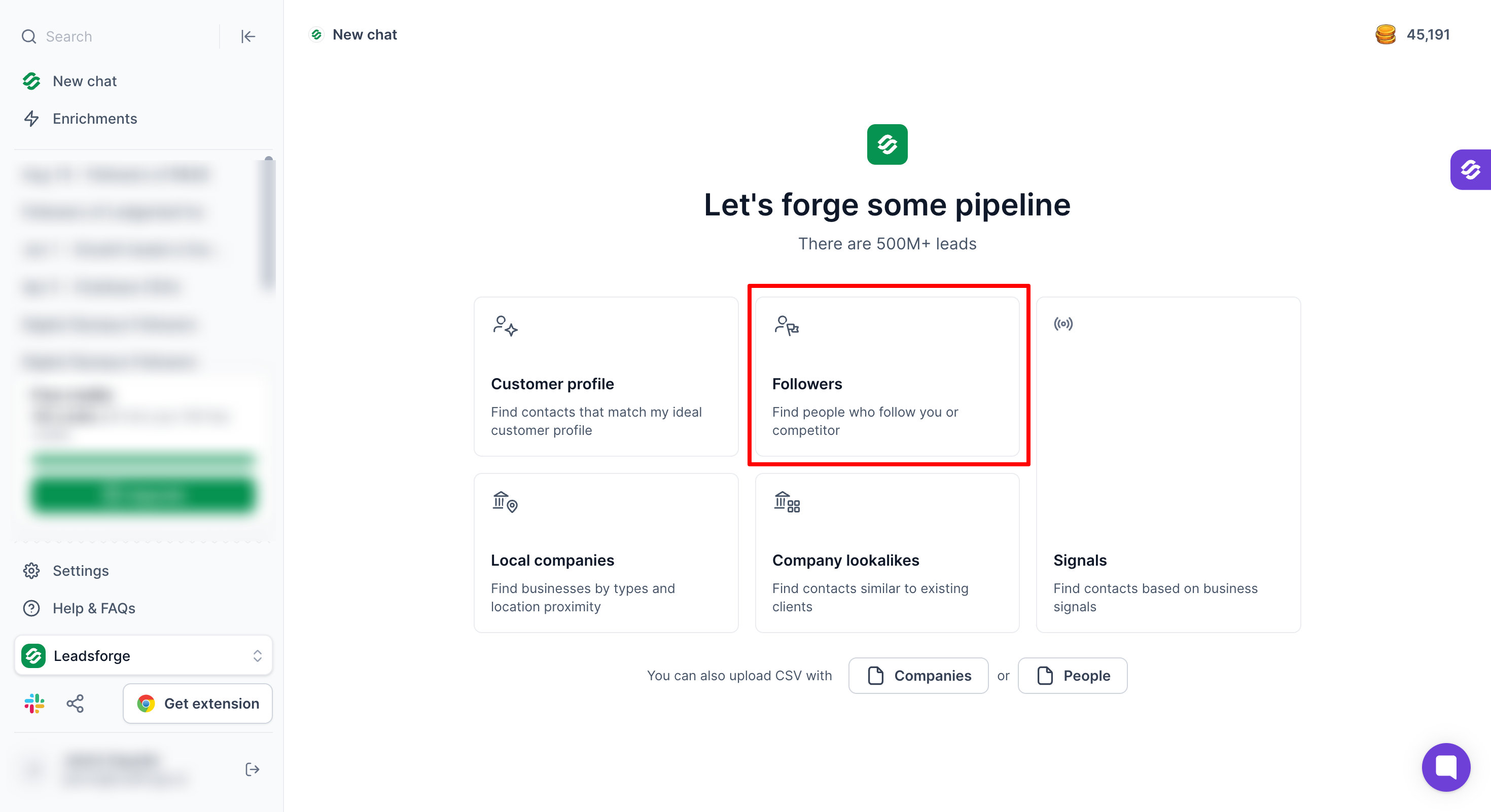
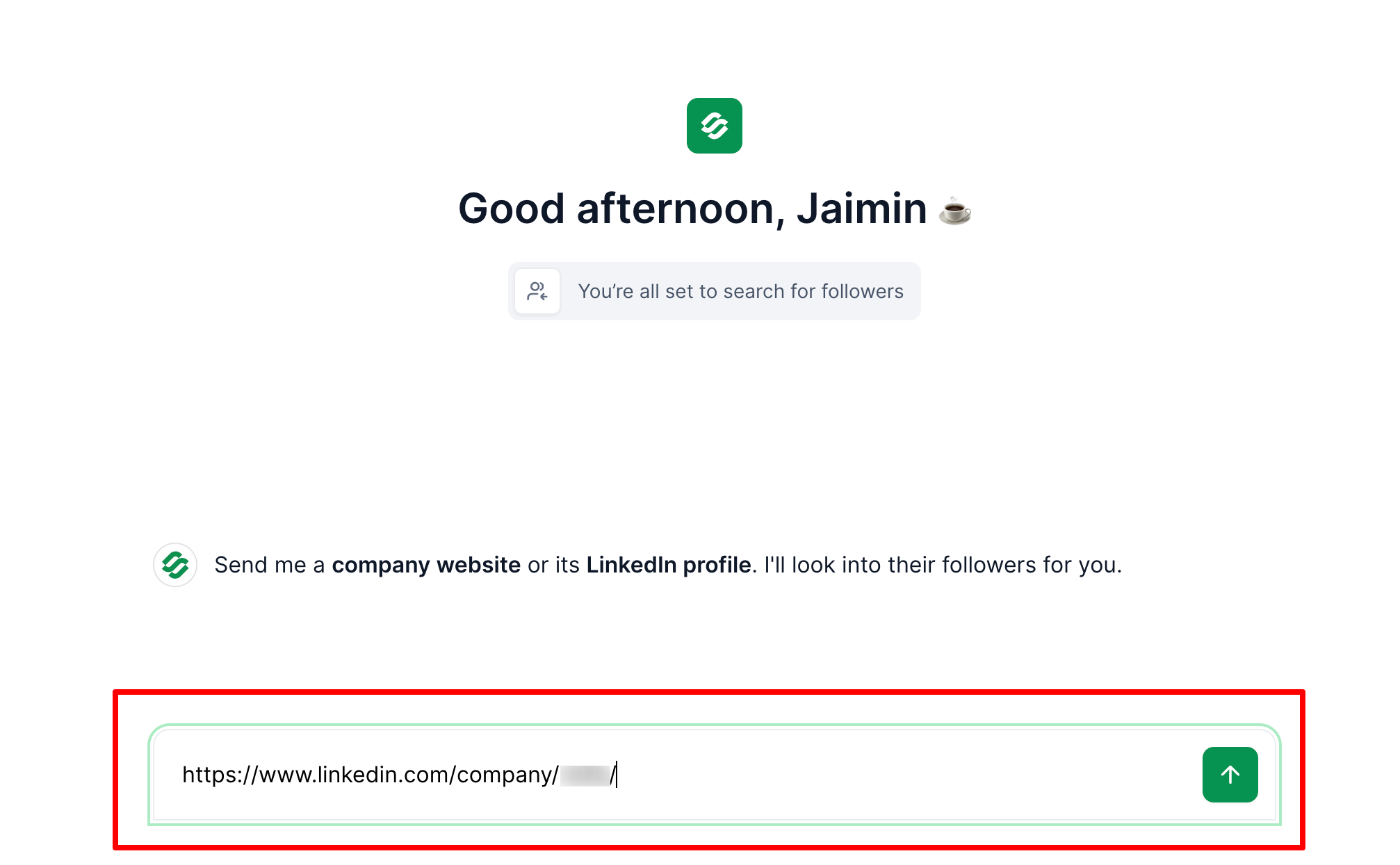
2. Paste the competitor's LinkedIn company URL into the Competitor Followers Search interface
3. Apply your ICP filters (job title, company size, seniority, geography) so the returned list narrows to people who could buy
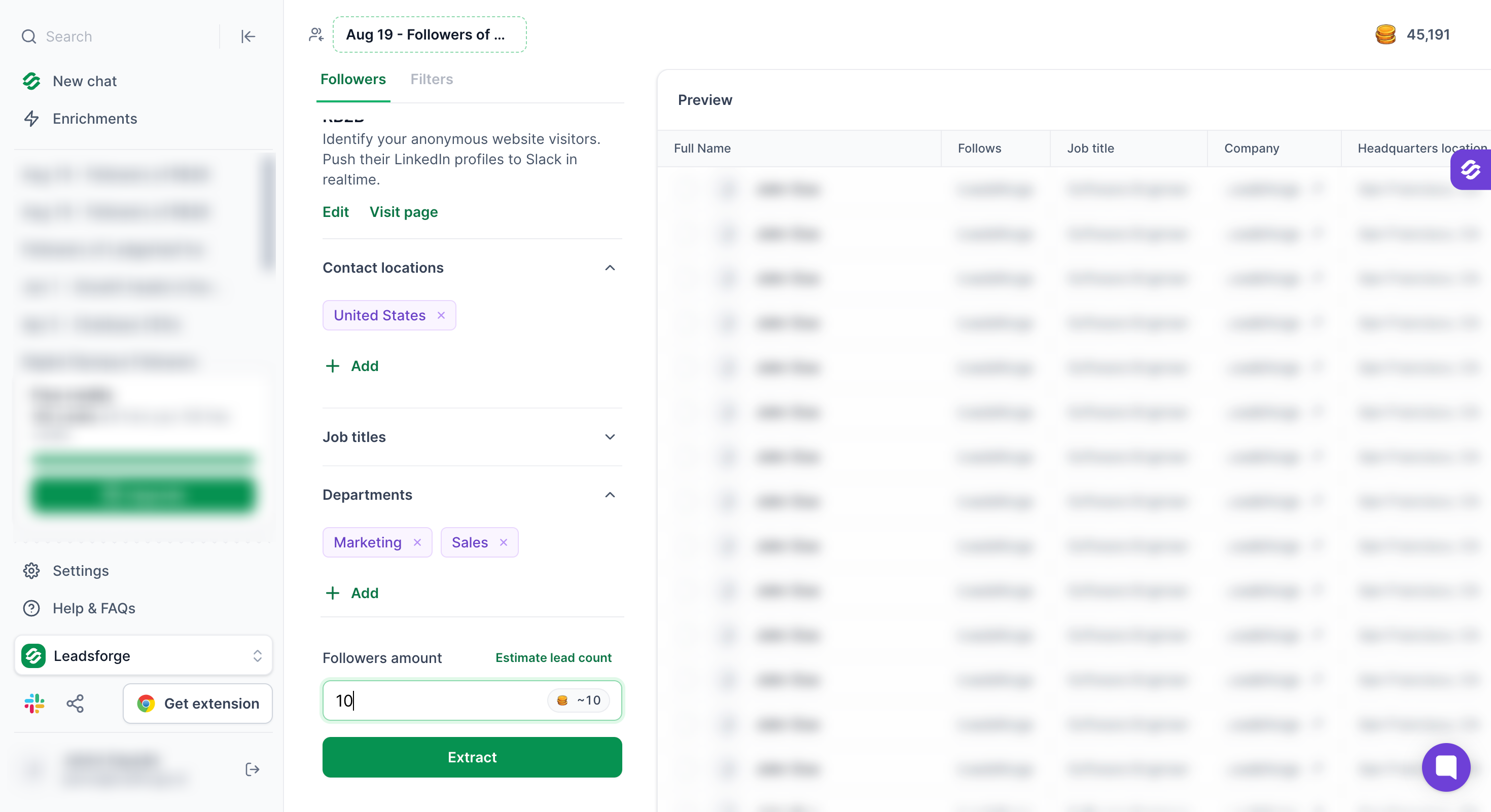
4. Run the search. The system returns a filtered list of profiles matching both the follower criterion and your ICP
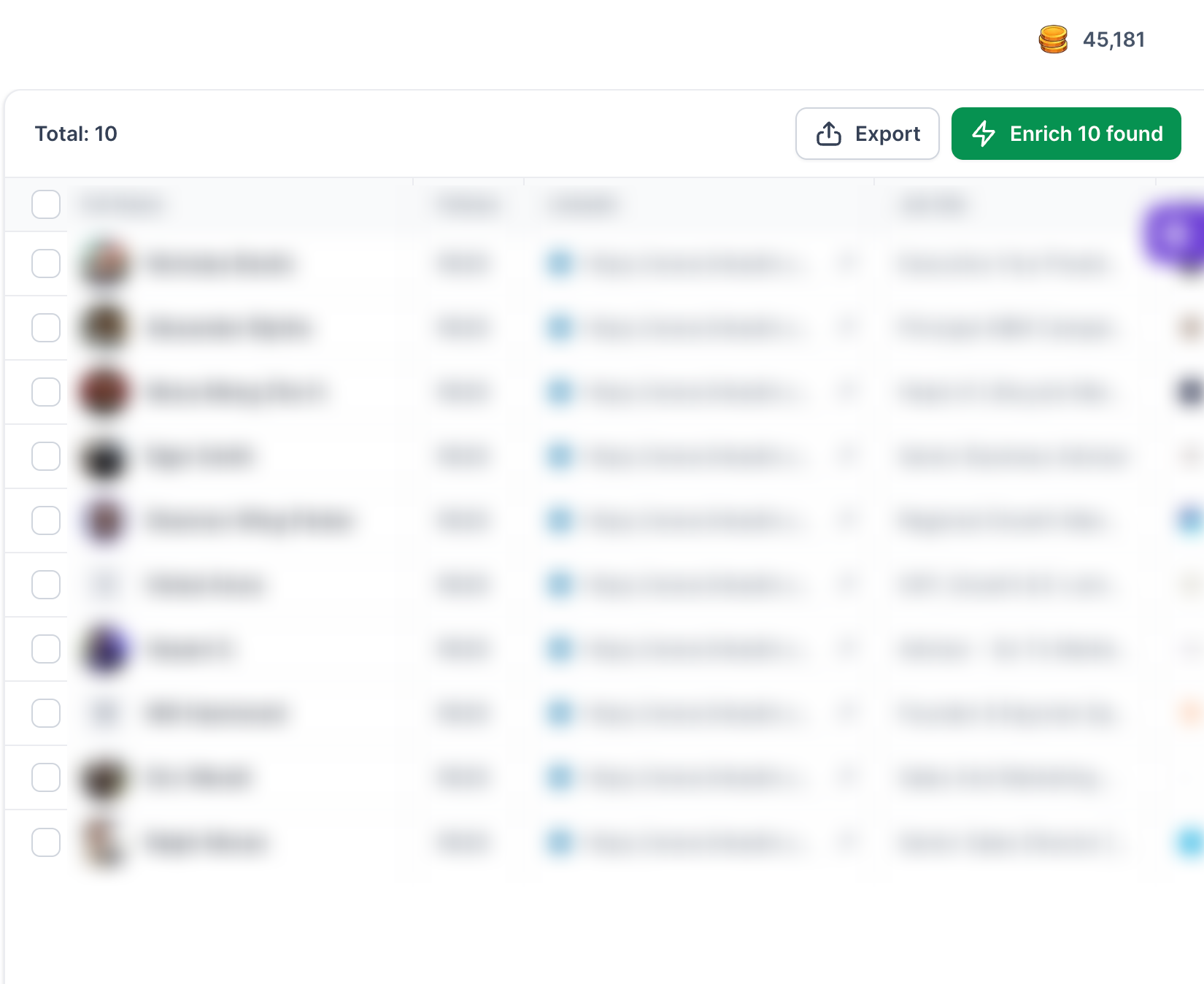
5. Cascade through Waterfall Enrichment. The lookup runs against multiple data sources on the same pass to attach verified work emails, phone numbers where available, and current firmographics.
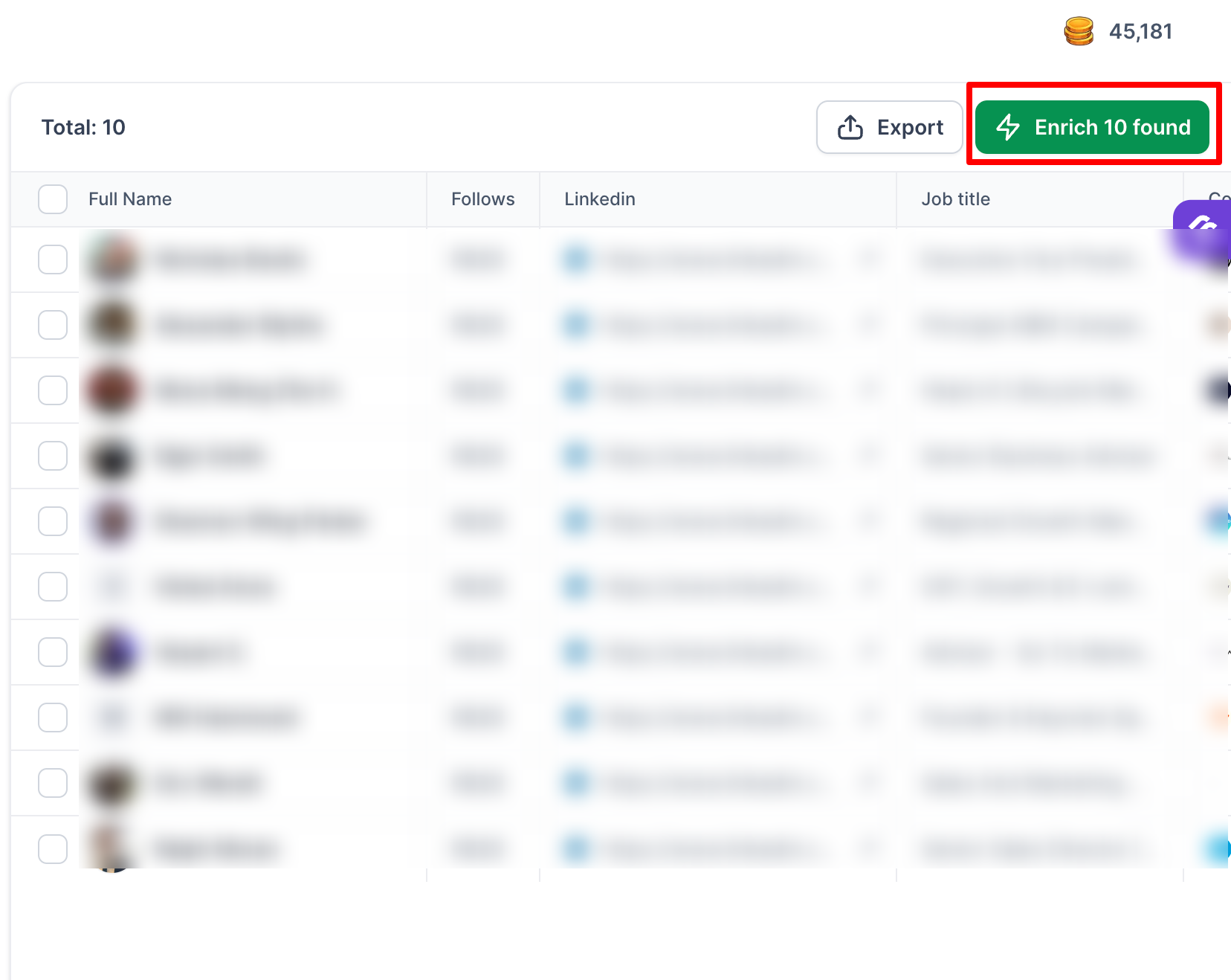
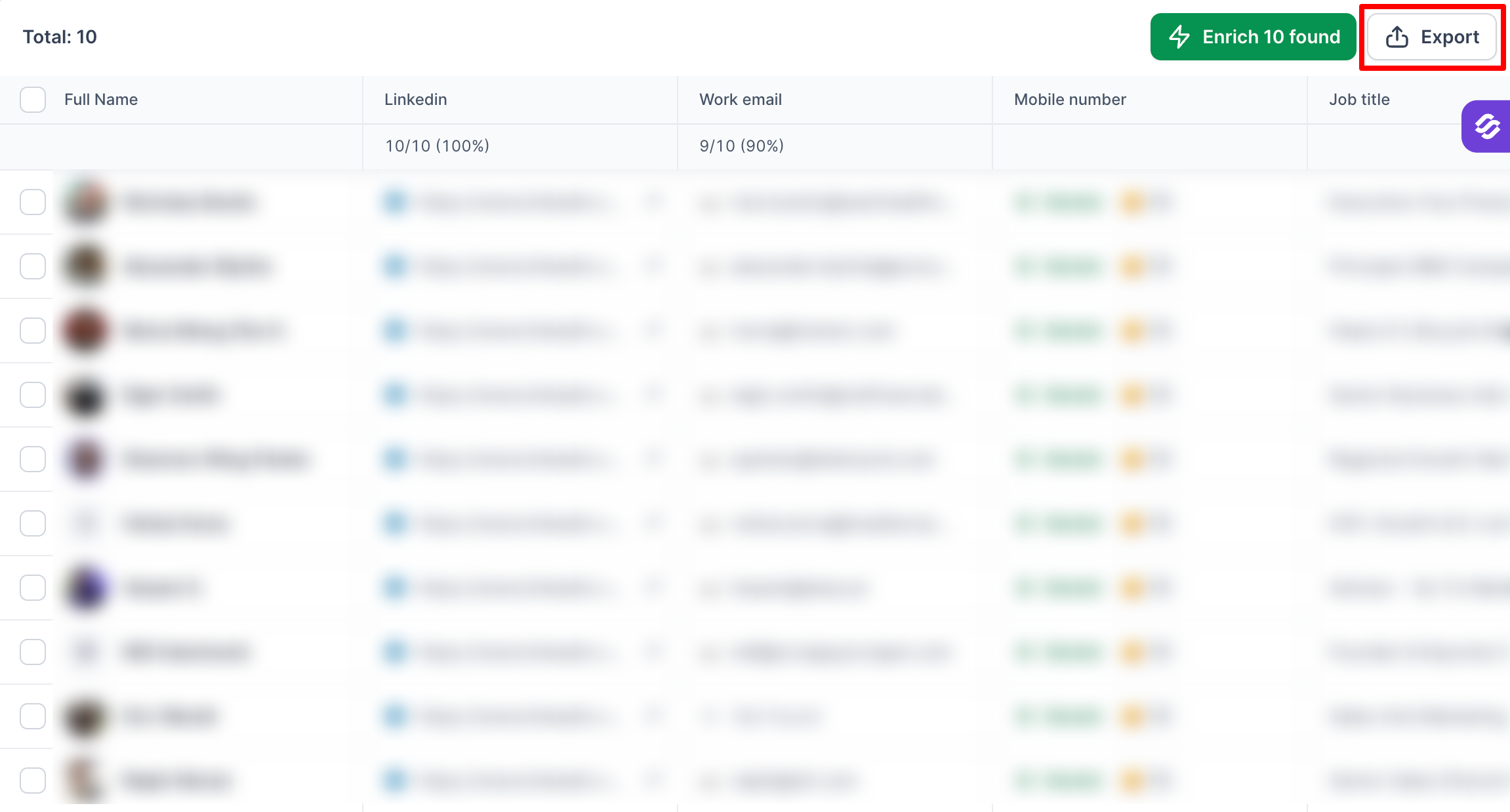
6. Export as CSV or push directly into a Salesforge sequence via the native integration.
Low. Data sourced from an independent B2B database; your LinkedIn account is not authenticated or in the request loop.
Bonus tool for manual browsing: Leadsforge Chrome Extension enriches a single profile on demand when you're already on a competitor's LinkedIn page and don't need a bulk export. Free to install, credits per lookup, uses the same enrichment infrastructure as the dashboard.
The workaround comes from a specific quirk in Sales Navigator: the "Following your company" spotlight filter uses the company associated with your profile's current employment.
If your profile lists you as an employee at CompetitorCorp, the filter surfaces followers of CompetitorCorp.
Salesforge users run this workflow via the Leadsforge Chrome Extension, which handles the extraction step from Sales Nav search results.
This is the highest-risk method in the article.
Creating a fake profile is a direct violation of LinkedIn's User Agreement, and enforcement is severe when it happens: permanent ban of the fake account, possible ban of real accounts linked by IP or device.
Route everything through a burner setup with no ties to your real identity, and understand that impersonating a competitor's employee can create legal exposure (fraudulent misrepresentation) if the competitor discovers and traces the workflow.
Part 2 covers the inverse of everything above: your own company's followers, where LinkedIn's own product does most of the work and third-party tools become optional enhancements.
For company pages you administer, LinkedIn gives you more than most people realize before they reach for a third-party tool. The catch is that the native view is admin-only and capped, and the workflow to export it programmatically changes the LinkedIn TOS risk profile.
The two methods below cover the safest baseline path and the higher-value Sales Navigator overlay, plus callouts on the export options and adjacent tactics worth knowing.
If you administer a company page, LinkedIn's Page Analytics dashboard shows you the last 500 to 1,000 individual followers plus aggregate demographics.
That's LinkedIn's official view, and it caps there. The HAR-file method extracts the full underlying dataset that LinkedIn's own front-end pulls from its internal API, using only your browser's built-in Developer Tools.
The workflow doesn't trigger LinkedIn's automation detection because you're not automating anything. You're browsing normally and recording the HTTP traffic your session generates.
Low on the detection side. You're browsing your own admin dashboard and recording HTTP traffic, which looks identical to normal user behavior from LinkedIn's perspective. On the agreement side, the capture-and-parse pattern is discouraged by LinkedIn's automated agreements. In practice, low-volume manual use has never produced account restrictions I've seen reported.
The single most underused feature in Sales Navigator is the "Following your company" spotlight filter.
It surfaces every person in your Sales Nav search results who follows one of your company pages, and it does so with LinkedIn's full search infrastructure attached.
The combination changes what this method gives you. Instead of scrolling through the last 500 followers your admin dashboard shows, you get the intersection of your ICP filter and your full follower base.
The workflow lives entirely inside LinkedIn's own product until the export step.
That is where the TOS risk profile changes, and where the tool choice matters.
Low for the native filter workflow inside Sales Nav. Medium for Chrome-extension-based export.
The most reliable pattern I've seen work in high-volume operations is: one Sales Nav seat dedicated to list building, separated from the seats AEs use for actual outreach and connection requests. Doubles the Sales Nav subscription cost.
For teams running follower-based prospecting as a core motion, the math still works.
The collection step matters less than most people think. What separates a follower list that generates pipeline from one that stays in a folder is the ICP filter, the enrichment layer, the segmentation logic, and the sequence. Five steps, in order. Each one is cheap to skip and expensive to skip badly.
The single most common failure mode I've watched is enriching the full follower list first, then filtering. It's the cost-inverted approach. Enrichment costs per lookup on every dedicated provider. Filtering costs nothing.
Filter first. Enrich second. Your ICP filter should include specific decision-maker titles (VP of Sales, not "sales professional"), a defined company size band, industry, geography, and seniority.
Most follower lists produce a 3 to 8% ICP match rate. A 5,000-follower export typically yields 150 to 400 qualified prospects. If your filter isn't cutting that hard, it isn't specific enough.
Apply the ICP filter inside the collection tool where possible rather than in a spreadsheet after the fact.
Traditional enrichment attaches contact data to each row. Signals-plus-source enrichment adds two fields that change how you sequence: which signal put this person on your list, and when it was captured.
Waterfall enrichment is what makes the contact data reliable. Cascading a single lookup through multiple data providers on the same pass (Leadsforge does this natively) improves work-email match rate from the 40 to 60% range that single-source enrichment hits to the 80 to 90% range that makes a sequence economically viable.
Beyond the follower list, Leadsforge's AI Lead Finder searches its 500M+ database by natural-language query, and Company Lookalikes expands the target set from your initial competitors to firmographically similar companies you may not have listed.
Run the enriched list through a verification pass (BriteVerify, ZeroBounce, NeverBounce, or Salesforge's built-in verification) before it enters a sequence.
Flag three categories: hard-invalid emails (drop), catch-all domains (send with caution, monitor bounce rate), and role-based addresses like info@ or sales@ (drop or route to a low-priority sequence).
The stakes are deliverability. Sending to a list with more than 5% invalid emails degrades your sender reputation across the ISP graph, not just for that campaign. Deduplicate against your existing CRM before the first email goes out.
The most valuable segmentation isn't demographic. It's the signal that put each person on your list, because different signals warrant different first-touch angles.
Mixing segments in one sequence dilutes reply rate. Running separate sequences per segment lets each subject line reference the specific signal.
The follower-based outbound play has one configuration Frank Bacon documented at Salesforge with a 20 to 40% reply rate on the follow-up message.
The play: competitor-follower extraction into a multichannel sequence. The LinkedIn connection request references the competitor relationship. The email follow-up runs a differentiated value prop.
The sequence: email first-touch → LinkedIn connection request with shared-context reference → LinkedIn message follow-up if accepted → email bump after 5 to 7 days.
Leadsforge Integrations pushes segmented leads natively into Salesforge, HubSpot, Pipedrive, Salesforce, and 20+ destinations. Leadsforge API + MCP is available for custom automation. Salesforge takes it from there and runs the multichannel sequence (email steps, six native LinkedIn actions, conditional logic) with replies across both channels landing in one shared inbox.
Both are separate Forge Stack subscriptions inside the same login.
After running through all four methods in this article, my default is simple: Leadsforge for competitor followers, LinkedIn's own tools for own-page work.
For competitor scraping, no other method comes close. Three reasons make Leadsforge the default:
GTM teams, SDR orgs, and outbound agencies default to Leadsforge for competitor-audience prospecting because it answers the question LinkedIn deliberately doesn't.
You can try any of the methods above.
But if your primary question is how to reach a competitor's followers, get started with 100 free credits on Leadsforge.ai.
Only for pages you administer. LinkedIn Page Analytics shows demographics for your full follower base plus profiles for the last 500 to 1,000 new followers. For competitor pages, LinkedIn shows nothing at the individual level, so competitor-follower data has to come from a dedicated provider like Leadsforge.
It violates LinkedIn's Terms of Service. The Ninth Circuit's 2022 hiQ v. LinkedIn ruling narrowed CFAA reach for public data but left TOS-based claims intact, so LinkedIn can restrict your account even when scraping isn't a federal crime. Native Sales Navigator workflows and sanctioned partner APIs don't carry this exposure.
You can't export them directly from LinkedIn. No button exists, and no Sales Nav filter returns them. Your options are dedicated providers like Leadsforge, which maintain follower-relationship data independent of your LinkedIn session, or engagement-signal extraction from specific competitor posts as a proxy for interest.
Leadsforge for competitor followers. Data collection stays independent of your LinkedIn session and Waterfall Enrichment attaches verified emails on the same lookup. LinkedIn Page Analytics plus Sales Navigator's spotlight filter is the safest combination for your own page.
From a single account, the widely-observed safe band is 30 to 50 follower-related actions per day. Higher volumes work when spread across burner accounts or routed through dedicated providers that don't authenticate your LinkedIn session. Aggressive extraction (100+ profile views or 50+ connection requests in 24 hours) triggers activity restriction within days.
.jpg)

![How to Use Jev for Cold Email Agents [Step-by-Step Guide]](https://cdn.prod.website-files.com/6436c3ac9f9fd0594d00b9fc/6acbd25fa19716f481a8dc43_Duplicate-me-open-graph%20(67).jpg)

![How to Use Jev for LinkedIn Outreach [Step-by-Step Guide]](https://cdn.prod.website-files.com/6436c3ac9f9fd0594d00b9fc/6acbc875da442e046e263670_Duplicate-me-open-graph%20(66).jpg)