My LinkedIn account was restricted in February 2026, and LinkedIn never told me why.
That is the frustrating part, because the notice almost never says what you did.
In my case, I had been sending connection requests at a pace that looked fine to me and clearly did not to LinkedIn. I only worked that out later.
Other people get restricted because a tool was running faster than they realised, or because something about their profile made LinkedIn doubt they were real.
Whichever it was decides what you do next, and getting that wrong is how a few days turns into a few weeks.
If LinkedIn is asking you to prove who you are, you upload a passport and then you wait for them to review it. If a tool caused the restriction, you uninstall the tool and wait for the date printed on your notice.
There is no point appealing the second one and no point waiting out the first.
This blog covers why LinkedIn restricts accounts, how to fix the one you have, and how to stay out of trouble once it lifts.
The message tells you which fix applies, so read it before you do anything else.
Whichever one you are looking at, do not open a second account.
LinkedIn allows one account per person, and people who open a second one often lose both, though some linkedin features may still work when only part of the account is limited
A restricted LinkedIn account is one where LinkedIn has limited some or all of what you can do while it checks the account.
Sometimes that means the whole account. Sometimes it only means one feature, like sending invitations.
It is not a ban. A ban is permanent and LinkedIn tells you plainly when that is what has happened.
A restriction is usually a pause, and most of them end.
What LinkedIn is reviewing comes down to one of four things, all listed on its own help pages.
One more thing gets called a restriction when it is not. When you hit your weekly invitation limit, LinkedIn has capped one feature rather than locking your account.
The limit resets on its own, and support cannot lift it early even if you ask them to.
LinkedIn rarely restricts an account at random. Something in the pattern looked wrong to it, and these are the things that usually cause it.
This is the most common one, and it catches people on new profiles hardest.
LinkedIn does not publish a weekly number, so nobody can tell you where the line sits. Its help pages do say that too many invitations or too many connection requests in a short space of time can get your invitations restricted.
A connection request pattern can look unsafe even before LinkedIn shows a formal restriction.
LinkedIn looks at what happens to your invitations, not just how many you send.
Its help pages list three things that count against you here. Requests that get ignored, pending connection requests, and requests people mark as spam.
A large backlog of pending requests can make your activity look spammy.
If a lot of yours fall into those groups, LinkedIn reads it as poor targeting.
LinkedIn does not allow third-party software that automates activity on the platform.
Its help pages say so plainly, and they warn that people using these tools risk having their accounts restricted.
That does not mean every tool gets you restricted. Plenty of teams run LinkedIn automation tools for years without a problem. What gets you restricted is running one badly.
Three things separate the two.
Nobody has proved that a specific detection leads to a specific restriction.
But if you are running a Chrome extension LinkedIn does not allow, it knows.
If your name, photo, or job title looks made up, LinkedIn may decide the profile is not a real person.
This one catches people who did nothing wrong. A nickname instead of a legal name, or a missing photo, is enough to start an identity check, since LinkedIn expects accurate information on the profile.
Fake or inconsistent profile details can also lead to permanent account restrictions.
If you are renting a LinkedIn profile rather than using your own, where you rent it from decides most of your risk. Some providers sell accounts that get banned within weeks, and others share logins between buyers, which is the fastest route to a permanent ban.
A credible provider gives you an ID-verified account with a real history, its own proxy, and a written replacement policy. I covered which ones do that in 8 places to rent LinkedIn accounts.
Expect some losses either way. Even with the better providers, roughly 30% of rented profiles need replacing in the first 90 days.
Sending one message to fifty people looks like spam, even when the message is a good one.
LinkedIn is reading the pattern rather than the words, and repetitive outreach can be read as spam behavior. What helps is to personalize messages so it does not look automated.
A new device, a new country, a VPN, or unusual ip addresses can trigger a security check.
Abrupt changes without a consistent dedicated IP address can look more suspicious.
LinkedIn treats this as a possible account takeover. That is one of its four official reasons for restricting an account. It usually leads to identity verification rather than anything worse.
The first thing to work out is whether your restriction is temporary or permanent. That decides whether you are waiting or appealing.
These are all forms of LinkedIn account restrictions, but the chances of recovery differ.
Most are temporary. LinkedIn's own wording is that restrictions "may be temporary or indefinite", and indefinite is the one that should worry you.
More severe restrictions can make you lose access to the whole account, not just one feature.
LinkedIn names four things that push a restriction from temporary to permanent.
Serious or repeated content violations can also become permanent.
Everything outside those four is usually recoverable, even when it does not feel like it at the time.
You will see the phrase LinkedIn jail used for the middle ground, where the account still works but something has stopped.
It is not a LinkedIn term and there is no page explaining it. People use it for two different things. Sometimes they mean an invitation restriction, where you can still log in but cannot send requests. Sometimes they mean their posts have stopped getting views.
LinkedIn does not use the word shadowban either. Its policies say it may limit how far a piece of content travels, label it, or take it down. So the effect people describe is real, even though the word for it is not LinkedIn's.
There is no single answer, and LinkedIn publishes a timeline for only one type of restriction.
Here is what it does tell you, and what it leaves out.
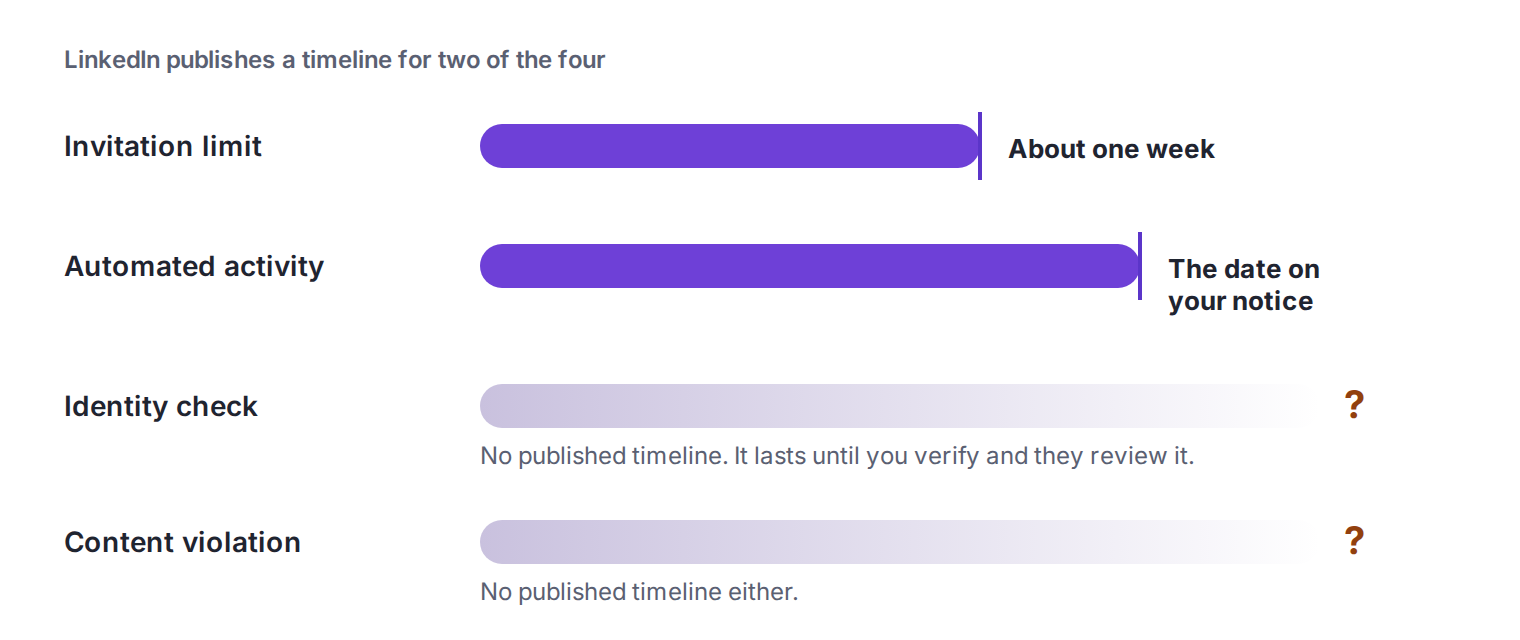
That means you get a date for two of the four. For the other two, you wait without one.
A restriction usually means LinkedIn wants to review your account rather than close it.
These 7 steps are what gets most people back in, in the order I would do them.
Everything else depends on what LinkedIn is actually asking for, so start by reading the notice properly.
If LinkedIn is asking for a government ID, a phone number or a CAPTCHA, you are looking at an identity check.
Some users first see this after opening the LinkedIn app and finding they have been logged out.
LinkedIn may also send a notification explaining the reason for the restriction by email. If the notice mentions automated activity, a tool caused it. If there is no verification step and no explanation at all, it is usually still an identity check.
The table near the top of this article matches each message to its fix.
Do not send invitations, do not message anyone, and do not work through profiles while you wait.
Trying to test whether the account still works is the most common mistake people make. Every attempt adds to the pattern LinkedIn is already looking at.
The best thing you can do in the first day is nothing at all.
Disconnect anything that was running on your account without you watching it. That means scrapers, Chrome extensions you did not vet, and any tool you stacked on top of another one.
LinkedIn does not allow third-party software that automates activity on the platform, and it now checks browsers for thousands of extensions it has not approved. Leaving one installed while you ask for your account back is working against yourself.
Uninstall them properly rather than just logging out. You can reconnect a tool you trust once the account is back, at a volume you would be happy to send by hand.
Upload a clear photo of a passport, driver's license, driving licence or ID card as soon as you are asked to verify identity.
The name on your profile has to match the name on the document, and this is where most verifications fail. If LinkedIn cannot verify identity on the first try, you may need to resubmit and wait.
The next section covers the whole process, including what to do when the two names do not match.
If the account is still restricted after you have verified, the next step in the account recovery process is an appeal through the Help Center.
Say when the restriction started, what you were doing beforehand, and what you have already tried. If you received an email or message explaining the restriction, mention that too.
Keep it short and factual. Long messages explaining how important your account is do not help, and support sees hundreds of those every day.
LinkedIn allows one account per person, and opening a second one while the first is restricted is how people lose both.
One person wrote about being permanently banned and then opening a replacement account. That one was blocked too, because the ban applied to them rather than to the profile.
Whatever state your account is in, it is still the one worth waiting on.
Some restrictions lift in hours while others take weeks. Some cases stay limited while LinkedIn completes its review process.
LinkedIn may also ask you to verify more than once along the way.
When the account does come back, do not pick up where you left off. Going straight back to the activity that caused it is how people get restricted a second time.
Repeated suspensions are one of the four things that make a restriction permanent and can eventually lead to a permanent account ban.
Give it a week of ordinary use before you send anything at volume.
If LinkedIn has asked you to prove who you are, it will send you to Persona.
This is the company LinkedIn uses for identity verification, and it is named on LinkedIn's own help pages.
The process takes a few minutes. Getting it right the first time is what matters. A failed attempt is the most common reason people wait weeks instead of days.
You will need a government-issued ID. A passport, a driving licence or a national ID card all work.
LinkedIn does not publish how long the review takes after that.
This is the part that catches people, and no other article mentions it.
Persona compares the name on your document with the name on your LinkedIn profile.
If your profile says Mike and your passport says Michael, the check can fail. The same goes for a maiden name, a missing middle name, or a profile set up under a nickname.

Fix the profile before you verify rather than after. LinkedIn has a separate form for name changes, and it works even when you cannot do much else with the account.
If you have already failed a check for this reason, correct the name and start the verification again. Appealing the result will not help.
Plenty of people do not want to upload a passport to a social network, and that is a fair position to take.
LinkedIn lists other ways to recover an account on the same help page. They are slower and they do not work in every case, but the ID route is not the only one.
Worth knowing: Persona only shares the outcome with LinkedIn after you click to approve it.
That does not make the concern go away, but it is more control than most verification systems give you.
Every official route LinkedIn gives you starts with logging in. That is fine when the restriction only limits a feature. It is useless when the restriction is the thing stopping you from logging in.
This is the position a lot of people end up in, and it is the part no article covers.
LinkedIn usually emails you when it restricts an account, and that email often contains a link that works without a login.
Check your spam folder, and search for messages from LinkedIn instead of scrolling. If you find one, use the link in it before you try anything else, because it is the only path built for this situation.
Some of LinkedIn's help forms do not need an active session.
The name change form is one of them. That matters if your verification failed because your profile name did not match your ID, because you can correct it there and then restart the check.
LinkedIn has also been rolling out a second-look form for accounts suspended over automated activity. It is not available to everyone, so you may not see it.
This sounds too simple to matter, and sometimes it is the whole problem.
If the restriction came with a security check, LinkedIn may be blocking the session rather than the account. Logging in from your phone on mobile data sometimes gets you past the screen that is stopping you.
It is worth two minutes before you assume you are locked out entirely.
Creating a second account to contact support from does not work, and it puts the new account at risk too.
Messaging LinkedIn on other platforms rarely gets a response. People try X and the company's own LinkedIn page, and the replies they get point them back to the Help Center they cannot reach.
Repeated support tickets do not speed anything up either. One person reported sending seventeen over eight months without a single reply.
If you search for LinkedIn's connection limit, you will find the same number everywhere.
It's 100 invitations a week, repeated across dozens of articles as though LinkedIn had announced it. LinkedIn never did.
There is no weekly invitation number anywhere in its help pages.
There are two of them, and neither is the one everybody quotes.
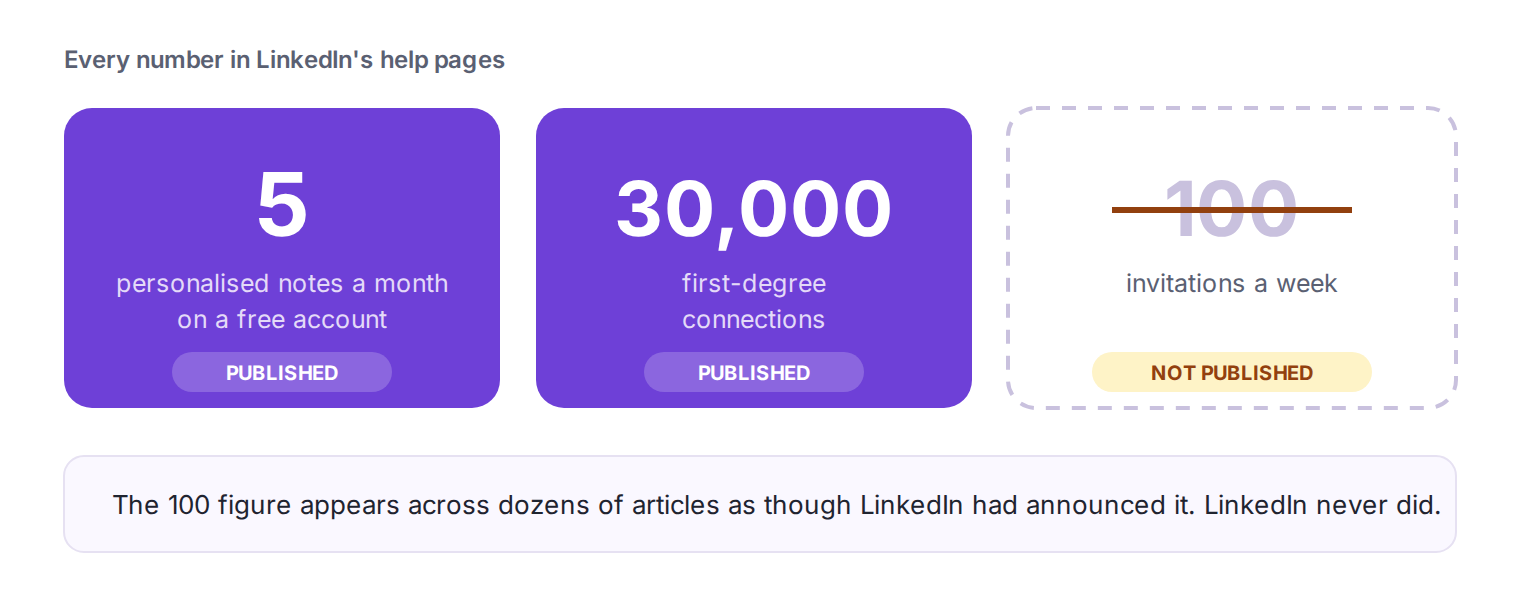
Everything else is described in words rather than figures. LinkedIn says that sending many invitations within a short amount of time can get your invitations restricted.
That tells you the direction without telling you the line. It does not say how many counts as many, and it does not say how short a time it means.
A published number would turn into a target, and that is almost certainly why there is not one.
If LinkedIn announced a limit of a hundred a week, every automation tool would be set to ninety-nine by the end of the day.
So the limit moves instead. It probably moves from one account to another, depending on how old the profile is and what happened to your last batch of invitations.
That is frustrating when you want a rule you can follow.
It also means any article quoting a safe daily number is guessing, including the ones that sound confident.
Getting the account back is the easy part. Most people who get restricted twice do it the same way both times.
The habits below are worth building before you go back to normal volume. Keeping your LinkedIn account safe means following platform rules and avoiding patterns LinkedIn reads as spam.
Before you scale activity again, review LinkedIn's guidelines, community policies, professional community policies, and the user agreement.
Sending fewer invitations to better-chosen people fixes more than any of the other rules.
LinkedIn told you what it watches. It is not the number you send, it is what happens to them afterwards. Fifty invitations that all get accepted look nothing like fifty that sit unanswered. You sent the same number either way.
So the fastest way to stay out of trouble is to stop sending to people who were never going to say yes.
Every tool that automates LinkedIn actions carries the same risk, whatever its marketing says.
LinkedIn does not allow third-party software that automates activity on the platform. In 2026 it started checking browsers for thousands of extensions it has not approved. A tool that promises safe daily limits is guessing at a number LinkedIn has never published.
If you need to reach people at volume, email does not carry this risk. It is slower to set up and nobody can restrict your inbox for sending too much.
Most restrictions end. The ones that drag on usually do so for one of three reasons. Somebody verified with the wrong name, kept trying to log in, or opened a second account while they waited.
So work out which of the four types you have, then do the one thing that type needs and leave it alone. That is genuinely the whole method.
The harder question comes after you get the account back. If LinkedIn outreach is how you find people, a restriction is not a one-off problem. It is a reminder that the account is borrowed. LinkedIn decides when you stop using it.
That is why I run email alongside LinkedIn rather than instead of it. Nobody can restrict your inbox for sending too much, and the two channels together mean one restriction does not stop everything.
Salesforge runs both in one sequence if you want that setup. The trial runs 14 days and needs no card.
LinkedIn restricts accounts for four reasons. Something you posted broke its policies. It doubts the profile belongs to a real person. It thinks somebody else got into your account. Or a tool was automating activity on it. The message on your screen tells you which one applies.
It depends on the type, and LinkedIn only publishes a timeline for one of them. An invitation restriction typically lasts about a week. An automation suspension ends on the date in your notice. Identity checks have no published timeline, and people report anything from a day to several months.
LinkedIn asks for identity verification when it doubts the profile belongs to a real person. It also asks when it thinks somebody else accessed your account. It sends you to Persona, the company it uses for verification. Upload a passport, driving licence or ID card with a name that matches your profile.
Check your email first, because the message LinkedIn sent you often contains a link that works without a login. Some help forms also work logged out, including the one for changing your name. Messaging LinkedIn on other platforms rarely gets a reply.
No. LinkedIn allows one account per person, and opening a second one while the first is restricted is how people lose both. One person wrote about being permanently banned and opening a replacement account. That one was blocked too, because the ban applied to them rather than the profile.
You cannot delete an account you cannot log into, and that catches most people out. If you can still log in, closing it is under Settings and Privacy, then Account preferences. Deleting it does not clear a restriction or let you start fresh.
Sometimes, yes. One user reported being restricted right after setting up an authenticator app, with LinkedIn citing possible unauthorised access. Another was told later that the restriction had been a mistake. If you cannot work out what you did, appeal rather than assuming you broke something.
A VPN can trigger a security check, because logging in from a new country looks like somebody else getting into your account. That usually leads to identity verification rather than a restriction. LinkedIn does not publish a position on VPNs, so anyone telling you they are banned or safe is guessing.
LinkedIn does not publish a number. The widely quoted figure of 100 a week appears nowhere in its help pages. What LinkedIn does say is that sending many invitations in a short time can get your invitations restricted. It also watches how many of yours get ignored or marked as spam.
Sometimes, and it is slow. One person got their account back about 24 hours after submitting an ID. Another sent 17 tickets over eight months without a single reply. Keep your message short and factual, and do not send a second one before the first has been answered.