I’ve seen teams spend weeks perfecting their cold email copy, only to find out the real problem was underneath it.
Their domains weren’t set up properly. Mailboxes weren’t warmed up. DNS authentication was incomplete. Sending volume was too aggressive.
That’s why I always treat infrastructure as the first step in cold outreach, not an afterthought.
In this guide, I’ll show you exactly how to set up your domains, mailboxes, DNS, warm-up, and sending limits, plus when it makes sense to stop doing it all manually.
Cold email infrastructure is the setup you build behind your outreach before you start sending.
It’s the domains and inboxes you use, how you prepare them, and how you manage your sending as your campaigns grow.
The goal is simple: give your emails a reliable path to your prospects’ inboxes.
This distinction trips up almost everyone in their first year of outbound, so it's worth being clear about it up front.
A cold email software tool or sequencer is the layer that handles sending itself: scheduling emails, automating follow-ups, tracking replies, and reporting on results. It's the interface where you build sequences and hit launch.
Cold email infrastructure, on the other hand, is what those emails actually travel on. It's the domains, the DNS setup, the mailboxes, and the sender reputation attached to each account. The sequencer just plugs into it.
Think of it as the difference between a driver and the car they drive. The sequencer is the driver. The infrastructure is the car. A skilled driver in a broken car doesn't go anywhere, and that's exactly why you need to get the infrastructure right before you invest in the sequencer.
A functioning cold email infrastructure has five components, and each depends on the others. Skip any single component and the value of the rest drops significantly.
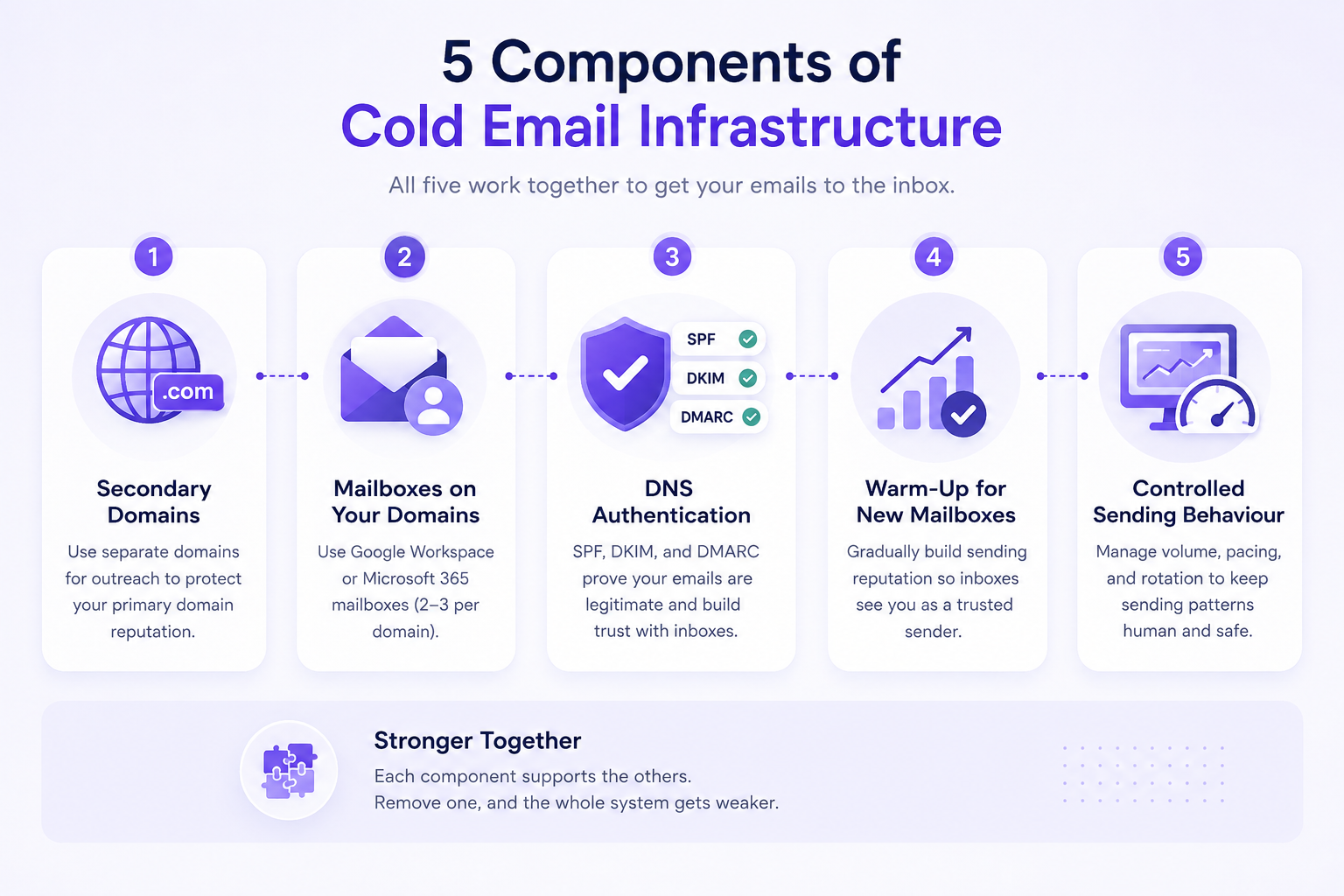
Secondary domains are dedicated sending domains that you keep separate from your main business domain. They exist specifically so that any reputation damage from cold campaigns stays contained and doesn't spill onto the domain you use for invoices, contracts, support tickets, and internal communication.
Most teams register three to five secondary domains and rotate sending across them. The variations usually follow a pattern like tryacme.com, getacme.com, or acmehq.com when the main domain is acme.com, since these look believable to a prospect who checks who sent the message.
Mailboxes are the actual email accounts you send from, hosted on your secondary domains. Most teams use Google Workspace or Microsoft 365 accounts, because receiving servers trust mail from mainstream providers far more than they trust custom SMTP setups.
The typical ratio is two to three mailboxes per domain, which spreads volume without concentrating too much reputation risk in any one account. Beyond three mailboxes on a single domain, filters start to read the concentration as a warning sign.
DNS authentication is a set of three records that prove to receiving servers that your mail is legitimate. SPF tells the server which sources are allowed to send on behalf of your domain, DKIM adds a cryptographic signature that proves the message wasn't altered in transit, and DMARC tells the server what to do when SPF or DKIM fails.
All three records get published in your domain's DNS settings. If any are missing or misconfigured, filters treat your mail as suspicious, and depending on the DMARC policy, the receiving server may reject it outright.
Warm-up is a controlled ramp that builds sending history on a new mailbox before you use it for real campaigns. It works by sending small volumes of test emails between real accounts in a warm-up network, where those emails get opened, replied to, and moved out of spam.
The point of warm-up is to generate positive engagement signals that receiving servers learn to associate with your domain. Without warm-up, your first campaign looks like a cold start to filters, and cold starts get flagged as suspicious sending patterns.
Sending behaviour is the operating layer that ties everything together during a live campaign. It covers daily send caps per mailbox, randomized intervals between sends, sender rotation across accounts, and gradual ramp-up when you increase volume on a new mailbox.
Get any of these wrong, and you undo the reputation work the other four components built. A single mailbox blasting two hundred emails in an afternoon can damage the reputation of every other mailbox on the same domain, because reputation is calculated at the domain level.
If you're still new to the channel, the cold email fundamentals guide covers the strategy side that sits above the infrastructure layer.
Good cold email copy only works if your emails actually reach the inbox. Your infrastructure plays a big role in making that happen.
Your sending domains build a reputation over time. Poor setup, aggressive sending, or weak engagement can damage that reputation and make future emails harder to deliver.
Inbox providers look at more than your subject line. They consider your domain, authentication, sending history, and overall sending behavior before deciding where your email should land.
Cold outreach carries more deliverability risk than regular business email. Using separate sending domains keeps that risk away from the domain you rely on for invoices, contracts, support, and other important emails.
Sending more emails from the same few inboxes can quickly create problems. A well-planned setup spreads your volume across multiple domains and mailboxes instead of putting all your sending reputation in one place.
Warm-up, authentication, sending limits, and mailbox rotation all work together. When these pieces are managed properly, you can focus on your targeting and copy instead of constantly wondering why your reply rates are dropping.
Secondary domains are the foundation of the entire stack. Get this layer wrong, and every layer above it produces weaker results.
Sending cold outreach from your main business domain is the single most expensive mistake I see teams make. If the domain earns a poor reputation or lands on a major blacklist, the damage doesn't stop at outreach. You also lose the ability to send invoices, receive support replies, close contracts, and reset user passwords, because all of those emails route through the same domain.
Domain reputation recovery takes months, not days. One bad month of cold sending from your primary domain can cause quarters of business disruption while you rebuild trust with receiving servers.
Secondary domains isolate the risk. If one of them earns a poor reputation, you retire it and keep sending from the others while your real business domain stays untouched.
Most teams start with three to five secondary domains, which gives enough mailbox capacity to hit meaningful volume without concentrating reputation risk in a single place. The reasoning behind spreading domains is that receiving servers assess reputation at the domain level, so distributing your mailboxes across four domains is substantially safer than concentrating all of them on one.
Buy the domains from a single registrar for easier DNS management, and budget roughly ten to fifteen dollars per domain per year at most mainstream registrars.
The domains you pick should read as believable variations of your main brand, so that a prospect who checks who the email came from sees something recognizable rather than something suspicious. If your main domain is acme.com, register variations like tryacme.com, getacme.com, or acmehq.com.
Avoid hyphens, numbers, and unusual top-level domains like .xyz, since filters treat these as risk signals and prospects treat them as scams. Stick to .com wherever possible because it carries the strongest trust signal for both filters and humans.
Once you own the domains, point each one at your main website with a 301 redirect. Anyone who checks the sending domain then lands on something real rather than a parked page, which builds trust in both directions.
If you want a step-by-step walkthrough of the full domain setup process, the guide on how to set up domains and mailboxes for cold email covers it in more detail.
Freshly registered domains carry no sending history, and no history reads as risk to receiving servers. This is why registering a domain and sending outreach the same day almost always ends badly.
Register your domains two to four weeks before you plan to send anything, and publish the DNS records immediately so the domain has a configured footprint while it ages. Domain age and warm-up run in parallel, and the aging clock starts at registration rather than at your first campaign.
Domains carry reputation, but mailboxes do the actual sending. The choices you make at this layer affect both deliverability and how much manual maintenance the setup demands over time.
The safe range is two to three mailboxes per domain, with three as the practical ceiling. Stacking more mailboxes on a single domain concentrates too much volume in one reputation bucket, and that concentration is exactly the pattern filters look for when identifying automated cold email campaigns.
If your volume math tells you that you need more capacity, the correct move is to buy another domain rather than stretch an existing one further. This keeps your risk distributed and your reputation resilient.
Both providers work well for cold outreach, and neither is clearly better across every scenario. Google Workspace tends to deliver more reliably into Gmail inboxes, while Microsoft 365 has a delivery edge into Outlook and enterprise environments.
Because most B2B prospect lists include a mix of Gmail-hosted and Microsoft-hosted recipients, splitting your mailbox fleet across both providers usually produces the best results. There's also a risk argument for splitting: if one provider tightens its enforcement rules, half your capacity survives.
Expect to spend around six to seven dollars per mailbox per month when buying accounts directly from Google or Microsoft. That's before the time cost of configuring DNS, warm-up connections, profile photos, and signatures on each account manually.
Empty mailboxes look automated to both filters and prospects. Mailboxes with photos, full names, and complete signatures look like real people, which affects both deliverability and reply rates.
For each mailbox, add a real profile photo, set the display name to a specific person rather than a department, and configure a signature that includes a phone number and a company website link. These signals cost about ten minutes per mailbox to set up manually.
The manual approach doesn't scale linearly, though. Setting up twenty mailboxes with photos, signatures, and DNS configuration typically takes a full day of admin work, which is why teams past a certain size start looking at automated provisioning options.
DNS authentication is the layer people most often skip because it involves editing text records at a registrar. It's also the layer that gets mail rejected outright when misconfigured, so it's worth taking the time to set it up correctly.
SPF is a TXT record in your domain's DNS that lists the servers authorized to send mail on your domain's behalf. Two rules matter for cold email deliverability.
First, you can only publish one SPF record per domain. Publishing multiple SPF records causes a permanent authentication failure that no filter will forgive.
Second, an SPF record can only contain ten DNS lookups. Exceed that limit and the entire record becomes invalid, which means your mail fails SPF checks even though the record technically exists.
Both mistakes are common, and neither throws an obvious error when they happen. For a deeper walkthrough of SPF syntax and common configuration errors, the SPF records guide covers this in more depth.
DKIM adds a cryptographic signature to every outgoing email. The receiving server verifies that signature against a public key you've published in your DNS, which proves the message hasn't been altered between sending and delivery.
Whenever your provider supports it, use a 2048-bit DKIM key rather than the older 1024-bit standard. Google Workspace defaults to 1024-bit and has to be manually switched to 2048-bit in the admin console, which most teams forget to do.
DMARC tells receiving servers what to do when SPF or DKIM checks fail. It also generates reports back to you about what's happening with your mail, which is how you catch alignment problems before they become deliverability problems.
Start with a policy of p=none for the first two weeks after publishing your DMARC record. This monitors your mail without blocking anything, which gives you time to catch and fix configuration errors before they cause damage.
Once your DMARC reports come back clean, move to p=quarantine. Rushing straight to a strict policy on a misconfigured domain will block your own legitimate mail, so the two-week monitoring window is important.
Passing authentication and aligning authentication are not the same thing. Alignment means that the domain in your From address matches the domain that SPF and DKIM authenticated, and receiving servers care about alignment as much as they care about the checks passing.
To verify alignment, send a test message from each configured mailbox to a Gmail account you control. Open the original message view in Gmail and confirm that all three of SPF, DKIM, and DMARC show a pass status with the correct domain alignment.
Do this on every domain individually. Records don't inherit from one domain to another, and a single misconfigured domain in a rotation pool of ten will drag down performance across the entire pool.
Warm-up is what builds sending history on a new mailbox, so that your first real campaign doesn't look like a cold start to receiving servers. It's the least glamorous part of the setup and also the part where impatience causes the most damage.
Plan for fourteen to thirty days of warm-up per mailbox before you send any real cold outreach. Anything shorter than two weeks isn't really warm-up, it's a countdown that doesn't build enough reputation to matter.
Volume ramps gradually during warm-up. Most warm-up systems start each mailbox at around five emails per day and build toward thirty or forty by the end of the cycle. During this time, the warm-up traffic gets opened, replied to, and pulled out of spam by real accounts in the warm-up network, which is what generates the positive engagement signals that build reputation.
Warm-up isn't a phase you finish before campaigns start. You leave it running permanently at reduced volume, even after live campaigns are underway.
The reason is that cold campaigns naturally produce weak engagement signals. Most recipients never reply to a cold email, and many delete it without opening. Continuous warm-up offsets those weak signals with positive ones, which keeps your sender reputation stable over time. The warmed-up email deep dive covers the engagement patterns in more detail.
There are three early warning signs worth watching for during the warm-up cycle. First, warm-up emails start landing in spam inside the warm-up network itself, which is often the earliest indicator that reputation is degrading. Second, domain or IP reputation drops in Google Postmaster Tools while warm-up is actively running. Third, a mailbox repeatedly disconnects from your sequencer or warm-up tool.
Any of these signals should pause your plans to move that mailbox into live campaigns until you've diagnosed and fixed the underlying issue.
Sending volume is where the majority of self-built setups fall apart. Not because of a bad DNS record or a poorly configured mailbox, but because of impatience about how quickly to scale up sending.
The safe range for most teams in 2026 is ten to twenty cold sends per mailbox per day. Some teams push thirty to fifty and hold their deliverability, but the risk of triggering filters rises sharply once you cross twenty per mailbox.
The general rule is that conservative volume across more mailboxes beats aggressive volume across fewer. Same total output, far lower risk of a reputation event that takes out your whole sending fleet. Anything above fifty sends per mailbox per day is not sustainable for cold traffic in 2026, no matter what your tool suggests. The detailed breakdown on this lives in the guide on how many cold emails to send per day.
Randomize the interval between sends to somewhere in the range of sixty to one hundred and ninety seconds. Fixed intervals are one of the clearest script signatures filters can detect.
You should also restrict sending to business hours in the recipient's timezone. Mail that arrives at three in the morning gets opened less, and low engagement rates feed back into your sender reputation over time.
Sender rotation is the feature that distributes one campaign's volume across every connected mailbox automatically. It's what lets you send five hundred emails a day to a single audience without any individual mailbox exceeding twenty sends.
When choosing a sequencer, look for one that supports true rotation across every connected mailbox without a rotation cap, and ideally one that doesn't charge per seat. Rotation limits become a real constraint as you scale, because sending fifty thousand emails a month requires over one hundred mailboxes in the rotation pool. Per-account pricing at one hundred mailboxes also changes the economics entirely.
Without built-in rotation, scaling means manually splitting lists and assigning them to specific mailboxes, and that approach doesn't survive past a handful of accounts.
Ramp-up is the feature that increases a new mailbox's daily cap gradually instead of dropping it straight into full sending volume. Start each new mailbox at ten to fifteen percent of its target daily volume and climb over roughly two weeks.
A mailbox that jumps from warm-up straight to twenty sends a day overnight is a visible pattern break, and receiving servers notice pattern breaks.
You don't need to guess at your infrastructure sizing. Working backwards from your target monthly send volume gives you an exact number of mailboxes and domains to plan for.
The math is straightforward. Take your target monthly send volume, divide by the daily sending limit per mailbox, and divide again by the number of working days in the month.
Formula: mailboxes needed = monthly volume ÷ (daily sends per mailbox × working days).
Once you have your mailbox count, divide by three to get your domain count, rounding up. That reflects the safe ratio of two to three mailboxes per domain.
The following table shows infrastructure requirements at common send volumes, assuming twenty sends per mailbox per day across twenty-two working days per month.
Add roughly fifteen percent buffer on top of these numbers to account for mailboxes you pause temporarily or retire entirely during a campaign.
For a setup targeting ten thousand emails per month with eight domains and twenty-three mailboxes, buying everything direct typically costs the following:
Domains cost between $80 and $120 per year across all eight, which works out to about $10 per month. Mailboxes bought directly from Google Workspace or Microsoft 365 cost around six to seven dollars each per month, so twenty-three mailboxes run roughly one hundred and fifty dollars per month before any setup labour. Standalone warm-up tools add another fifteen to fifty dollars per month depending on the provider and mailbox count. A cold email sequencer typically ranges from twenty-five dollars a month at the low end to two hundred or more at higher tiers.
The total direct-purchase cost usually lands between two hundred and three hundred dollars per month, plus whatever you value your setup time at. Provisioned setups compress most of these costs significantly, which is what I'll break down in a later section.
Building infrastructure manually is a four-week project end to end. One week to build, two weeks of warm-up, and one week to ramp into live sending.
The first week is the technical build. Register your three to five secondary domains, then set up two to three mailboxes on each domain through Google Workspace or Microsoft 365.
Publish SPF, DKIM, and DMARC records on every domain, and confirm alignment with a test send before you move on. Add profile photos, signatures, and website redirects to each mailbox, then connect every mailbox to your warm-up tool.
For the next two weeks, warm-up runs and nothing else happens on the sending side. No cold campaigns, no test outreach, nothing that would spike reputation risk.
Use this time productively rather than waiting passively. Verify your prospect list, build out your first sequences, and configure your sequencer's rotation, daily caps, and sending windows. Check your DMARC reports throughout the two weeks to catch alignment problems while nothing is at stake.
The final week is where you connect the mailboxes to your sequencer and start sending real cold outreach. Begin at ten to fifteen sends per mailbox per day with warm-up still running in the background.
Watch bounce rate and reply rate daily during this first week. Bounces above three percent almost always indicate a list quality problem rather than an infrastructure problem, so verify your prospect list before you start adjusting other settings.
Increase volume week over week rather than day over day. The full campaign workflow is covered in the guide on how to build cold email infrastructure at scale.
Building your first three domains manually is a weekend project. Building thirty is a full-time job, and that's the point where most self-built setups start to break down in ways that hurt deliverability.
Your first few domains are manageable. But once you start adding ten, twenty, or thirty domains, every setup means more domains, mailboxes, DNS records, profiles, warm-up, and checks to manage.
What takes a weekend for three domains can turn into weeks of repetitive setup work when you're managing dozens of mailboxes.
Mailboxes disconnect, DNS settings change, and authentication issues can appear without warning. At larger volumes, finding and fixing these problems becomes a job of its own.
With five mailboxes, you can usually spot an issue quickly. With fifty, a problem can go unnoticed until you see a drop in campaign performance.
Manual infrastructure works well when you're starting out. Once you reach around 10 to 15 mailboxes, the time and maintenance involved start outweighing the benefits of doing everything yourself.
At scale, you're no longer just setting up email infrastructure. You're managing an ongoing operation. That's when automation starts making more sense than continuing to build and maintain everything manually.
The guide on cold email infrastructure tools covers the landscape in more detail, but the practical takeaway is that most teams past fifteen mailboxes are better served by a provisioning platform than by continuing to build everything from scratch.
Once you cross the point where manual setup stops being worth the time, the practical alternative is to use a platform that handles domain provisioning, DNS configuration, mailbox creation, and warm-up in one place. Mailforge is what I use for this, and it's designed specifically for cold email infrastructure at scale.
Mailforge provides shared IP infrastructure with automated DNS setup, and it can spin up hundreds of domains and mailboxes in around five minutes each. Mailboxes run between two and three dollars per month depending on plan, which is roughly half of what buying accounts directly from Google or Microsoft costs before any setup labour.
Here's the process I follow when setting up new infrastructure with Mailforge:
Most teams start with Mailforge's shared IP infrastructure because it's faster to spin up and more cost-effective. Teams sending fifty thousand or more emails a month, or those that need isolated IP reputation for compliance reasons, should look at Infraforge for dedicated IPs instead. Teams that specifically want real Google Workspace or Microsoft 365 mailboxes should use Primeforge.
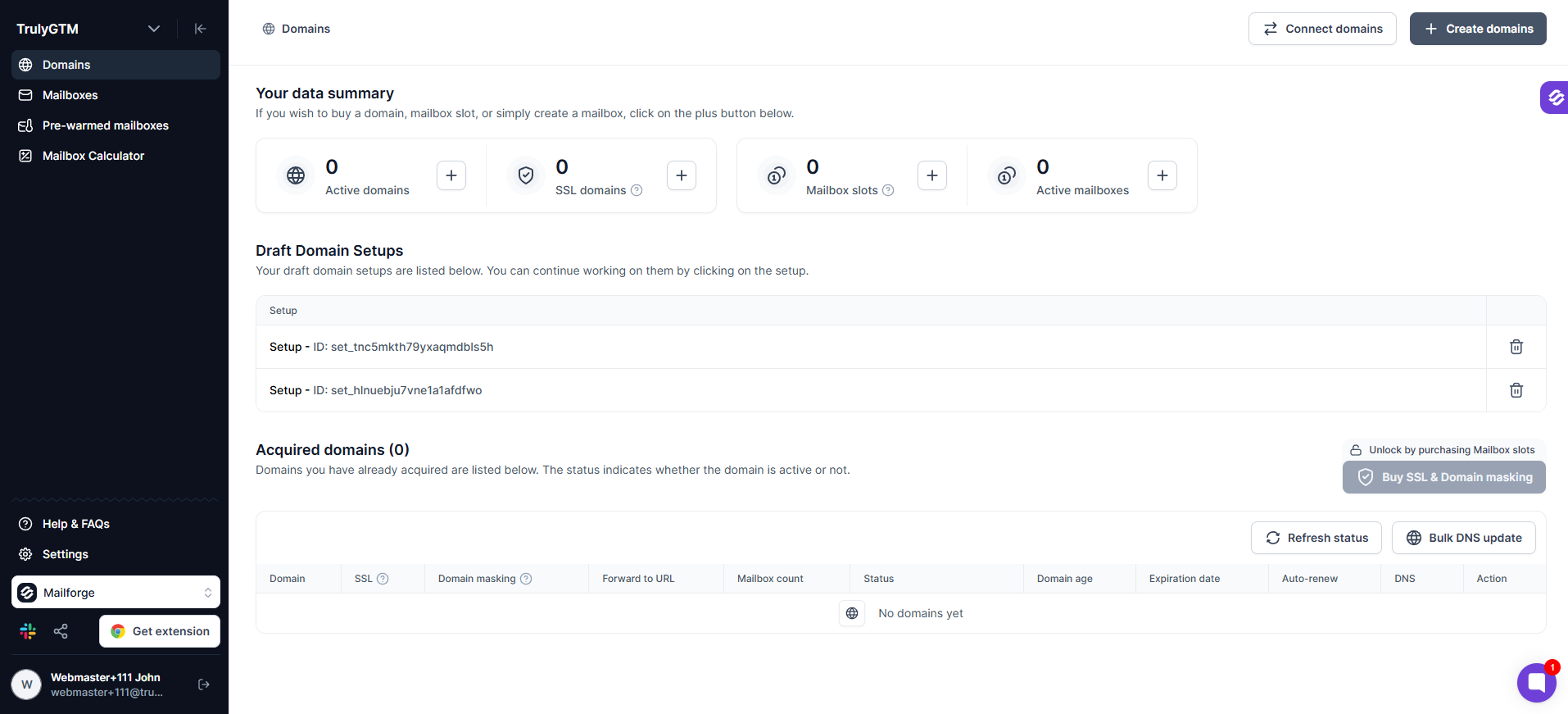
Head to mailforge.ai and create an account. Add your three to five secondary domains through the dashboard. SPF, DKIM, and DMARC records get configured automatically as you add each domain, which removes the single most common setup error from the equation.
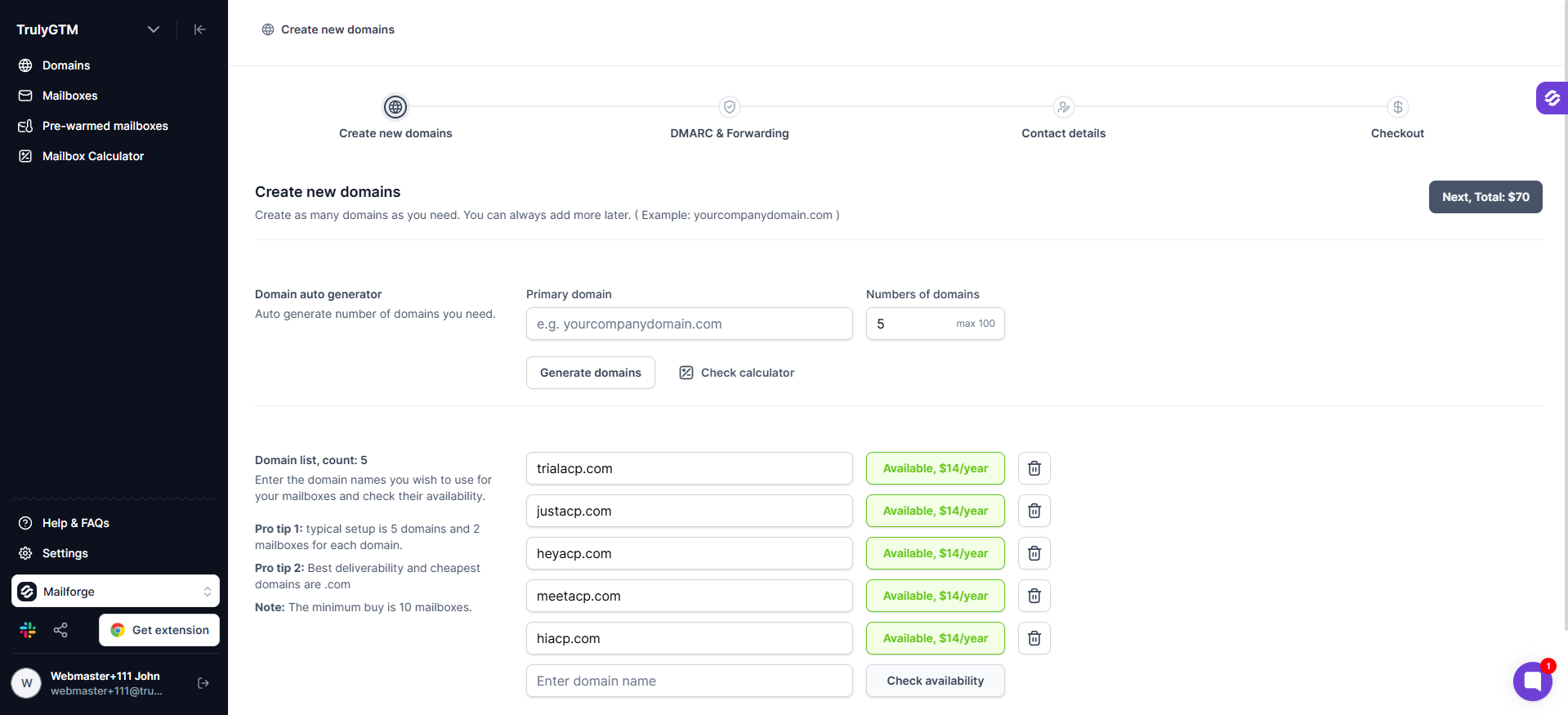
Use the built-in calculator to determine exactly how many mailboxes you need based on your target monthly send volume. Then provision the mailboxes across your domains at two to three per domain.
Mailforge supports bulk configuration for mailbox metadata, so what would take a full day of manual work gets done in minutes across the entire fleet.
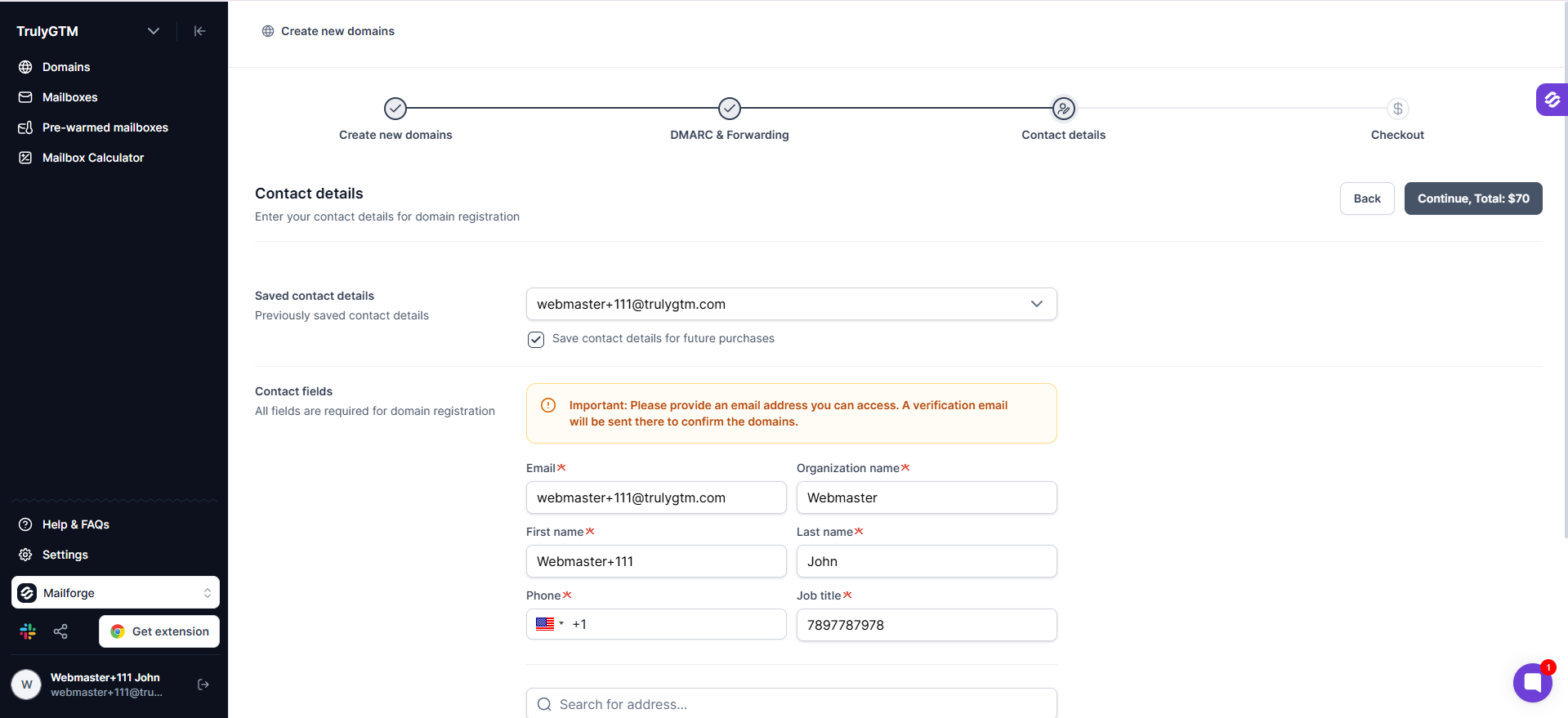
Warmforge handles warm-up for both Google Workspace and Microsoft 365 mailboxes, and it's included free with every Salesforge subscription. The fourteen-to thirty-day warm-up cycle starts automatically as each mailbox comes online, and you can monitor heat scores and inbox placement from the Deliverability Center.
Salesforge supports unlimited mailboxes on every plan with no per-seat pricing and built-in rotation across the full fleet. That means the sequencer bill stays flat whether you're running ten mailboxes or two hundred, and rotation scales automatically as you add more sending capacity.
Infrastructure degrades quietly. By the time your reply rate drops noticeably, you've usually already lost several weeks of pipeline. Regular monitoring is what keeps small deliverability issues from turning into full sender-reputation collapses.
Verify every one of your sending domains in Google Postmaster Tools. Postmaster reports on domain reputation, IP reputation, spam complaint rate, and authentication pass rates, and it's the closest thing to a direct signal from Gmail about how your mail is being treated.
One limitation to be aware of is that Postmaster needs a reasonable daily sending volume to Gmail before it starts showing meaningful data. Smaller setups often see empty dashboards for weeks before enough volume accumulates to populate the reports.
The key metric to watch is your spam complaint rate. Keep it under 0.3 percent at all costs, because Gmail begins throttling sending domains that cross that threshold.
Postmaster tells you about reputation, but inbox placement tests tell you where your mail is actually landing. Both are important, and they answer different questions.
Run a placement test before launching any new campaign, and after making any infrastructure change like adding new domains or switching sequencer settings. You need to know whether your mail is hitting the Primary inbox, Promotions, or Spam.
Warmforge includes placement testing in its Deliverability Center, and the free tier covers one warming slot plus one free placement test. That's enough to check a new setup before committing to a paid plan.
Check your sending domains and IPs against major blacklists like Spamhaus and Barracuda at least once per month. Appearing on a blacklist is often the first hard signal that something in your setup has broken.
Keep your overall bounce rate under two percent. A sudden bounce spike on a single mailbox almost always indicates a list quality problem, while a gradual rise across all mailboxes usually indicates a reputation problem that needs investigation.
Retire a sending domain when its reputation sits at Low or Bad in Google Postmaster Tools for two consecutive weeks despite reducing send volume, or when it appears on a major blacklist that meaningfully affects delivery.
Don't rotate domains constantly, though. Frequent domain switching is its own risk signal to filters, and you also lose the reputation you spent a month building on each retired domain. When you do retire a domain, park it with its DNS records still live, and replace it with a new domain that has already been through the aging and warm-up process.
A handful of specific mistakes account for the majority of infrastructure failures I've seen in the last few years. Any of these will damage deliverability, and several will damage business email as well.
This is the most expensive infrastructure mistake by a wide margin. A blacklisted primary domain affects invoices, support tickets, and internal communication for months while reputation slowly recovers, and there's no shortcut to fix it once the damage is done.
Without DMARC, mail from your domain increasingly gets rejected before it reaches a spam folder. Since Google and Yahoo's February 2024 enforcement changes, DMARC has become effectively mandatory rather than optional, and the receiving servers won't tell you when they drop your mail.
Two weeks of warm-up is the practical floor for a new mailbox. Cutting warm-up to five days or a single week wastes the reputation-building work the cycle is designed to do, and the mailbox usually fails within its first real campaign.
Twenty mailboxes each sending fifteen emails per day is far safer than five mailboxes each sending sixty. Volume concentration in individual mailboxes damages the reputation of every other mailbox on the same domain, because filters assess reputation at the domain level rather than the mailbox level.
Domain aging is not optional. Freshly registered domains carry no history, which reads as risk to receiving servers, and sending same-day produces immediate suspicion and poor early inbox placement.
Clean infrastructure cannot survive a fifteen percent bounce rate. Always verify your prospect list before sending, because bad list quality damages reputation faster than almost any other single factor.
Sender reputation drifts over time. Mailboxes disconnect, DNS records get overwritten, and provider defaults change without warning. Monthly infrastructure health checks catch problems while they're still cheap to fix.
Cold email infrastructure is the technical setup behind your outreach: secondary domains, mailboxes, SPF, DKIM and DMARC records, warm-up, and sending controls. It determines whether your emails reach the inbox. Your sequencer handles sending and automation, but it plugs into the infrastructure underneath.
Divide your target mailbox count by three to get your domain count. For ten thousand emails a month at twenty sends per mailbox per day, you need around twenty-three mailboxes and eight domains.
No. A blacklisted primary domain affects invoices, support tickets, contracts, and internal mail, and reputation recovery takes months rather than days. Always use secondary domains for cold outreach.
Four weeks end-to-end when built manually: one week to build the technical foundation, two weeks of warm-up, and one week to ramp into live sending. Provisioned setups through platforms like Mailforge compress the build week significantly, but the warm-up cycle still takes its full duration.
For ten thousand emails per month, expect roughly two hundred to three hundred dollars per month when buying everything directly, plus your sequencer subscription. Provisioned setups through Mailforge and the wider Forge Stack typically cut mailbox costs by fifty percent or more depending on plan.
Yes. Keep warm-up running permanently at reduced volume. Cold campaigns produce weak engagement signals by nature, and continuous warm-up offsets that with the positive signals receiving servers need to maintain your sender reputation.
No. Infrastructure is the sending layer, and the tool is the software layer that sits on top of it. Some platforms sell both together in a bundled stack, but most sell only one, which is why teams typically end up with a separate infrastructure vendor, warm-up tool, and sequencer.
.jpg)

.jpg)
.jpg)