

Personalized Outbound Strategy
Get The Right Outbound Strategy In Minutes
Enter your email to get a custom plan & stack recommendation for your business
It's being carefully crafted by AI
Please check your mailbox in 5 minutes
If you're searching for the Leadsforge API, you're probably looking to connect lead search and enrichment with your CRM, outbound platform, or internal tools. Instead of exporting CSV files and moving data manually, the API lets you automate the entire workflow.
In this guide, I cover everything you need to know about the Leadsforge API, including how to generate an API key, authenticate requests, use the available endpoints, understand credits and rate limits, and connect Leadsforge with tools like Salesforge, Clay, Make, and n8n.
Whether you're building a custom application or automating your GTM stack, this guide will help you get started quickly.
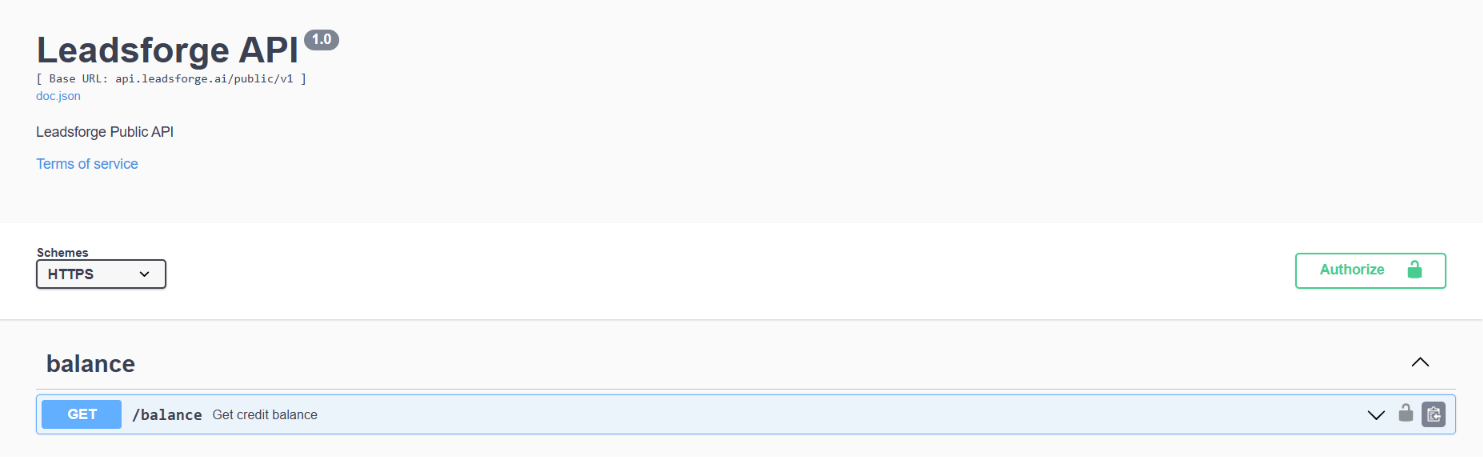
The Leadsforge API is a public REST API that gives you programmatic access to Leadsforge's lead sourcing and enrichment capabilities. Instead of using the Leadsforge interface, you can search for prospects, enrich contacts, and integrate Leadsforge directly with your own applications, CRM, outbound platform, or other GTM tools.
The API supports prospect searches using ICP filters with pagination and lets you enrich contacts with email addresses, phone numbers, and LinkedIn profiles. It also includes endpoints for company follower searches, lookalike company searches, credit balance, and enrichment job status, making it easier to automate lead generation and enrichment workflows.
The Leadsforge API uses an account-level API key and the same credit system as the Leadsforge application. Credits are reserved when a request starts and are charged only for successful enrichment results.
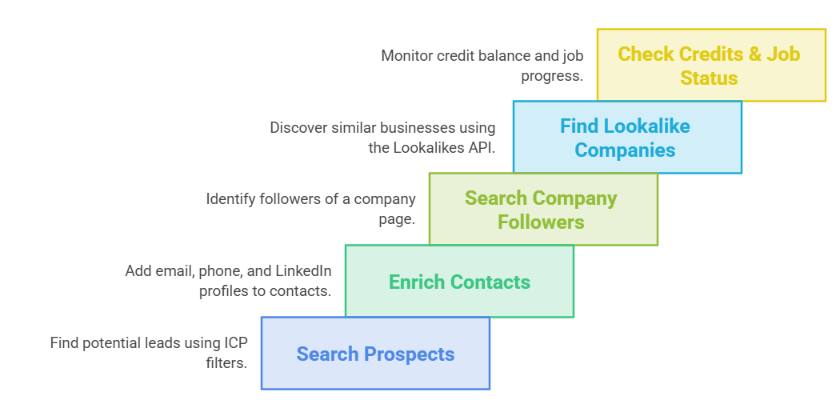
The Leadsforge API lets you automate lead sourcing and enrichment without using the Leadsforge interface. You can search for prospects using ICP filters, enrich contacts, check credit balances, and integrate Leadsforge with your CRM, outbound platform, or custom applications. Here's what you can do with the Leadsforge API:
The Leadsforge API lets you add lead sourcing and enrichment to your own products and workflows. Whether you're building an internal tool or connecting Leadsforge with your sales stack, the API helps automate prospecting without manual work. With the Leadsforge API, you can build:
Connecting Leadsforge with your GTM stack starts with deciding where you want prospect data to go after it's been sourced and enriched. The Leadsforge API lets you search for leads, enrich their contact details, and then use your own integration to pass that data to the next step in your workflow. A typical GTM workflow looks like this:
The Leadsforge API can fit into many different GTM workflows. Whether you're building your own application, connecting multiple sales tools, or automating repetitive work, the API gives you programmatic access to Leadsforge's sourcing and enrichment features.
This helps reduce manual work and keeps your lead generation process moving without constantly switching between tools.
The Leadsforge API also works with the Forge MCP Server, which lets AI assistants such as Claude, Claude Code, Cursor, Windsurf, Gemini, and Codex access supported Leadsforge capabilities through natural language.
After configuring your Leadsforge API key, you can ask your AI assistant to perform supported tasks instead of manually calling API endpoints.
For example, you can ask your AI assistant to:
The Forge MCP Server securely sends these requests to the Leadsforge API using your configured API key. Your API keys remain on your machine, and only the Forge products you configure are available to your AI assistant.
The Forge CLI gives developers and operations teams another way to connect Leadsforge with their GTM stack. It is a command-line tool that supports Salesforge, Leadsforge, Primeforge, Mailforge, Infraforge, and Warmforge through one binary. For Leadsforge, the documented CLI capabilities include:
This means you can run Leadsforge actions from a terminal instead of opening the dashboard each time. The CLI talks directly to each product’s API using the API keys configured on your computer. You can install it with:
npm install -g @salesforge/forge-cliThe documentation lists Node.js 20.11 or newer as a prerequisite.
After installing it, you can check the available commands with:
forge --helpTo connect Leadsforge, you can provide its API key through the recommended login process or use the LEADSFORGE_API_KEY environment variable. Environment variables are especially useful for CI systems, scripts, and other automated environments. The CLI supports structured inputs, which makes it practical for searches containing multiple filters.
For example, the documentation provides this Leadsforge search format:
forge leadsforge_search --json '{"limit":10,"leadLocations":{"include":["United States"]}}'You can also pass input from a file or through standard input:
cat search.json | forge leadsforge_search --stdinBy default, results are returned as compact JSON. That makes them easier to pipe into another command, process with a script, store in a database, or pass to the next part of your GTM workflow.
The CLI is particularly useful when a task needs to run repeatedly. A developer could create a script that searches for new prospects, passes selected records into enrichment, processes the returned data, and then sends the approved contacts to another system. The scheduling does not come from Leadsforge itself.
Your script, CI platform, cron job, or other automation system controls when the workflow runs. Leadsforge supplies the search and enrichment actions used inside it.
The same Forge CLI can also run in MCP mode:
{
  "mcpServers": {
    "forge": {
      "command": "forge",
      "args": ["mcp"],
      "env": {
        "LEADSFORGE_API_KEY": "..."
      }
    }
  }
}
This lets an MCP-compatible AI assistant use Forge CLI commands as tools. Only tools for the products with configured keys will appear. It gives developers a local alternative to the hosted Forge MCP Server and allows Leadsforge actions to become part of an AI-assisted coding or operations workflow.
Once the Leadsforge API is connected, you can use it as the lead sourcing and enrichment layer of your GTM stack. The examples below show how different teams can use the documented API capabilities to automate parts of their sales process.
Define ICP → Search Leadsforge → Review Matching Prospects → Save or Export Results
Building a prospect list is often the first step in outbound sales. Instead of manually searching for companies every day, you can create a workflow that searches Leadsforge using your ideal customer profile (ICP). Your application or AI assistant receives the matching prospects and passes them to the next step in your sales process.
This approach gives your sales team a fresh list of prospects without repeating the same manual searches.
Search Prospects → Run Contact Enrichment → Retrieve Results → Send to CRM or Sales Platform
After finding the right prospects, the next step is collecting accurate contact information. The Leadsforge API supports email, phone, and LinkedIn enrichment, making it easier to prepare contacts before outreach begins.
Once enrichment is complete, your workflow can retrieve the results and send them to your CRM or outbound platform. This helps your sales team start with more complete contact records instead of updating them manually.
Choose a Company → Find Lookalike Companies → Search Contacts → Enrich Contact Details
If you already know which companies make good customers, you can use Lookalike Search to discover similar businesses.
Your workflow can start with an existing company, search for similar organisations, identify relevant contacts, and enrich their details before adding them to your prospect list. This makes it easier to expand into new accounts without repeating the same research process.
Ask Claude → Forge MCP Server → Leadsforge API → Search or Enrich → Return Results
After connecting the Forge MCP Server, AI assistants such as Claude or Claude Code can help perform lead research using natural language.
For example, instead of manually searching the API, you can ask your AI assistant to search for prospects that match your ICP, enrich their contact details, or retrieve enrichment results. The Forge MCP Server securely communicates with the Leadsforge API using your configured API key.
Search Prospects → Enrich Contacts → Apply Qualification Rules → Export Qualified Leads
The Leadsforge API can also become part of a larger AI-powered workflow.
For example, an application or AI agent can search for new prospects, enrich their contact details, apply your own qualification rules, and prepare the final lead list before passing it to your CRM or outbound platform. Leadsforge provides the search and enrichment capabilities, while your own application controls the workflow logic.
Leadsforge API → CRM → Salesforge or Outbound Platform → Launch Outreach
The Leadsforge API works well as the first step in a broader GTM workflow. After prospects have been found and enriched, they can be sent to your CRM, Salesforge, or another outbound platform for campaign management and outreach.
This creates a connected process where Leadsforge handles prospect sourcing and enrichment, while the rest of your GTM stack manages customer relationships and outbound campaigns.
Before you can use the Leadsforge API, you'll need to generate an API key. The API key is created at the account level and is used to authenticate all API requests. It also uses the same account credits available in your Leadsforge workspace.
Sign in to your Leadsforge account.
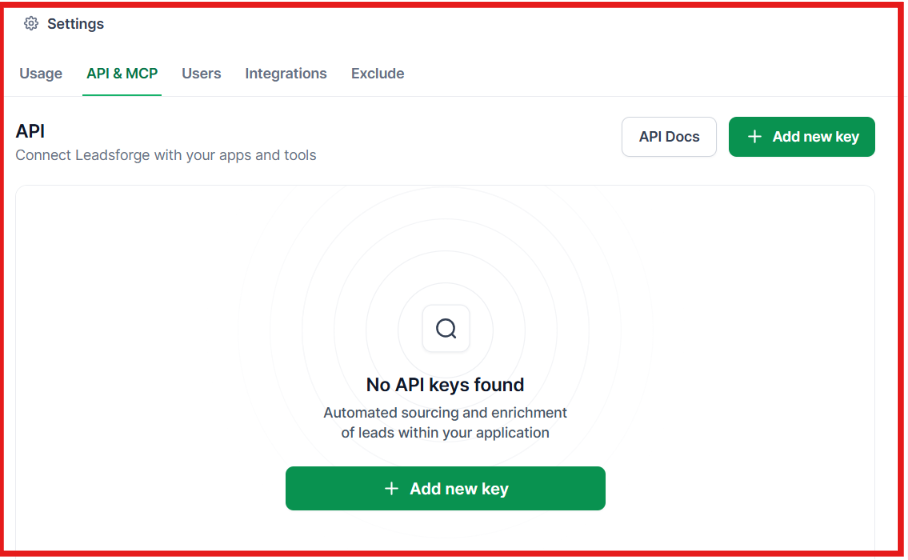
From the dashboard, navigate to Usage → API & MCP.
Click Add new key to generate a new API key for your account.
Copy your API key and store it in a secure location. You'll use this key to authenticate your API requests when connecting Leadsforge with your applications and workflows.
The Leadsforge API uses Bearer token authentication. All API requests must include your API key in the Authorization header.
Authorization: Bearer YOUR_API_KEY
Replace YOUR_API_KEY with the API key you generated from your Leadsforge account. Once the request is authenticated, you can use the available Leadsforge API endpoints.
Best Practices:
The Leadsforge API groups its endpoints by function, making it easier to search for leads, enrich contacts, retrieve job results, and manage your account. Below is a quick overview of the main endpoint categories available in the public API.
Enter your email to get a custom plan & stack recommendation for your business
Please check your mailbox in 5 minutes
The Leadsforge API makes it easy to add lead sourcing and contact enrichment to your GTM workflow. Instead of manually searching for prospects and moving data between tools, you can automate the process using the available API endpoints.
From searching leads with ICP filters to enriching contacts and integrating the data into your own applications, the API gives developers and GTM teams a flexible way to build custom workflows.
If you're ready to automate your prospecting and connect Leadsforge with your GTM stack, create your API key, explore the available endpoints, and start building with the Leadsforge API today.
.jpg)

![How to Use Jev for Cold Email Agents [Step-by-Step Guide]](https://cdn.prod.website-files.com/6436c3ac9f9fd0594d00b9fc/6acbd25fa19716f481a8dc43_Duplicate-me-open-graph%20(67).jpg)

![How to Use Jev for LinkedIn Outreach [Step-by-Step Guide]](https://cdn.prod.website-files.com/6436c3ac9f9fd0594d00b9fc/6acbc875da442e046e263670_Duplicate-me-open-graph%20(66).jpg)