If you spend real time on LinkedIn, your inbox is probably a graveyard.
Hot leads sitting under three weeks of connection request spam. Follow-ups you meant to send on Tuesday. That founder who replied to your post asking a smart question, buried somewhere in the scroll.
LinkedIn's native inbox is genuinely one of the worst pieces of software any of us are forced to use daily, and the volume only gets worse the more you post.
Kondo is one of the few tools built specifically to fix this. It sits on top of LinkedIn as a Chrome extension and gives you labels, split inboxes, snooze, and keyboard shortcuts. Superhuman, but for DMs.
The question is whether it's actually worth $28 a month, or whether it's overkill for anyone not living inside LinkedIn all day.
So I signed up, ran my own LinkedIn inbox through it for a few weeks, tested the new Claude integration Kondo shipped this year, and figured out where the tool stops making sense and where something broader takes over.
Let's get into it.
Kondo is a Chrome extension that installs on top of your LinkedIn inbox and turns it into something closer to Gmail.
You still log into LinkedIn normally, and your messages are still your messages, but Kondo adds a whole layer of tools around them: labels, split inboxes, keyboard shortcuts, snooze, snippets. The founders describe it as "a messaging app for DMs the same way your email app layers on top of Gmail."
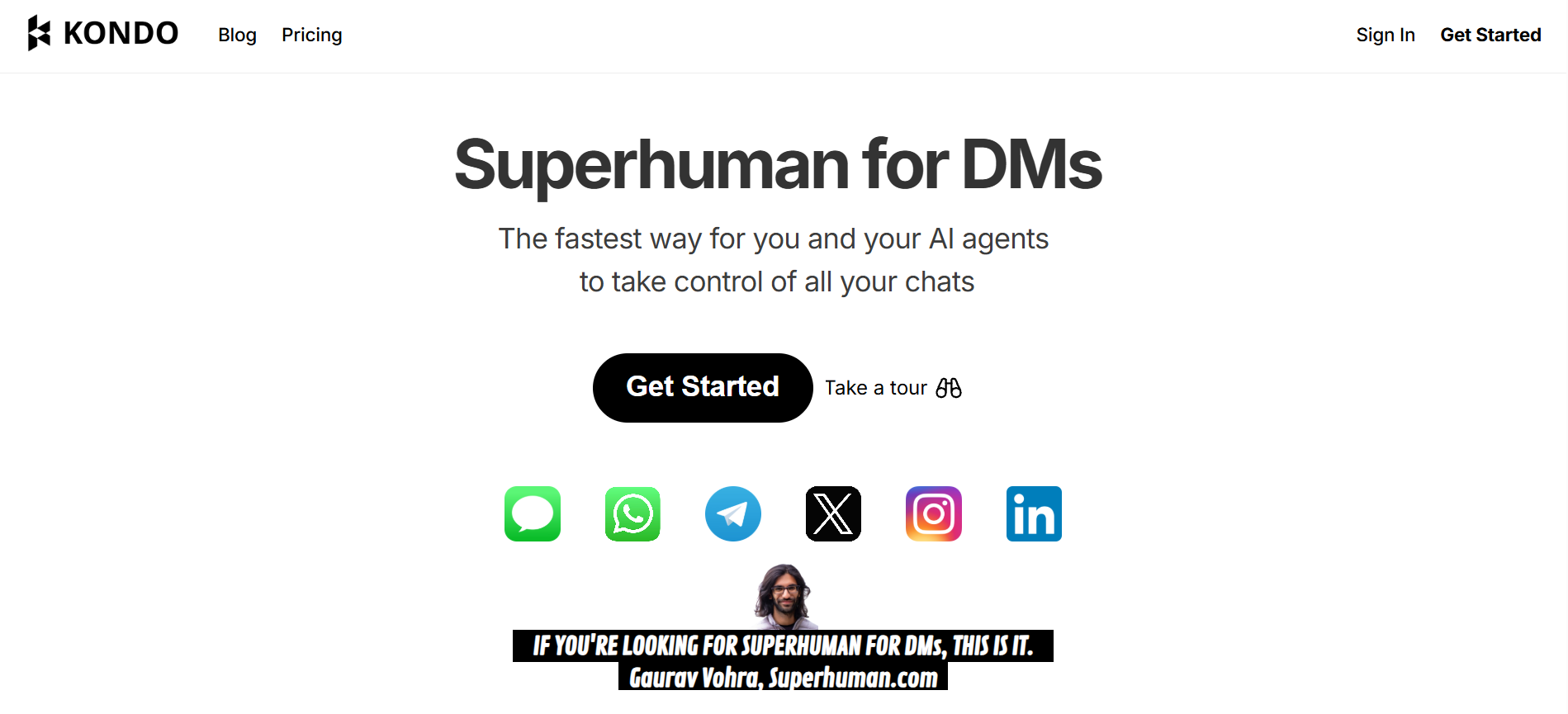
That's genuinely the cleanest way to picture it. Your Gmail app doesn't replace Gmail, it just makes it usable. Kondo does the same job for your LinkedIn DMs.
Instead of dumping the full feature list into a table, I want to walk through the features that actually change how you use LinkedIn day to day. These are the ones that come up in every review, on every podcast, and in every founder's Twitter thread about the tool.
This is the core Kondo experience. You create labels like Leads, Candidates, or Follow Up, and each label spawns its own inbox pane in the left sidebar.
Every conversation can carry multiple labels, and there's an optional Focused inbox mode that hides labelled chats from the main view for cleaner triage.
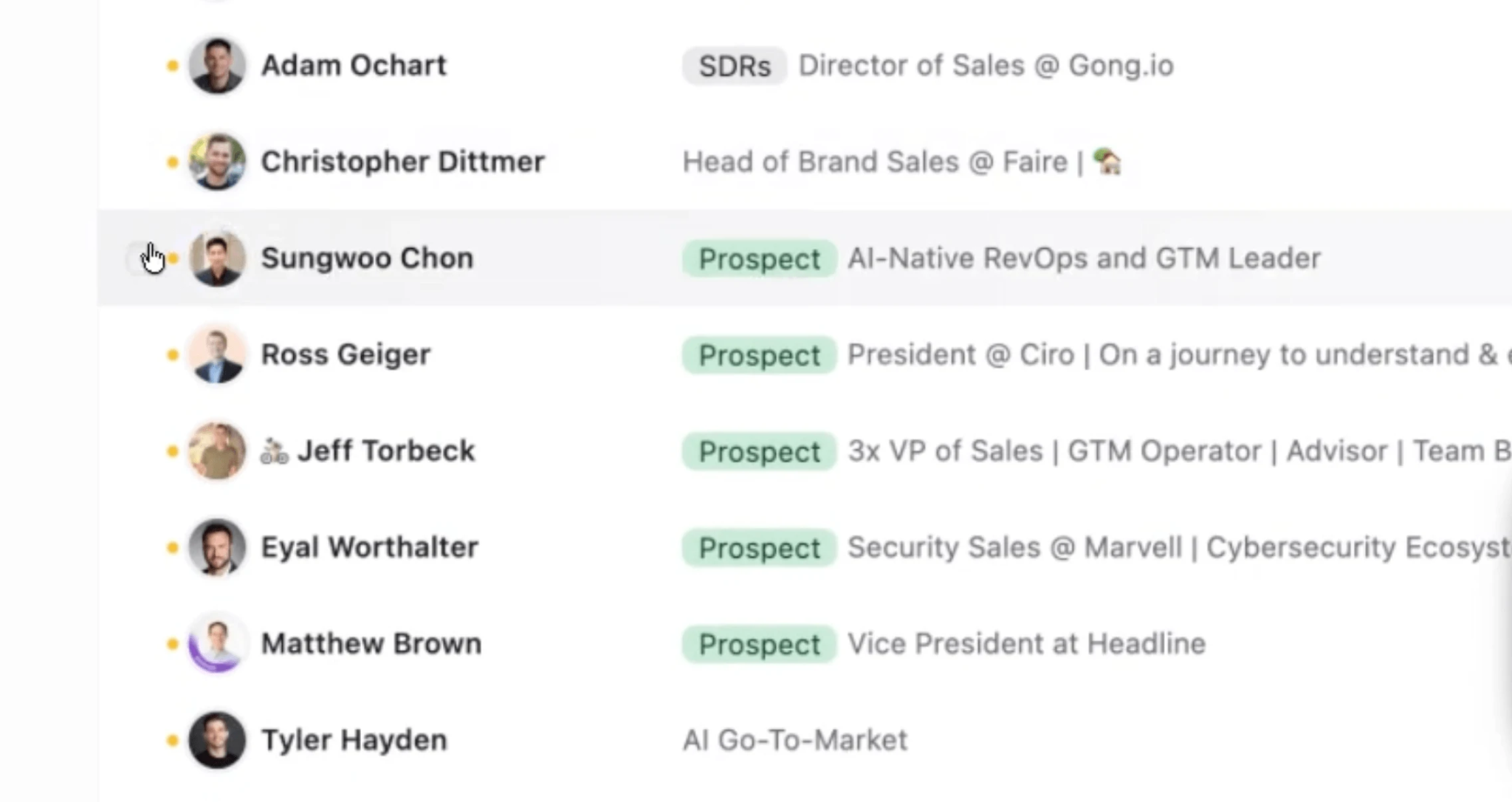
Worth noting: labeling is manual. There's no AI auto-tagging in the core product, so someone has to do the sorting work upfront. Once labels are set up, though, the split-inbox view is what most reviewers point to as the reason they stopped losing hot leads in the general LinkedIn scroll.
Snooze in Kondo is branded as Reminders, and it's tied to a single keyboard shortcut, H.
You can set a reminder using presets like tomorrow morning or next Monday, or type free text like "in 4 days" or "next Wednesday."
The conversation temporarily archives and returns to the top of your inbox at the scheduled time. If the person replies before your reminder fires, the reminder cancels automatically.
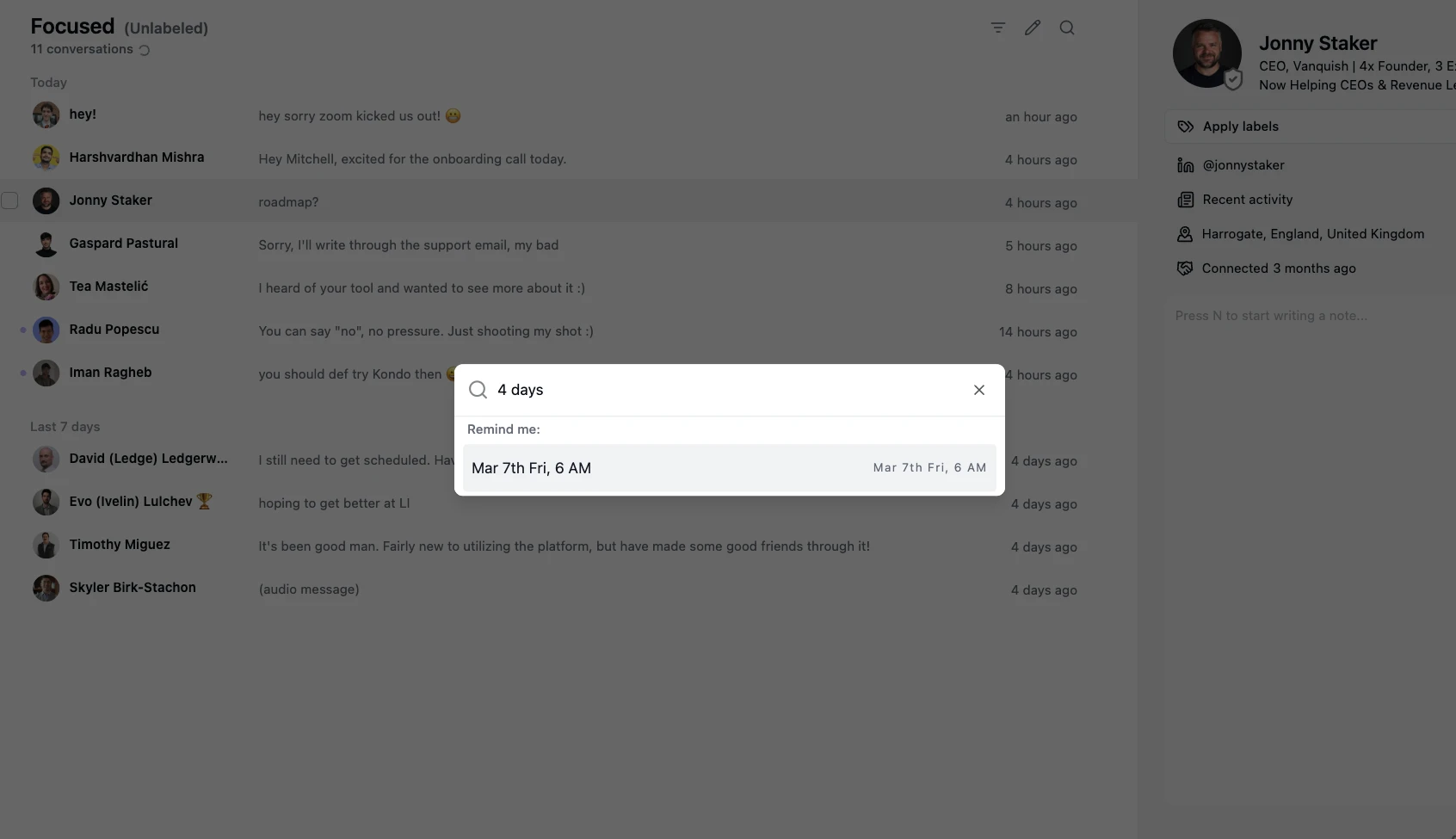
The feature is simple, but it's the piece that turns Kondo from a fancy inbox skin into an actual follow-up system. Nick Dunse, CRO at Shuttle, said he's been chasing an inbox zero solution for LinkedIn for 15 years and Kondo was the first tool that delivered it. The reminder system is the reason.
Kondo runs on keyboard shortcuts the same way Superhuman does for email. Press ? inside the app to pull up the full list. Cmd/Ctrl+K opens a command palette that lets you jump to any action without touching your mouse. Once you learn the shortcuts, the speed jump is real, most reviewers describe processing messages two to three times faster than the native LinkedIn interface.
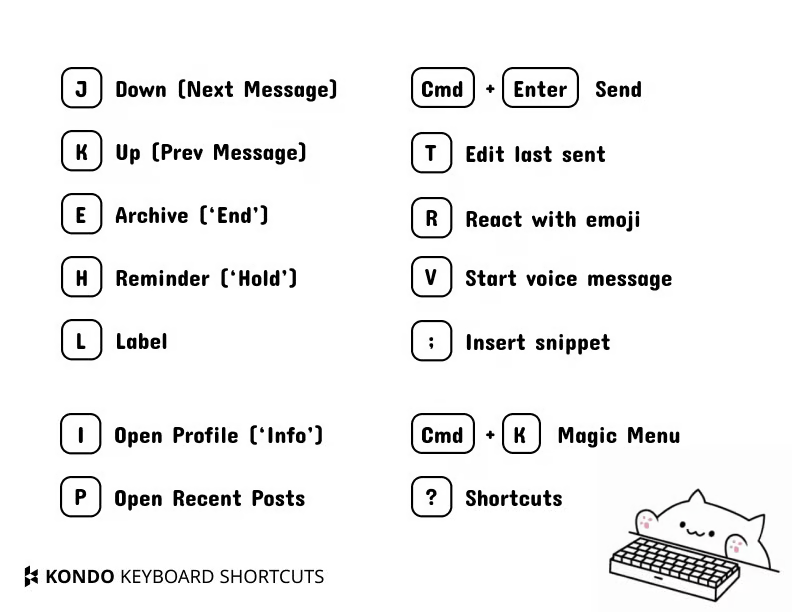
Source: Kondo’s Help Doc
There's a learning curve. Every review I've read mentions it, and every review also mentions it disappears within a day or two. If keyboard-first workflows already feel natural to you, Kondo will feel obvious. If you're mouse-heavy, expect a week of awkwardness before the shortcuts stick.
Snippets are saved reply templates that you trigger by typing : followed by the snippet name and hitting Enter. So intro might expand into your standard intro reply.
Snippet variables auto-fill common fields like the recipient's first name, and custom placeholders using curly-bracket syntax like {product_interest} prompt you to fill them in before sending.
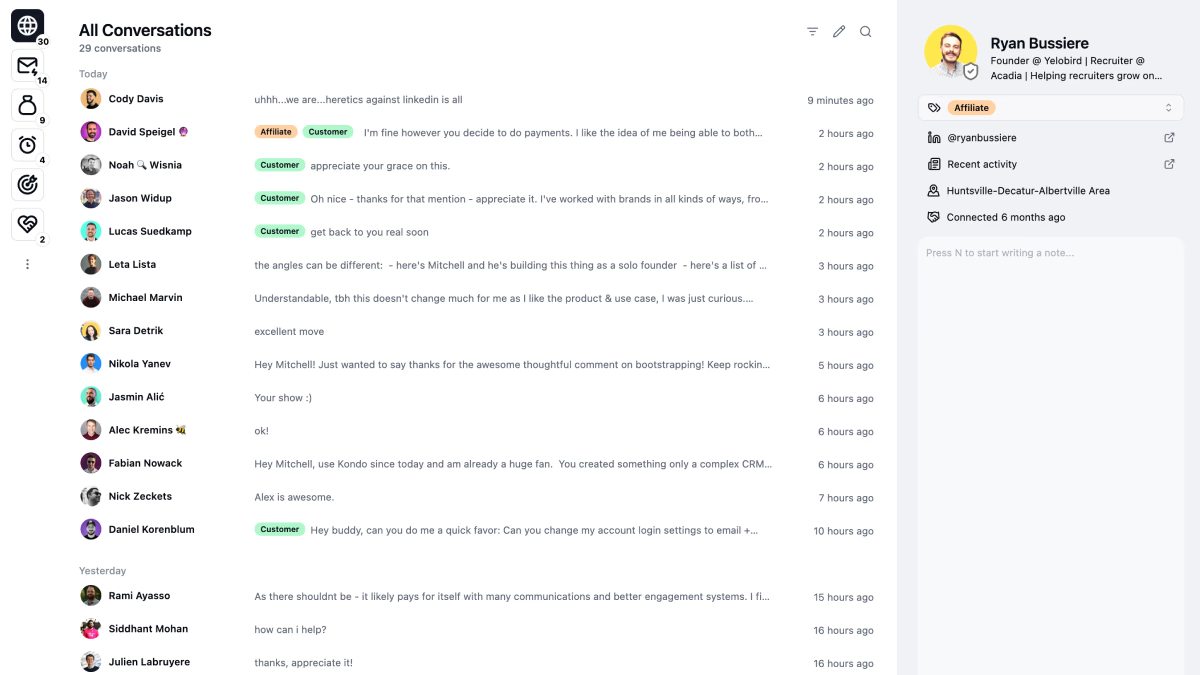
For anyone who copy-pastes the same three or four LinkedIn replies over and over, snippets are the fastest ROI feature in the entire product.
If you run Sales Navigator, Kondo merges the separate Sales Nav inbox into your main Kondo inbox. Sales Nav messages get a blue visual indicator so you can tell them apart.
You activate the sync by opening the Sales Nav inbox on LinkedIn once, then returning to Kondo. This is where understanding the difference between LinkedIn InMail and Messages starts to matter, because Sales Nav gives you InMail credits and Kondo lets you handle them alongside regular messages in one place.
One catch worth flagging: this feature is Business tier only. If you're on Basic at $28, Sales Nav sync isn't available.
Kondo's CRM sync is where the tool starts to feel like real infrastructure for a sales team. Conversation data, labels, and notes push into your CRM automatically.
Native integrations include HubSpot, Salesforce (via a managed package), Notion, Attio, Clarify, and Google Sheets. Clay, Zapier, and Make are supported but through webhooks, not native app-to-app.

That distinction matters. Native integrations tend to be more reliable and less likely to break when either side updates.
Webhook-based ones give you flexibility but require more setup and monitoring. Most reviews skip this distinction entirely, which is a shame because it changes how you'd deploy Kondo across a team.
In January 2026, Kondo shipped a team layer. Team Snippets share templates across a workspace so every rep uses the same approved reply library.
Team Labels standardize categorization so a "Hot Lead" label means the same thing across the whole team.
Team Analytics gives a dashboard covering messages sent per week per rep, response rates, daily activity, label distribution, and snippet usage, all exportable as CSV. Seat Management handles adding and removing users.
This launch changed who Kondo makes sense for. Before January, it was a solo-user tool. After, it started to look credible for small revenue teams running LinkedIn as a primary channel.
Kondo shipped an MCP server, which stands for Model Context Protocol. In plain language, MCP is the plumbing that lets an AI like Claude connect directly to another app and take actions inside it using natural language.
Once you connect Kondo to Claude via the MCP integration, you can type things like "summarize my unread LinkedIn messages from this week" or "draft a reply to the founder from Acme who asked about pricing" and Claude will read your Kondo inbox, do the work, and hand it back. The integration is OAuth-authenticated, message data stays inside your browser session, and command traffic passes through Kondo's relay without being stored.
Setup requires the Business tier and the Kondo browser extension. It works with Claude web, Claude Code, Claude Desktop, ChatGPT (Business/Enterprise/Edu/Developer Mode), Cursor, and VS Code with Copilot. If you're already using Claude for other parts of your workflow, this is the biggest reason to consider Kondo in 2026 over any older LinkedIn inbox tool.
Short answer: yes, and it's structurally safer than almost every other LinkedIn tool on the market.
Here's why. Kondo doesn't send anything automatically. It never initiates a connection request, never fires a message sequence, never touches the send button on your behalf. The founders describe it explicitly, "we don't automate any message sends to stay compliant with LinkedIn's terms of service." Every action in Kondo is a human clicking or typing, just faster.
Compare that to the 11 LinkedIn automation tools I tested this year
Annual billing knocks 20% off across every tier, which brings Basic down from $35 to $28 a month per user. Fair discount if you're committing for the year.
There's no free trial, which surprised me. Instead, you pay upfront and get 14 days to ask for your money back if it doesn't work out.
It's a fine policy on paper, but I read one AppSumo review from a buyer who assumed she could poke around before committing and got caught out. Worth knowing before you enter your card.
The bigger thing to notice is what's locked to which plan.
Basic ($28/mo) gives you the core inbox and nothing else. Labels, snippets, reminders, voice notes. If that's all you want, it's a fair deal.
Business ($36/mo) is where the product actually delivers on its full pitch. This is the tier that unlocks:
Enterprise ($52/mo) adds SSO and unlimited sync destinations, but there's no signup button. You have to book a demo, which slows things down if you're trying to move fast.
Honestly, the $28 headline price is a little misleading. Most of the features people actually want Kondo for live on Business, not Basic. If you're evaluating the tool seriously, budget for $36, not $28.
After using Kondo for a few weeks and comparing notes with founders and recruiters in my network who've been on it longer, a pretty specific pattern emerged. Kondo isn't for everyone. It's built for four kinds of user, and if you're one of them, it earns its price.
1. Founders and creators with inbound-heavy DMs
If your LinkedIn conversations come from posting content, getting tagged in threads, or having a personal brand that pulls in messages without any outbound effort on your part, Kondo fits perfectly. Morgan Ingram and Lorraine K. Lee both use it for exactly this. Same goes for anyone running a newsletter or podcast that drives steady LinkedIn traffic as a byproduct.
2. Recruiters running candidate pipelines
Kondo has a dedicated Candidate CRM use case, and the labels-plus-reminders combo maps cleanly onto tracking candidates through the stages of a hire. If you're juggling twenty active candidate conversations, this is genuinely the fastest way I've seen to keep them straight.
3. CEOs, CROs, and heads of growth managing relationships at scale
You're not prospecting outbound. But you have enough live LinkedIn conversations that managing them inside the native inbox has become a daily tax on your time. Nick Dunse and Amos Bar-Joseph both mention this exact use case in their testimonials. Bar-Joseph says Kondo saves him at least 30 minutes a day. That checks out with what I saw in my own inbox.
4. Solo SDRs and AEs managing their own book
If your prospecting happens elsewhere (usually with a proper outreach system using LinkedIn templates by industry) but the replies land in LinkedIn, Kondo keeps the reply side sane.
Kondo is excellent at what it does. But there's a shape of user it isn't built for at all, and if you're that person, the fit isn't just weak; Kondo is straight-up the wrong tool for the job.
Three gaps stand out.
Gap 1: Kondo can't generate conversations, only organize them
Kondo assumes the DMs already exist. It sorts them, prioritizes them, and helps you respond faster. What it can't do is create them in the first place.
If your job is to build outbound pipeline through LinkedIn, running Kondo alone is like buying a filing cabinet before you've written any documents. There's nothing to file.
Gap 2: No unified inbox across multiple LinkedIn accounts
Kondo doesn't merge multiple LinkedIn accounts into a single view. This is a design choice, not an oversight, but it's a real limitation.
If you're running outreach across your own account plus a co-founder's, or if you're an agency managing several client accounts, you'll want a proper approach to managing multiple LinkedIn accounts safely instead of forcing Kondo into a shape it wasn't built for. In Kondo, each account needs its own Chrome profile. It gets messy fast.
Gap 3: Chromium-only, no Firefox or Safari
Chrome, Edge, and Brave work. Firefox and Safari don't. If your team is mixed on browsers, Kondo isn't an option at all.
If your real problem is the outbound side plus reply management, Salesforge covers both jobs from one platform. It runs LinkedIn and cold email sequences from the same workflow, with unlimited LinkedIn senders, unlimited mailboxes, and no per-seat pricing.
When replies come back, Primebox™ pulls every response into a single unified inbox. From every mailbox. From every LinkedIn sender. That's the same reply-management job Kondo does well, plus the outbound engine Kondo doesn't touch at all.
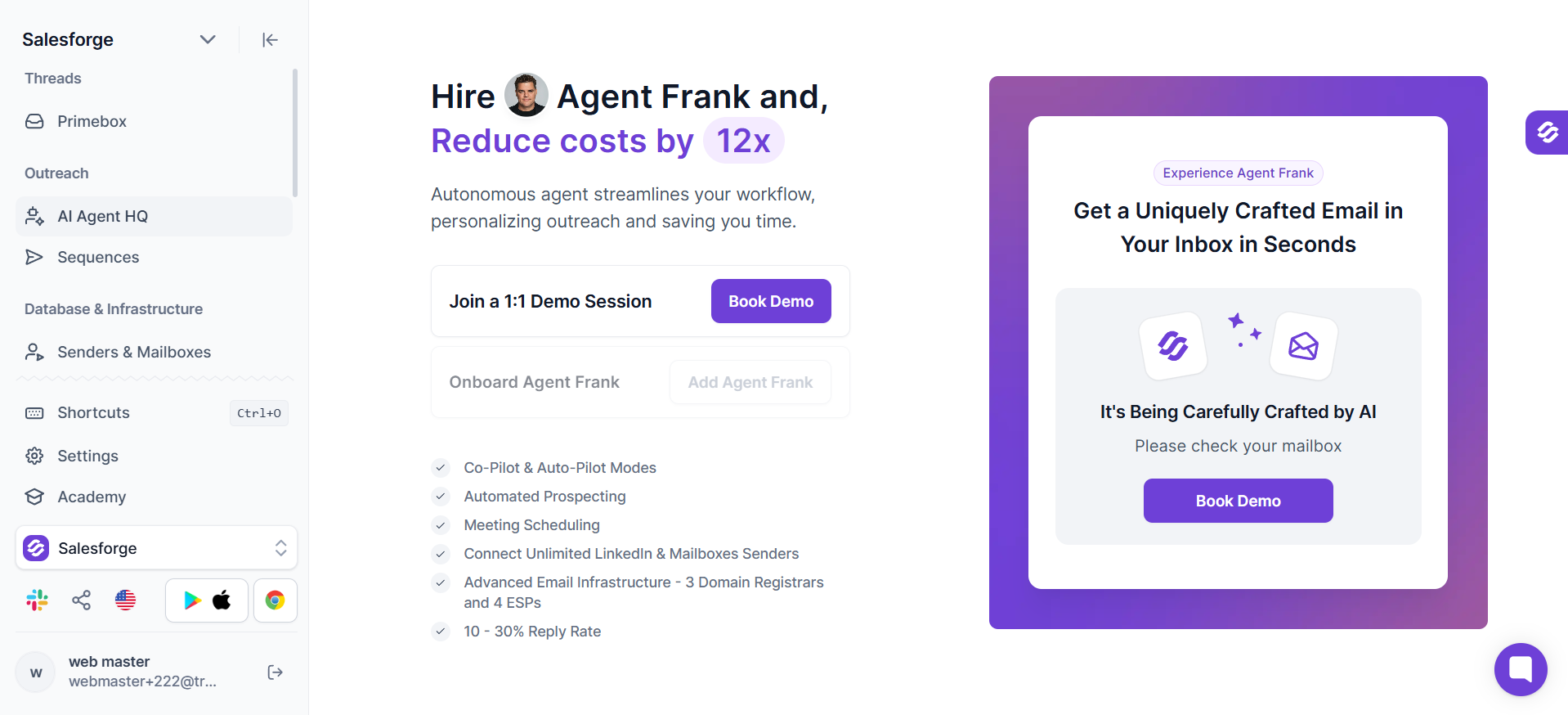
Where Salesforge goes further than Kondo:
If you want to remove yourself from the sending side entirely, you can hire Agent Frank, the autonomous AI SDR built into Salesforge. He prospects, writes personalized messages, sends across LinkedIn and email, follows up, and books meetings on your calendar. You keep human control through Co-Pilot mode or hand him the wheel with Auto-Pilot.
Here's how the two tools actually compare for someone whose real job is generating pipeline, not just organizing it.
For a wider view of the category, checkout my blog on the LinkedIn sales tools B2B teams are actually using in 2026 covers what else is out there.
If the outbound-plus-reply-management picture fits your situation, starting a Salesforge trial is the fastest way to test whether the Primebox and Agent Frank combination actually replaces both jobs for you.
Kondo does one job and does it excellently. If your LinkedIn DMs come from inbound (content, personal brand, referrals, recruiting inflow) then $28 a month for the Basic tier or $36 for Business (with Sales Nav sync, CRM, and MCP) is a genuinely fair deal. The named-user list backs it up.
If your DMs come from outbound effort and you also need to run cold email, Kondo is the wrong shape for the problem. Salesforge covers both jobs from one platform with Primebox™ handling the reply side that Kondo does well and Agent Frank handling the outbound side that Kondo doesn't touch at all.
1. Is Kondo safe to use with LinkedIn?
Yes. Kondo doesn't automate message sending, which is the specific behavior that gets LinkedIn accounts restricted. All activity happens locally in your browser, credentials aren't stored on Kondo's servers, and every action is a human clicking or typing. The structural design is safer than automation tools like Waalaxy, Expandi, or Dripify.
2. How much does Kondo cost in 2026?
Kondo has three tiers: Basic at $28 per user per month annual ($35 monthly), Business at $36 annual ($45 monthly), and Enterprise at $52 annual ($65 monthly). Annual billing saves 20% flat. There's no free trial, only a 14-day money-back guarantee after payment.
3. Does Kondo work with Sales Navigator?
Yes, on the Business tier and above. Kondo merges the Sales Navigator inbox into your main Kondo inbox with a blue visual indicator to distinguish Sales Nav messages. Not available on the Basic plan.
4. Can Kondo automate LinkedIn messages?
No, and this is by design. Kondo is explicitly not an automation tool. It doesn't send connection requests, doesn't fire message sequences, and doesn't touch the send button on your behalf. For automated outreach, you'd need a separate tool like Salesforge.
5. What is Kondo's MCP integration?
Kondo shipped a Model Context Protocol server in 2026 that lets AI clients like Claude, ChatGPT, and Cursor connect directly to your Kondo inbox. Once connected, you can ask the AI to summarize unread messages, draft replies, apply labels, or set reminders using natural language. Requires the Business tier and the Kondo browser extension.
6. Does Kondo work on Firefox or Safari?
No. Kondo is Chromium-only, which means Chrome, Edge, and Brave. Firefox and Safari aren't supported. This has caught out at least one AppSumo buyer who didn't realize it before purchase.
7. Kondo vs Salesforge, which one do I need?
It depends on where your LinkedIn DMs come from. If they're inbound from content, personal brand, or recruiting, Kondo is a strong fit. If you need to generate the DMs through outbound effort and also want to run cold email with unified reply management, Salesforge is the better fit because Primebox handles the reply side Kondo does and Agent Frank handles the outbound side Kondo doesn't.
.png)