
Personalized Outbound Strategy
Get The Right Outbound Strategy In Minutes
Enter your email to get a custom plan & stack recommendation for your business
It's being carefully crafted by AI
Please check your mailbox in 5 minutes
So, you’ve got your Sales Navigator lead list ready. Now you just need to export it.
You look for the CSV button. There isn’t one.
And no, upgrading to Advanced Plus won’t reveal it. LinkedIn officially doesn’t let you download Sales Navigator leads as a CSV or XLS file. Advanced Plus gives you CRM Sync instead.
For a handful of leads, you could copy the details yourself. Once that list runs into the hundreds, you need another way.
Below, I’ll show you three methods that actually work, including how to get a bulk list into a CSV and how to move Sales Navigator leads into your CRM.

No. LinkedIn Sales Navigator does not let you export leads or accounts directly as a CSV or XLS file. That applies to all Sales Navigator plans, including Advanced Plus.
Advanced Plus gives you CRM Sync and lets you create lead records in supported CRMs from Sales Navigator. It still does not give you a CSV download.
So, getting your leads out of Sales Navigator requires another method. Below are three ways to do it, starting with the simplest.
Since Sales Navigator does not have a CSV export button, one option is to use a third-party Chrome extension built for Sales Navigator extraction.
Tools such as Skrapp, Evaboot, and Wiza can pull lead data from Sales Navigator and export it into a CSV. Depending on the tool, you may also be able to find work emails and phone numbers during the process.
The exact steps differ by tool, but the process usually looks like this:
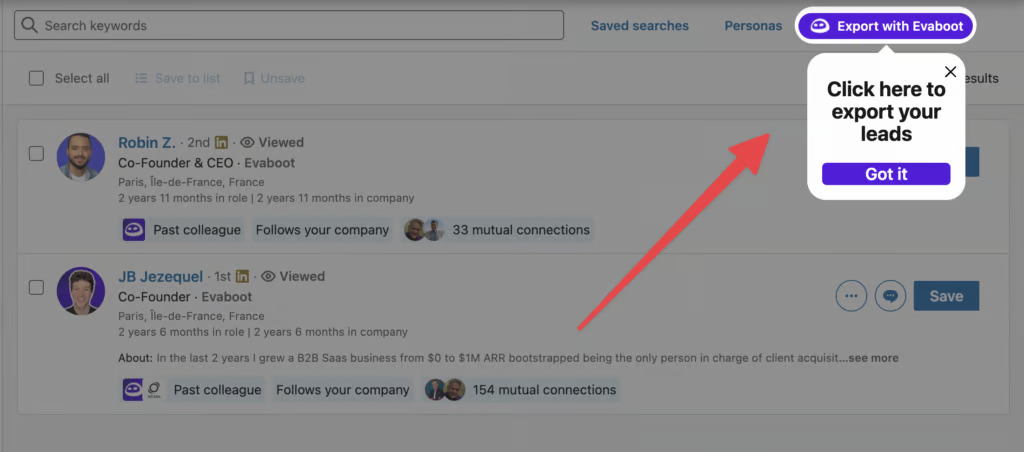
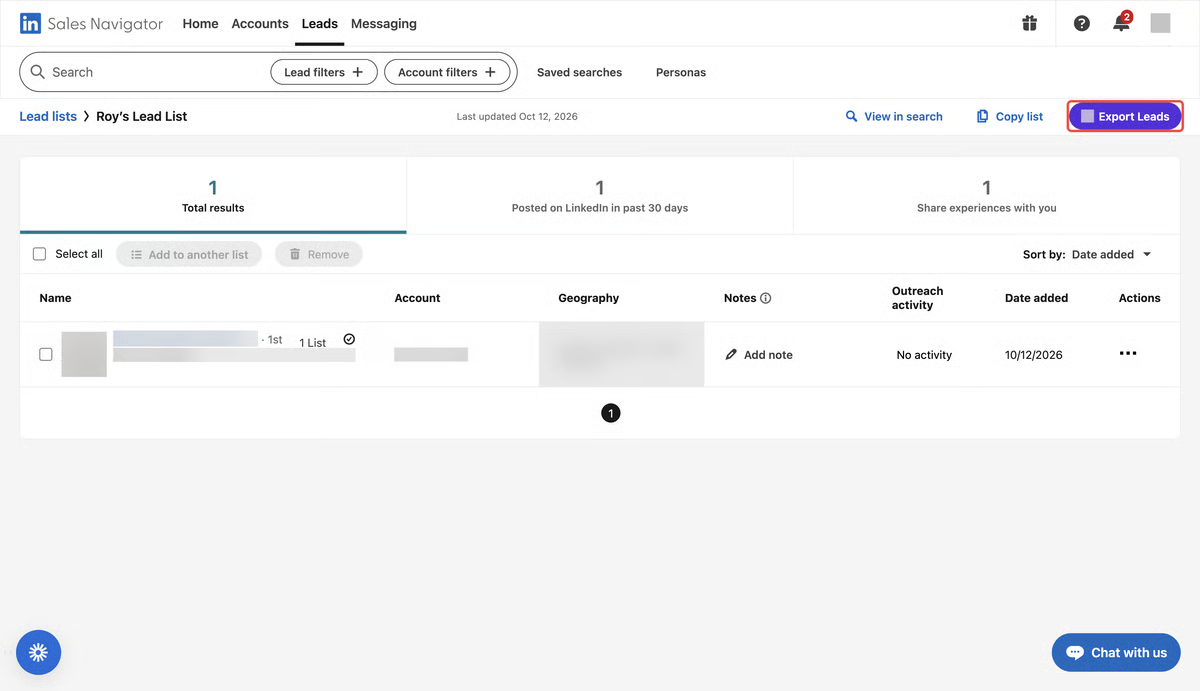
This is the more practical route when you have hundreds of Sales Navigator leads and specifically need them in a spreadsheet.
If you actually need a CSV file, stick with the export tools above.
But if you are exporting those leads just to upload them into your outreach software, Salesforge lets you skip that step.
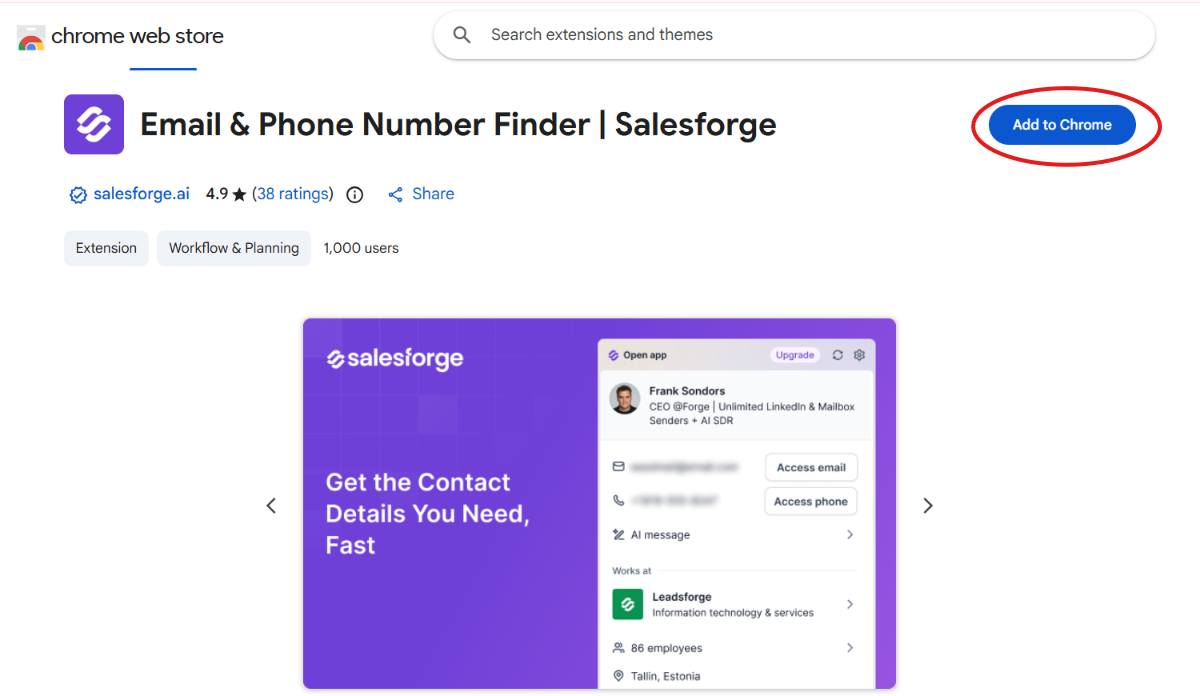
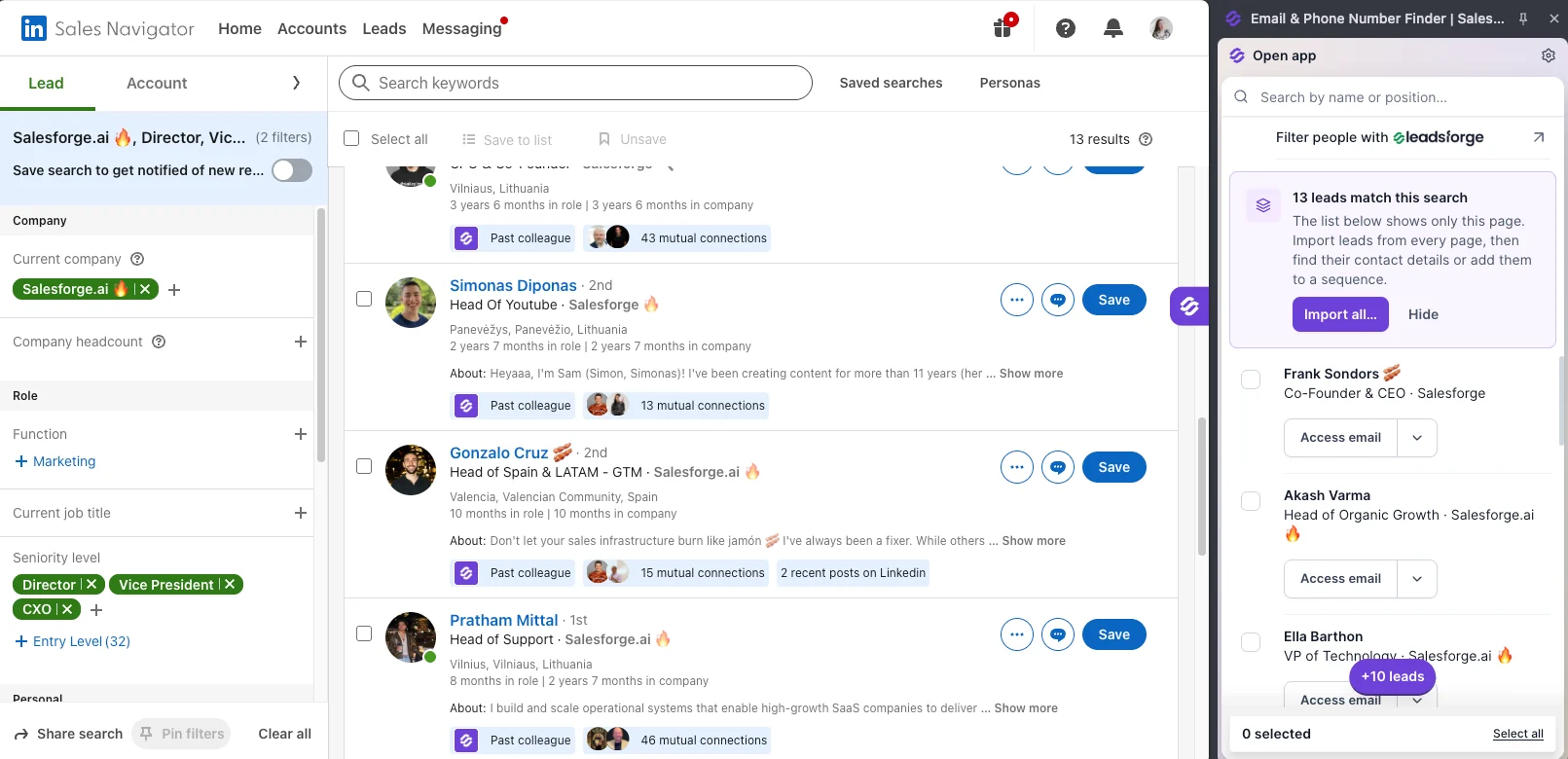
Run your search in Sales Navigator and open the Salesforge Chrome extension. It will show how many leads match your search. Click Import all and choose the entire search or enter the exact number of leads you want.
Before the import starts, choose your Salesforge workspace and tags. You can also select a sequence to enroll those leads immediately. If you need contact details, turn on Find emails or Find phone numbers.
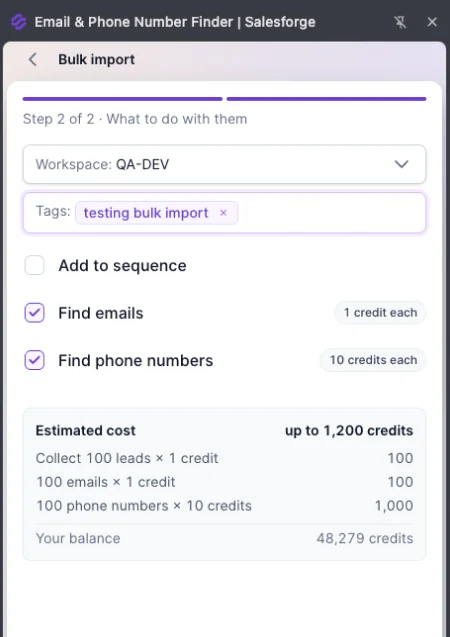
You no longer have to extract the search page by page. Salesforge can collect leads from every page of the Sales Navigator search in one bulk import. The import then runs in the background. You can close the extension or even restart your browser without stopping it.
Once finished, the leads appear in a new Leadsforge list and sync to the Salesforge workspace you selected. Leads already in that workspace are skipped.
So if outreach is the end goal, you can go from a full Sales Navigator search to a Salesforge sequence without downloading and uploading a CSV in between.
If you only need a small number of leads, you can copy their details from Sales Navigator into a spreadsheet yourself.
There is no export button involved. You open each lead, copy the information you need, and build the list in Excel or Google Sheets.
For 10 or 20 leads, this is manageable. For hundreds, manually copying each record becomes too slow, which is where a bulk export tool is more ideal.
Sales Navigator Advanced Plus does not give you a CSV or XLS export. Instead, it can connect Sales Navigator with your CRM and lets you create supported CRM records from Sales Navigator.
CRM Sync currently supports Salesforce, Microsoft Dynamics 365, HubSpot, and Oracle Sales. The exact record creation options depend on the CRM.
The process is:
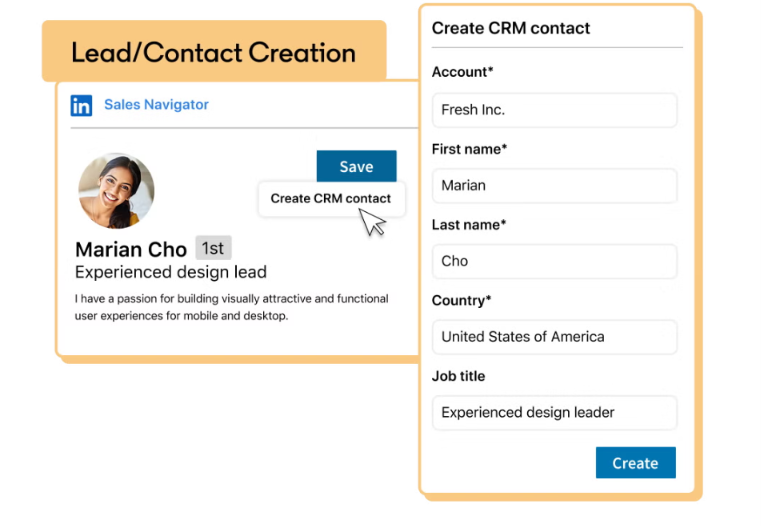
This is not a bulk export of your Sales Navigator search or saved lead list. LinkedIn's lead creation feature works from individual Sales Navigator lead pages.
So, this method is useful when you want specific Sales Navigator prospects added to your CRM. For hundreds of leads that you need in a CSV, Method 1 is the better choice.
LinkedIn does not offer a native bulk CSV or XLS export from Sales Navigator. Third-party tools fill that gap. But they come with account risk. LinkedIn prohibits third-party software and browser extensions that scrape or copy data from its platform without permission.
It also does not publish a “safe” daily extraction limit. So, numbers such as 100, 500, or 1,000 leads per day are not LinkedIn-approved limits.
If you use a third-party export tool:
For the lowest account risk, stick to LinkedIn's own options.
Enter your email to get a custom plan & stack recommendation for your business
Please check your mailbox in 5 minutes
But if that CSV is only going to be uploaded into your outreach software, you can skip it.
Salesforge can bulk import an entire Sales Navigator search directly into your workspace. You can find emails and phone numbers during the import and send the leads straight to a sequence.
So you can go from finding prospects in Sales Navigator to contacting them without downloading and re-uploading a CSV in between.
Try Salesforge and move your Sales Navigator search straight into outreach.