
Personalized Outbound Strategy
Get The Right Outbound Strategy In Minutes
Enter your email to get a custom plan & stack recommendation for your business
It's being carefully crafted by AI
Please check your mailbox in 5 minutes
You want to build an AI email assistant using Claude, but every guide you find either assumes you can code or skips the part where you actually connect Claude to your email tool.
Most people searching for this are somewhere between:
I was in the same spot. The idea made sense.
A Claude-powered assistant that builds sequences, checks mailbox health, and pulls campaign data without me logging into five tabs. But the path from idea to working setup was not obvious.
This blog is that path.
I will walk you through the exact steps to build an AI email assistant using Claude and connect it to Salesforge through the Forge MCP Server.
No coding background needed, no developer required.
I connected Claude to the Forge MCP Server, added API keys for the Forge products I use, and set up a CLAUDE.md context file with my ICP, positioning, and past emails that worked.
Now I run prompts to build sequences, check mailbox health, diagnose deliverability drops, review campaign performance, and enroll lead lists from one place.
Setup took under five minutes. The manual workaround for outbound execution is gone.
Most people think an AI email assistant just writes copy. It does more than that.
When you connect Claude to Salesforge through the Forge MCP Server, Claude can read your live account data and take action inside it.
It works in three parts.
Tools are actions Claude can take. Creating a sequence, pausing a mailbox, and enrolling a contact. Claude does not just suggest these things. It does them.
Resources are data Claude can read. Your reply rates, bounce rates, warmup scores, and domain health. Without this, Claude is guessing. With it, Claude works from your actual numbers.
Prompts are repeatable workflows. A deliverability check, a weekly mailbox report, and a campaign audit. You run the same prompt every Monday and get the same structure back every time.
Consider this Claude workflow.
You type: "Flag any mailbox with a reply rate under 1% over the last 7 days."
Claude calls your Salesforge data through the MCP, reads each mailbox, and returns a table with the flagged ones.
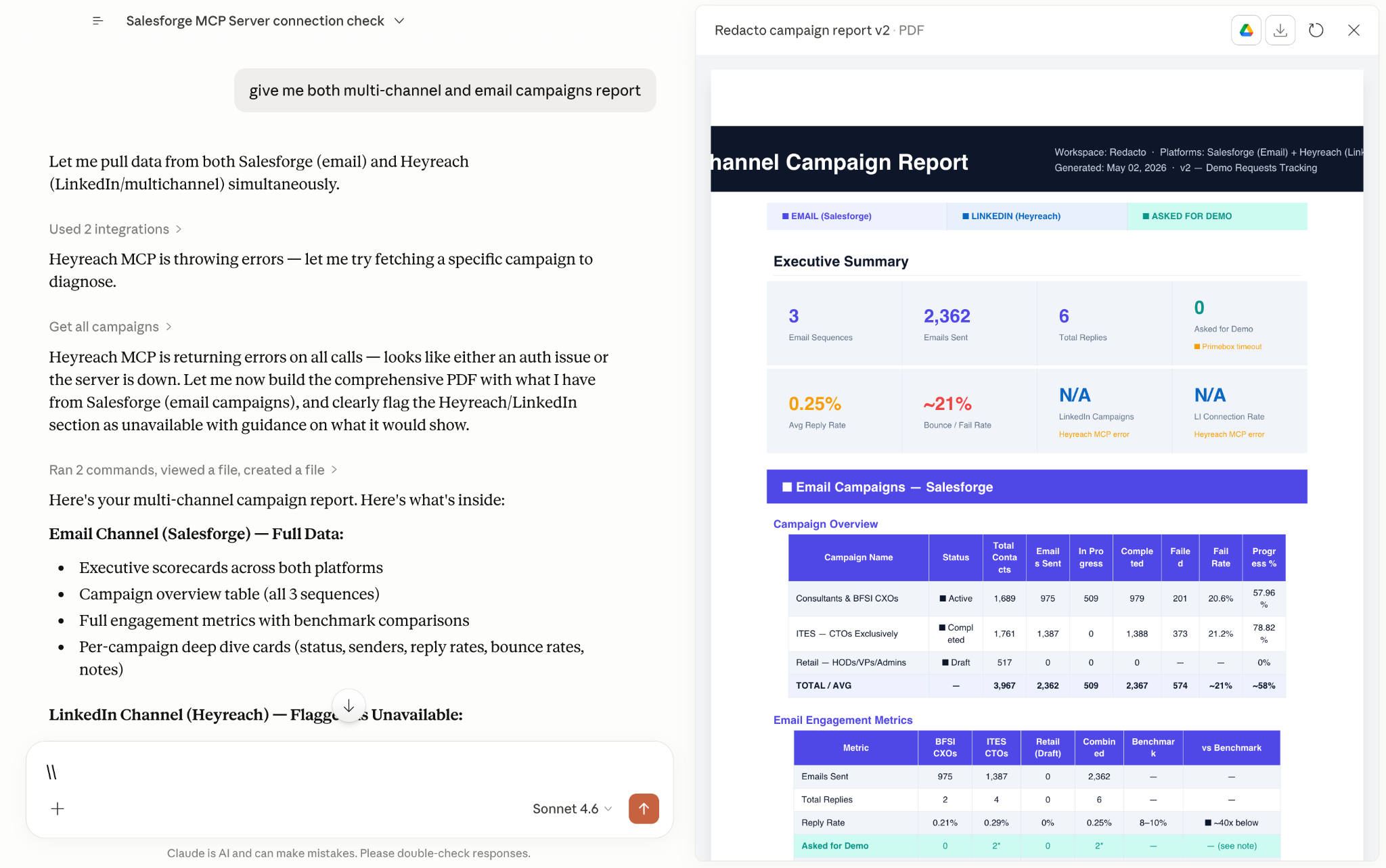
You did not export anything. You did not open a dashboard. You asked a question and got an answer from your live account.
That is what an AI email assistant using Claude actually does. It connects your words to your data and acts on it.
Both work. The difference is how you prefer to operate.
Claude Code runs in your terminal. You type a command, Claude runs it, and you approve the action before anything happens.
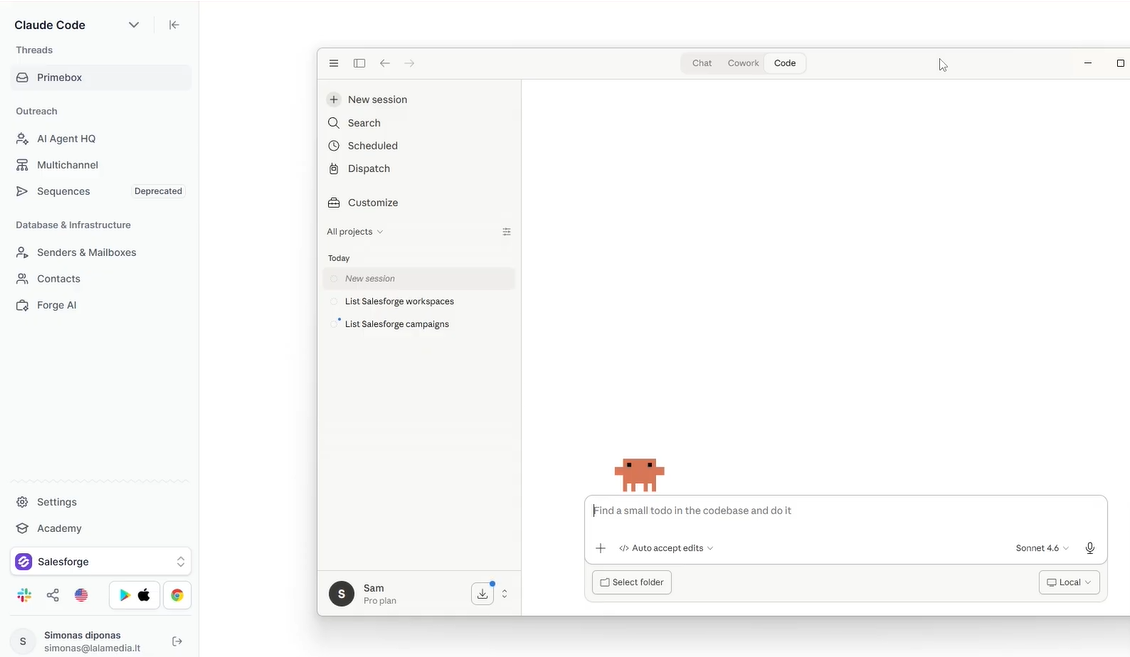
It is best for building workflows you want to set up once and reuse. Pre-call research, campaign builds, lead list pulls.
Claude Desktop is a chat interface. You open it like any app and type what you want in plain English.
It is best for daily prompts to run on a schedule. Monday mailbox checks, weekly performance pulls, and deliverability audits.
The rule I follow.
Use Claude Code to build the workflow. Use Claude co-work to run it every day.
Claude co-work is a desktop agent that operates your apps on a schedule. It runs the same prompt every morning without you clicking anything.
That is different from Claude Desktop, which is a chat interface you open and type into manually.
For example: build your 5-step sequence prompt in Claude Code once, get it working, then run variations of it from Claude co-work going forward.
If you have never used a terminal before, start with Claude co-work. The MCP connection works the same way on both.
If you are comfortable with a terminal, Claude Code gives you more control. You can chain prompts, automate steps, and build multi-step pipelines.
Claude Desktop is enough to get the full assistant working from day one.
Claude's co-work is worth adding when you want workflows to run automatically on a schedule without any input from you
Before you run a single prompt, you need four things in place.
Pick one based on the previous section. Both connect to Salesforge the same way.
Download Claude Desktop from claude.ai. Claude Code installs via your terminal with one command.
If you have never used a terminal before, start with Claude Desktop. You can always switch later.
This is where your sequences, mailboxes, and contacts live.
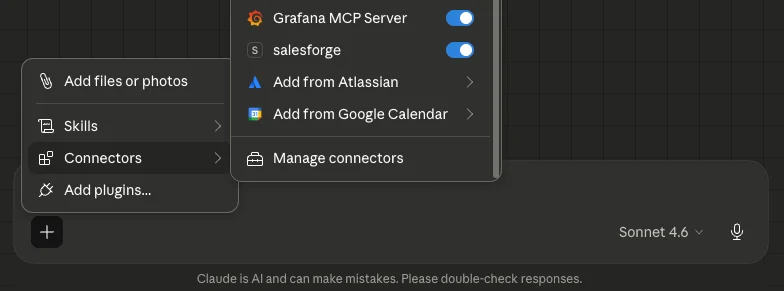
Claude reads from and writes to your Salesforge account through the MCP.
Salesforge offers a 14-day free trial. Set that up first before touching anything else.
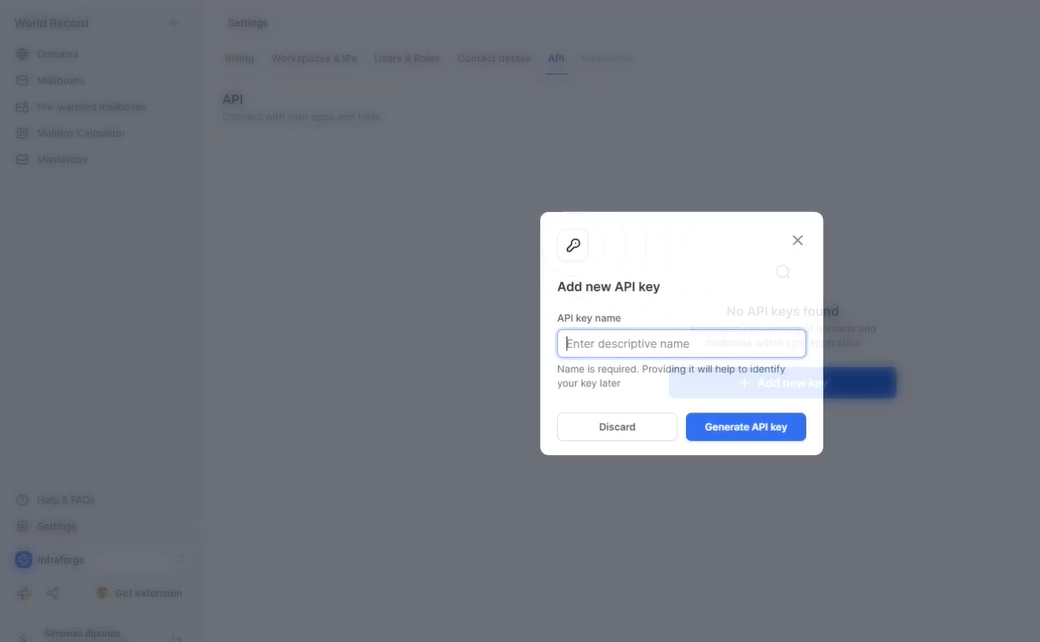
You do not need keys for all six Forge products. Only the ones you plan to use.
Starting out, a Salesforge key covers sequences, mailboxes, contacts, and analytics. That is enough to get the assistant working.
Add a Warmforge key if you want Claude to pull heat scores and flag underperforming mailboxes.
Add a Leadsforge key if you want Claude to search contacts and build lead lists from inside the chat.
Add Infraforge, Primeforge, or Mailforge keys if you manage your own email infrastructure and want Claude to provision domains and mailboxes.
You generate each key under Settings > API inside the respective Forge product. Copy each key and store it somewhere safe. Treat it like a password.
You can start with one key and add the rest as your workflows expand.
This is the part most people skip. It matters more than any technical setup step.
Claude needs to know who you target before it writes a single email. Without this context, every sequence it produces will be generic.
Prepare a short document before you start. Include your ICP, the job titles you target, company size, the pain you solve, and two or three past emails that got positive replies.
You will use this in Step 6 when you set up your CLAUDE.md file. That document becomes the briefing Claude reads before every session.
That is it. Four things, and you are ready to build.
This takes under 10 minutes. You do not need a developer or any coding background.
Go to claude.ai and download Claude Desktop. It installs like any other app on your computer.
If you prefer Claude Code, open your terminal and follow the installation instructions on the Anthropic website.
Not sure which to pick? Go with Claude Desktop. It works for everything in this guide.
Open your Salesforge account. Go to Settings, then API, then click Add New Key.
Do the same for every other Forge product you plan to use.
You only need keys for products you actually use. Start with Salesforge. Add Warmforge and Leadsforge when you are ready.
Copy each key and store it somewhere safe. You will paste these into your config in the next step.
Open your terminal. Run this command. Replace each placeholder with your real key.
Claude MCP add salesforge \
--transport streamable-http \
--url https://mcp.salesforge.ai/mcp \
--header "X-Salesforge-Key: YOUR_SALESFORGE_API_KEY" \
--header "X-Warmforge-Key: YOUR_WARMFORGE_API_KEY" \
--header "X-Leadsforge-Key: YOUR_LEADSFORGE_API_KEY" \
--header "X-Infraforge-Key: YOUR_INFRAFORGE_API_KEY" \
--header "X-Primeforge-Key: YOUR_PRIMEFORGE_API_KEY" \
--header "X-Mailforge-Key: YOUR_MAILFORGE_API_KEY"
Delete any header line for a product you do not have a key.
For example, if you only use Salesforge and Warmforge, delete every other header line and keep just those two.
Open Claude Desktop. Go to Settings, then Developer, then click Edit Config.
This opens a file called claude_desktop_config.json. Paste the block below into it.
{
"mcpServers": {
"salesforge": {
"command": "npx",
"args": [
"-y",
"mcp-remote",
"https://mcp.salesforge.ai/mcp",
"--header",
"X-Salesforge-Key:YOUR_SALESFORGE_API_KEY",
"--header",
"X-Warmforge-Key:YOUR_WARMFORGE_API_KEY",
"--header",
"X-Leadsforge-Key:YOUR_LEADSFORGE_API_KEY",
"--header",
"X-Infraforge-Key:YOUR_INFRAFORGE_API_KEY",
"--header",
"X-Primeforge-Key:YOUR_PRIMEFORGE_API_KEY",
"--header",
"X-Mailforge-Key:YOUR_MAILFORGE_API_KEY"
]
}
}
}
Replace each placeholder with your real key. Delete header lines for products you do not use.
Save the file. Restart Claude Desktop. Open a new chat, click the tools icon, and toggle the Salesforge MCP on.
Open a new chat in Claude and type one of these:
If Claude returns real data from your account, the connection works.
If tools do not show up, restart the client. If authentication fails, double-check your API key. If you see an invalid workspace error, run the list-workspaces prompt first to pull a valid ID.
This step decides whether your assistant produces usable output or generic copy.
Create a new file in your project folder. Name it CLAUDE.md.
Think of it as an onboarding document for your assistant. Every time Claude starts a session, it reads this file first.
Include the following:
Without this file, Claude writes from scratch every time. With it, every sequence reads as you wrote it.
Update CLAUDE.md whenever your ICP shifts, your positioning changes, or you find emails that perform better than your current examples.
How I Use Claude Code to Automate My Entire Cold Email Operation
Once the MCP connection is live, Claude stops being a writing tool. It becomes an operator inside your Salesforge account.
Here are the five workflows I use most.
Before you write a single prompt, give Claude context. Paste in your ICP, your positioning, and two or three past emails that got replies.
Without this, Claude writes from scratch. With it, Claude writes in your voice.

Here is the prompt structure I use:
"Create a 5-step cold email sequence for [ICP]. Pain point: [X]. CTA: [Y]. Keep each email under 70 words. Show me drafts before pushing to Salesforge."
Claude writes every step. You review the drafts. One follow-up prompt pushes the full sequence into Salesforge with mailboxes assigned and delays set.
You do not open the Salesforge UI once.
A note on channel rules: email and LinkedIn need different copy. Email allows up to 5 steps. LinkedIn works best at 3 steps with short, conversational messages.
Tell Claude the channel rules upfront, and it adapts accordingly.
Every Monday morning, I run this prompt:
"List all my active Salesforge mailboxes. Pull reply rate over the last 7 days. Flag anything under 1% and anything with zero replies. Return a clean table."
Claude calls your Salesforge data through the MCP and returns the table in seconds.
Three signals to watch every week:
When a mailbox gets flagged, pause it the same day. Swap in a warmed backup from Primeforge or Infraforge.
New mailboxes need at least 14 days of warmup via Warmforge before sending. Target a heat score of 85 or above.
Before the MCP, a deliverability drop meant exporting data, opening a spreadsheet, and spending 45 minutes trying to find the problem.
Now I run this:
"Reply rates on my April sequence dropped this week. Which sending accounts are underperforming, what is their warmup status, and what is the most likely cause?"
Claude pulls live data from Salesforge, checks warmup metrics via Warmforge, looks at bounce rates per domain, and tells you exactly which accounts have the problem.
That same investigation takes 90 seconds.
This is the workflow that changed the most for me.
Before the MCP, weekly review meant exporting CSVs, pivoting in a spreadsheet, and reading reply threads one by one.
Now I run this prompt:
"Pull stats for all active campaigns over the last 7 days. Find the top 3 by reply rate. Tell me which step in the sequence got the reply. Summarize what the winning campaigns have in common. Propose two tests for next week."
Claude reads the actual reply threads, not just the numbers. It tells you whether the reply came from the initial email or follow-up 3.
That changes how you build the next campaign. You take the patterns that worked and use them as input for the next sequence, all in the same conversation.
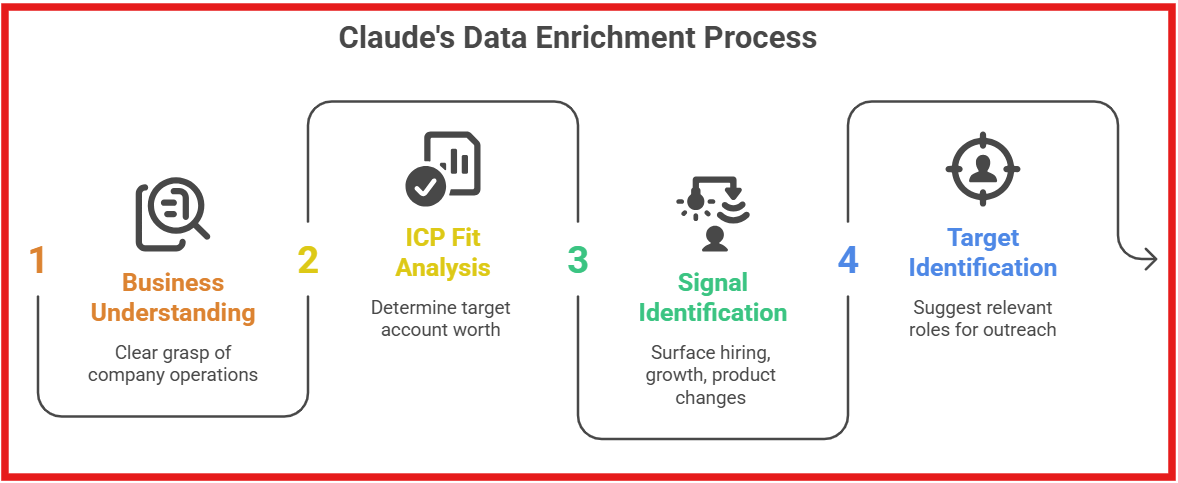
Before the MCP, building a lead list meant pulling contacts from one tool, cleaning them in a spreadsheet, uploading to Salesforge, and then enrolling manually.
Now it is one prompt:
"Pull VP Sales contacts at Series B SaaS companies in North America from Leadsforge. Create a new list in Salesforge. Enroll them in my April sequence."
No CSV. No manual upload. Contacts are in the sequence within a minute.
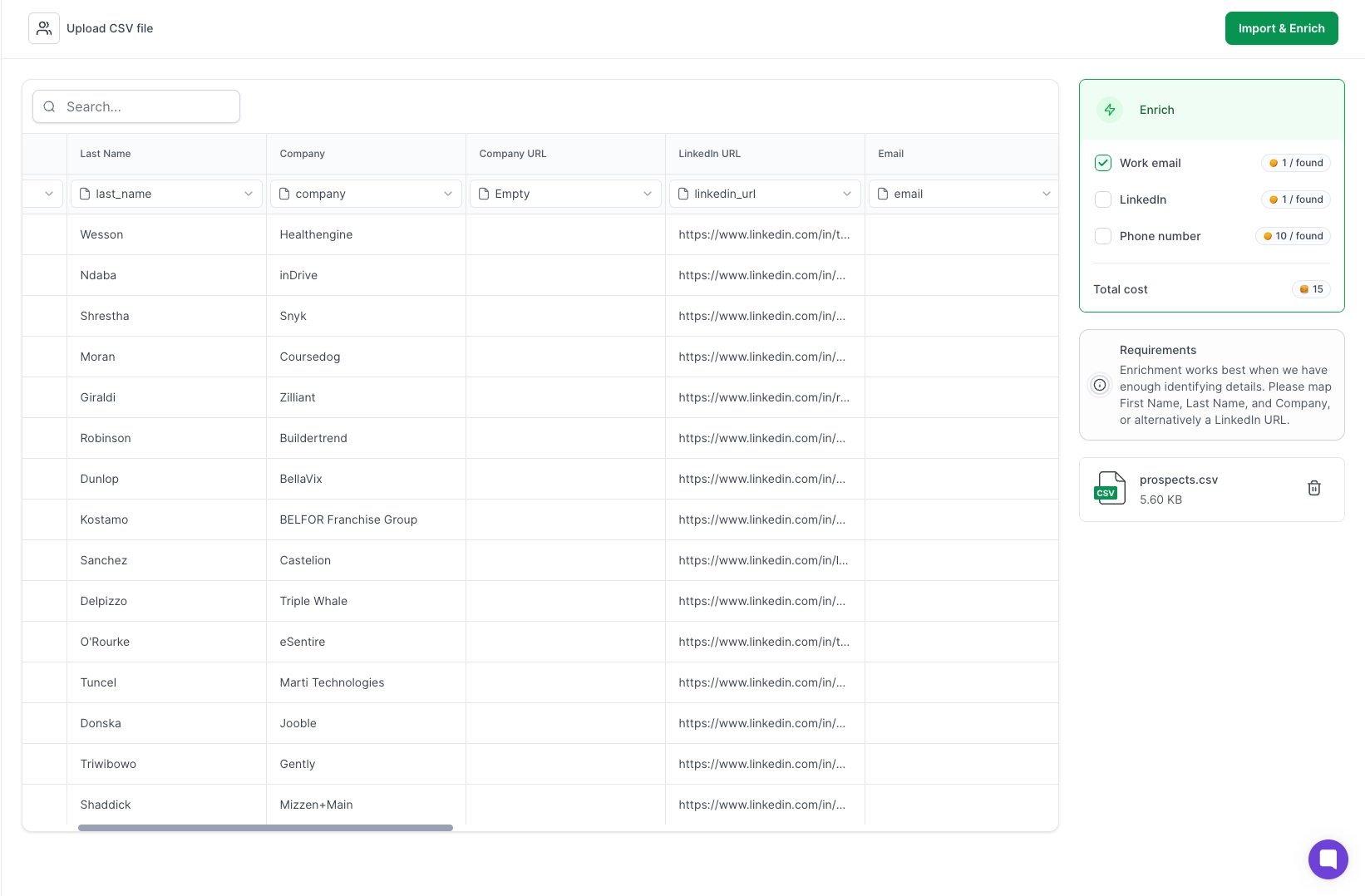
Leadsforge pulls from 500M+ contacts with waterfall enrichment across multiple data sources. The hit rate is higher than pulling from a single provider.
How AI Uses Behavioral Data to Personalize Outreach
Most cold outbound tools make you do the work. You open the platform, click through menus, export data, and piece together what is happening across your campaigns.
The Salesforge MCP changes that relationship.
Instead of going to your data, your data comes to you. You ask a question in plain English and Claude pulls the answer from your live Salesforge account.
Most AI integrations need OAuth flows, a deployed server, and someone from engineering to set it up.
The Salesforge MCP needs none of that. One API key, one config block, and you are connected. Most people finish setup in under five minutes.
Generic email tools are built for newsletters and broadcast campaigns. They track opens, manage subscriber lists, and schedule monthly sends.
Cold outbound is different. You need warm-up schedules, mailbox rotation, deliverability diagnostics, reply tracking, and sequence management.
The Salesforge MCP is built around these workflows specifically. Every tool Claude can access maps to something an outbound operator actually does.
One endpoint connects Claude to all six Forge stack products.
Salesforge for sequences and mailboxes. Leadsforge for contacts. Warmforge for warmup and heat scores.

Infraforge and Primeforge for infrastructure. Mailforge for shared-IP sending.
You do not wire each product separately. One config block covers all of them.

Salesforge handles email and LinkedIn from one platform. The MCP exposes both channels to Claude.
You can build a sequence with email steps and LinkedIn steps in a single prompt. Claude adapts the tone and format for each channel when you give it the rules.
This is the part most people underestimate.
When you run the same mailbox health check prompt every Monday, you stop missing problems. When you run the same campaign analysis every week, patterns become visible over time.
You start to know which ICP responds to which pain point. You know which step in the sequence pulls replies. You know when a mailbox is drifting before it becomes a problem.
That consistency is what separates outbound teams that scale from teams that stall.
Claude handles the repetitive work. But some parts of outbound need a human in the loop.
The following tasks keep manual on purpose.
When someone responds with genuine interest, do not let Claude reply. That conversation needs a real person behind it.
A warm reply is the whole point of cold outbound. Do not automate it away.
If an account matters to your pipeline, read the email before it goes out.
Claude drafts well, but it does not know the full history of a relationship you have been building.
If one sequence performs well, do not rewrite your entire approach based on it.
Wait for three campaigns to show the same pattern before you change anything permanent.
Claude can pull and enroll contacts. It cannot tell you whether a list feels right for this moment.
That reading comes from experience, not data.
Enter your email to get a custom plan & stack recommendation for your business
Please check your mailbox in 5 minutes
Building an AI email assistant using Claude is not a complex project. It is a config block, an API key, and a context file.
Once it is connected, the job changes.
Sequences go from a manual build across multiple tabs to a single prompt. Mailbox health checks run every Monday without opening a dashboard.
Deliverability drops get diagnosed in 90 seconds instead of 45 minutes. Campaign performance turns into the brief for next week's sequence.
The Salesforge MCP is what makes all of this work. One endpoint connects Claude to your sequences, mailboxes, contacts, warmup data, and lead lists. You ask a question and get an answer from your live account.
If you run cold outbound and you are still doing this work manually, this is the place to start.
Start your 14-day free trial, connect Claude, and run your first prompt today.
.jpg)

.jpg)

.png)