
Personalized Outbound Strategy
Get The Right Outbound Strategy In Minutes
Enter your email to get a custom plan & stack recommendation for your business
It's being carefully crafted by AI
Please check your mailbox in 5 minutes
If you’re trying to scale LinkedIn outreach, one account hits a limit fast.
You can only send ~100 connection requests a week.
That caps your reach, replies, and pipeline. So naturally, you start thinking:
LinkedIn allows managing accounts for team members or clients. But creating multiple accounts for yourself can get you restricted.
So the real question is, how do you manage multiple LinkedIn accounts without getting flagged or losing control?
In this guide, you’ll learn:
Let’s get into it.
Yes, but only under specific conditions.
LinkedIn allows managing multiple accounts if they belong to real people, such as team members or clients.
LinkedIn does not allow:
Managing accounts manually can also create risks:
These can lead to restrictions.
So the focus is not just having multiple accounts, but managing them in a safe and consistent way.
After trying different setups, I realized there is no single way that works for everyone.
It depends on:
Some methods are simple but limited. Others give more control but need a proper setup. Here are 7 ways I’ve seen work in real use.
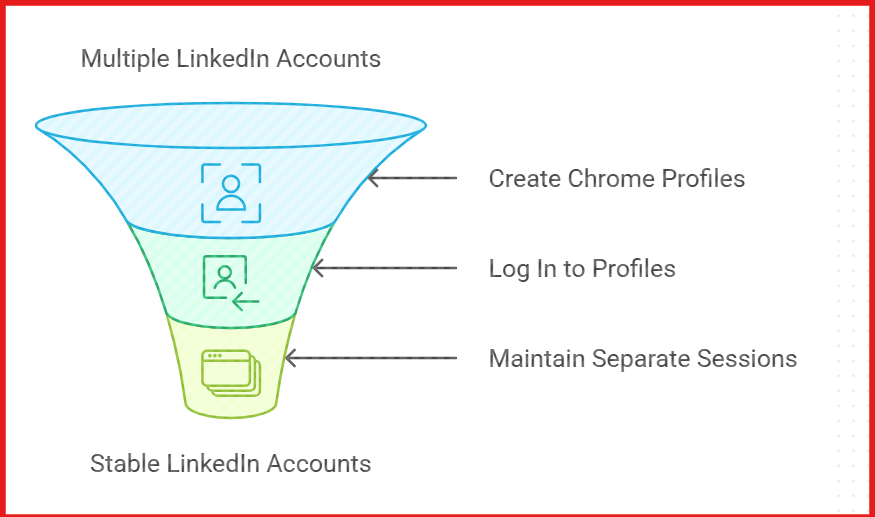
This is the first setup I used when handling multiple LinkedIn accounts. Instead of switching accounts in one browser, I created separate Chrome profiles.
Each profile stayed logged into one LinkedIn account.
For example:
Each profile works like a separate browser. It has its own:
So LinkedIn does not see constant account switching from one place.
This reduces login issues and keeps accounts stable.
I looked into this when multiple LinkedIn accounts were being accessed from the same setup. By default, all accounts log in from the same IP.
So LinkedIn sees activity coming from one location. In some cases, a VPN can be used to assign a different IP location to each account.
For example:
This creates basic separation between accounts. This is mostly relevant when:
The key here is consistency. Each account should log in from the same location over time.
I don’t treat this as a primary setup.
But in specific cases, it can help keep account activity more consistent.
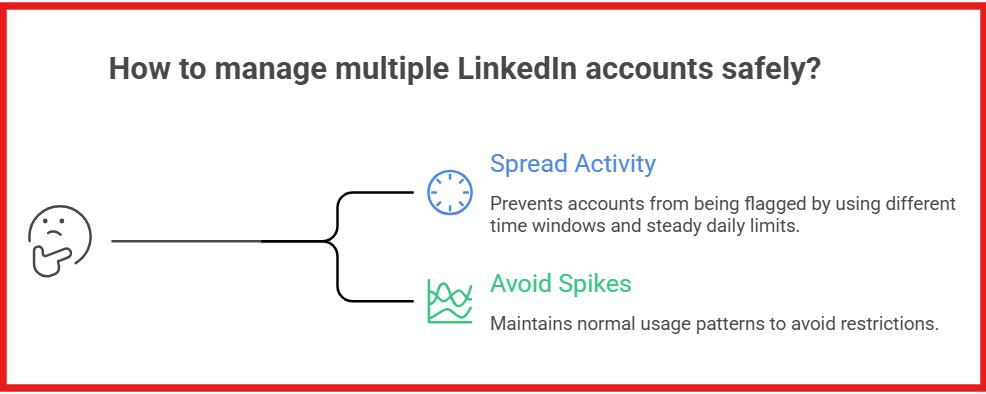
Each LinkedIn account has limits on:
If one account crosses limits, it gets restricted.
But when managing multiple LinkedIn accounts, the problem compounds. I’ve seen this happen:
What worked for me was spreading activity:
It’s not just about one account staying safe.
It’s about keeping all accounts within normal usage patterns.
This is one of the cleanest setups I’ve seen.
Instead of managing multiple LinkedIn accounts yourself, each account is assigned to one person.
For example:
No one logs into multiple accounts. This keeps activity natural. Each account behaves like a real user. It also reduces:
I’ve seen this work well when teams start scaling.
The only gap is coordination. Each account runs separately unless there is a system to track conversations.
This setup keeps things simple. Each account = one person, one workflow.
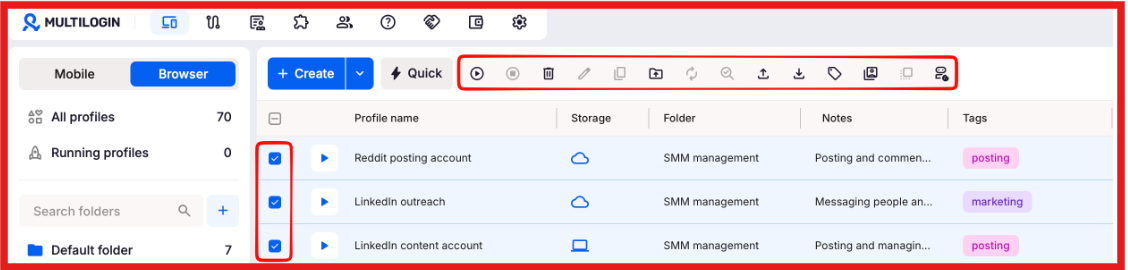
When basic setups like Chrome profiles or VPN were not enough, this is what I used.
Inside Multilogin, each LinkedIn account runs in its own browser profile.
That profile stores its own cookies, login session, and device identity.
Then a proxy is attached to that profile. So when you open it, LinkedIn sees:
You open that same profile every time you use that account.
You don’t log into it from anywhere else.
That’s the key. Instead of one browser switching between accounts, each account stays fixed to its own environment.
That’s what makes this setup work when managing multiple LinkedIn accounts.
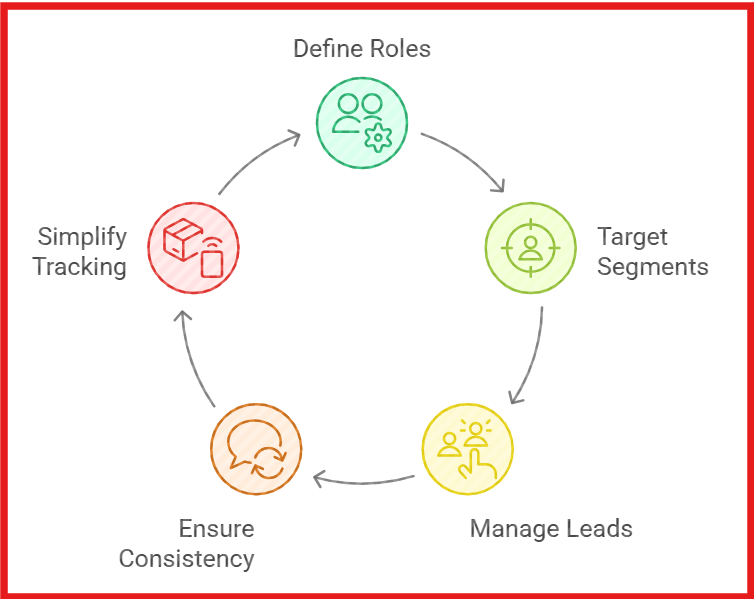
When I used multiple LinkedIn accounts without structure, things got messy fast.
Different accounts ended up targeting the same people.
Sometimes the same prospect got messages twice.
So I started giving each account a clear role. One account focused on a specific type of customer.
Another focused on a different segment or region.
Each account worked on its own set of leads.
That made everything easier to manage. Messages stayed consistent, and tracking became simpler.
When each account has a clear purpose, managing multiple LinkedIn accounts becomes much easier.
When multiple LinkedIn accounts are used, messages and replies get scattered.
Each account has its own inbox. There is no clear view of who replied or who needs a follow-up.
You can fix this by using multi-channel tools.
All LinkedIn accounts are connected in one place.
Messages from different accounts show in one dashboard.
You can see:
This prevents sending the same message from multiple accounts. It also makes follow-ups easier to track.
Multi-channel tools bring LinkedIn accounts into one place.
But you still need the right tool for:
Here are tools built for each.
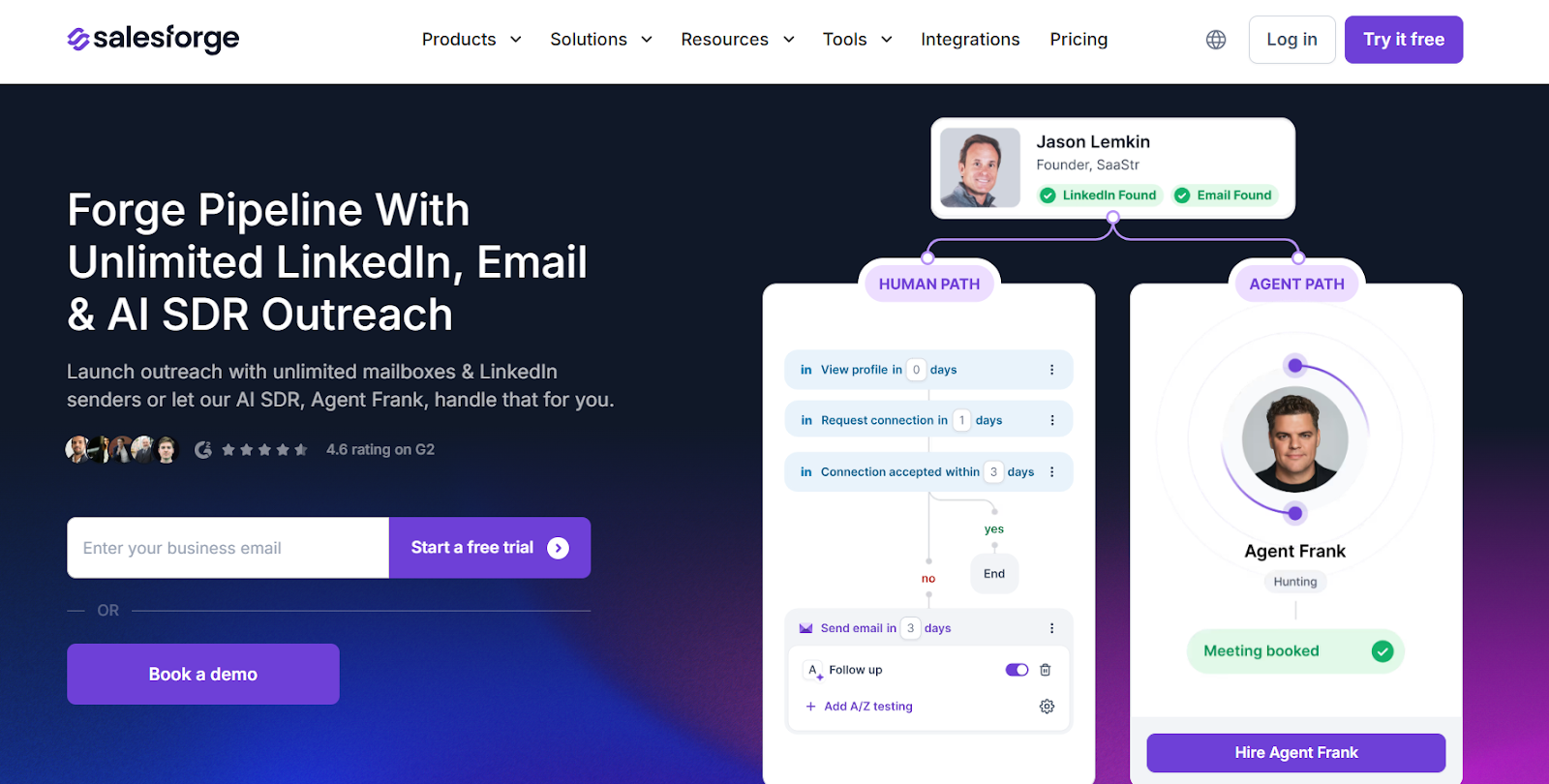
Salesforge is built for managing outreach across multiple LinkedIn accounts.
Instead of handling each account separately, it lets you run outreach across all of them from one place.
You can:
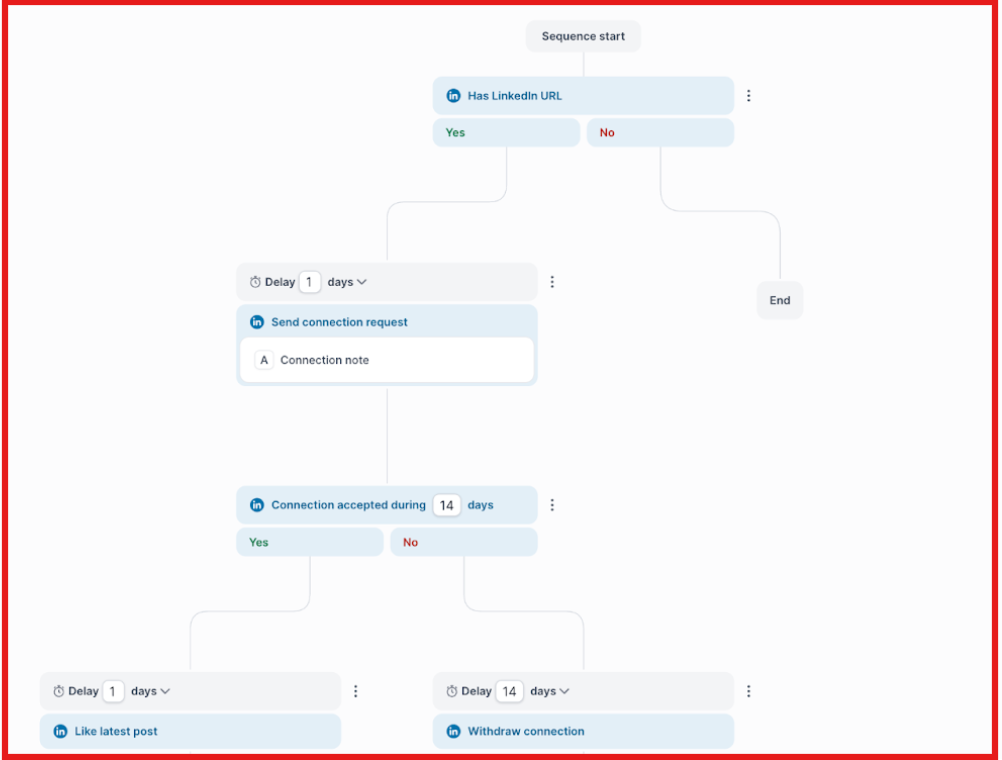

It also supports unlimited LinkedIn senders, so teams are not restricted by seats.
This fits when the goal is to manage outreach across multiple LinkedIn accounts at scale.
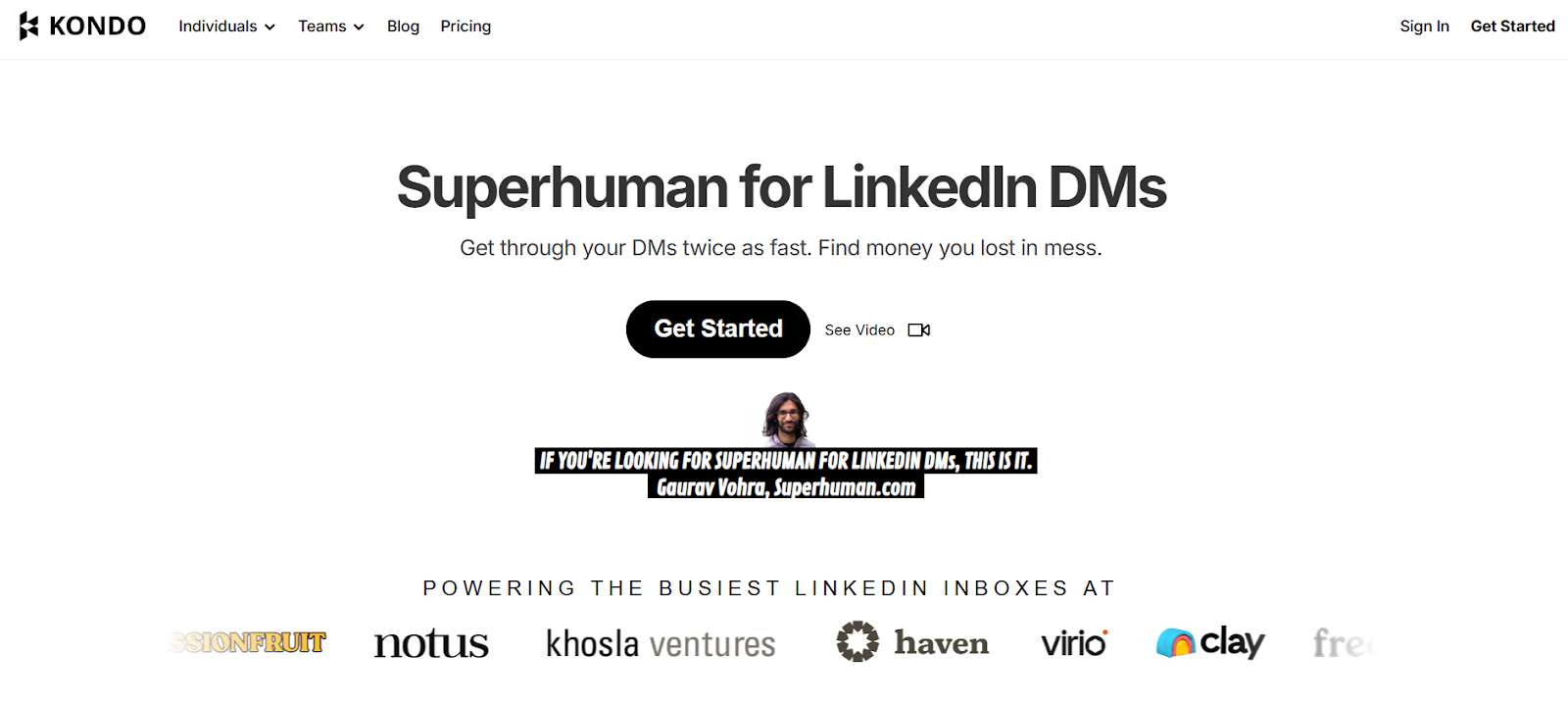
Kondo focuses on managing LinkedIn inboxes when message volume increases.
Instead of scrolling through DMs, it organizes conversations clearly.
You can:
This helps avoid missed replies and delayed follow-ups.
This fits when managing replies across multiple LinkedIn accounts becomes difficult.
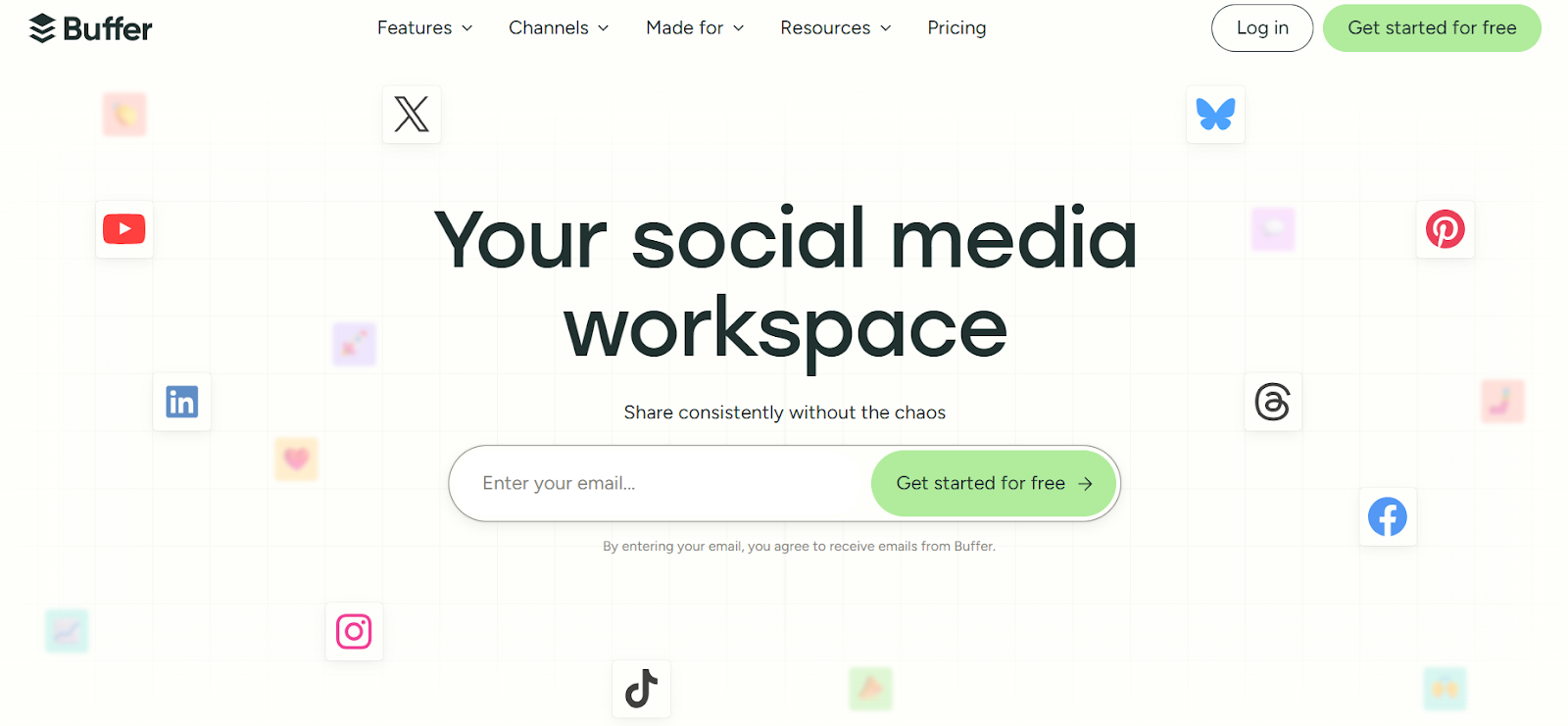
Buffer is built for managing LinkedIn content across multiple profiles.
Instead of posting manually, content can be planned and scheduled in advance.
You can:
It supports publishing, analytics, and content workflows across accounts.
Each tool fits a different part of managing multiple LinkedIn accounts. They work on different layers, outreach, inbox, and content.
That’s why the setup depends on what you’re trying to manage.
Most issues don’t show up on day one. They show up after a few days of normal work.
One account gets a verification check. Another stops sending requests. And suddenly everything slows down.
Here’s what actually keeps things stable:
Most issues don’t come from using multiple accounts. They start when activity stops looking consistent.
Different logins, overlapping outreach, sudden spikes, that’s what triggers problems.
Keep things stable, and accounts stay usable.
Based on what I’ve seen, the best way is using a multi-channel setup.
I ran into this while doing outreach.
I had multiple LinkedIn accounts running.
But there was no clear way to track which account had already contacted a lead.
One account sent the first message. Another account followed up on the same person a few days later.
That created confusion and hurt replies.
After moving to a multi-channel setup, all LinkedIn accounts were handled in one place.
Now I can see:
Each lead is handled by one account only.
Enter your email to get a custom plan & stack recommendation for your business
Please check your mailbox in 5 minutes
The 7 methods above solve different parts of the problem.
Chrome profiles and Multilogin handle login and separation. Limits and warm-up keep accounts stable. Role split prevents overlap.
But once outreach starts, the issue shifts.
Replies sit in different LinkedIn inboxes. There is no clear view of which account contacted a lead. Follow-ups go out without knowing a reply already came.
That’s where the multi-channel setup becomes necessary.
Instead of managing each account separately, all LinkedIn accounts, messages, and replies are tracked in one place.
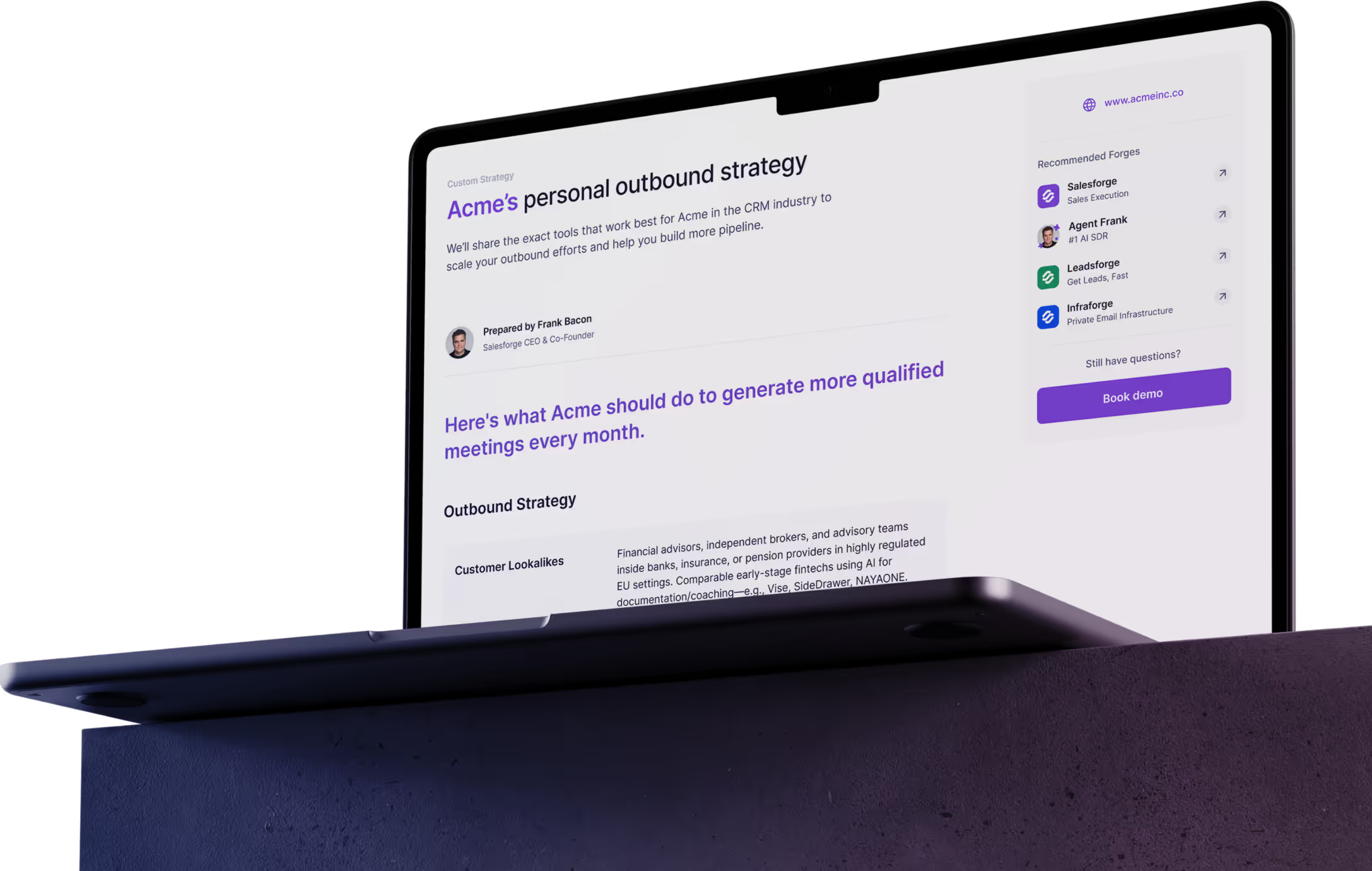
This is where Salesforge fits.
It lets you manage LinkedIn outreach across multiple accounts without switching. It also keeps replies and conversations visible in one system.
You can try Salesforge and see how multi-channel outreach performs in your workflow.
.jpg)