I have some exciting news to share today. Salesforge is now officially integrated with Weezly. That means you can generate personalized AI sales videos for every lead inside Salesforge and send them through your multi-channel sequences without ever leaving the platform.
I have been waiting for this one. Video outreach works. Personalized video outreach works even better. The only problem has always been the manual effort. Recording a unique video for every prospect is not realistic when you are sending hundreds of touches a day. This new integration solves that part. Salesforge handles the sequence. Weezly handles the personalization. Both live under the same roof now.
Below I will walk you through exactly how it works and how you can set it up in a few minutes.
Salesforge is the platform you use to run multi-channel sequences across email and LinkedIn. Weezly is the video tool that creates the personalized sales videos. Until now you had to switch between the two. Record videos in Weezly. Copy links over. Paste them into Salesforge sequences one by one. That worked but it was slow.
Now, you can upload your contacts into Salesforge and sent it to Weezly to create a personalized video background. Salesforge then sends those videos dynamically across your full list in a single sequence, so the outreach feels personal without becoming manual.
Salesforge makes the setup simple. There are only a few steps and most of them you probably already do when you build a normal sequence.
This is the only thing you need to install. The Chrome extension is what powers the personalized video generation inside Salesforge. Without it the integration will not show up in your sequence builder.
Go to the multi-channel section inside Salesforge and either create a new sequence or open one you already have. This is where your video step will live.
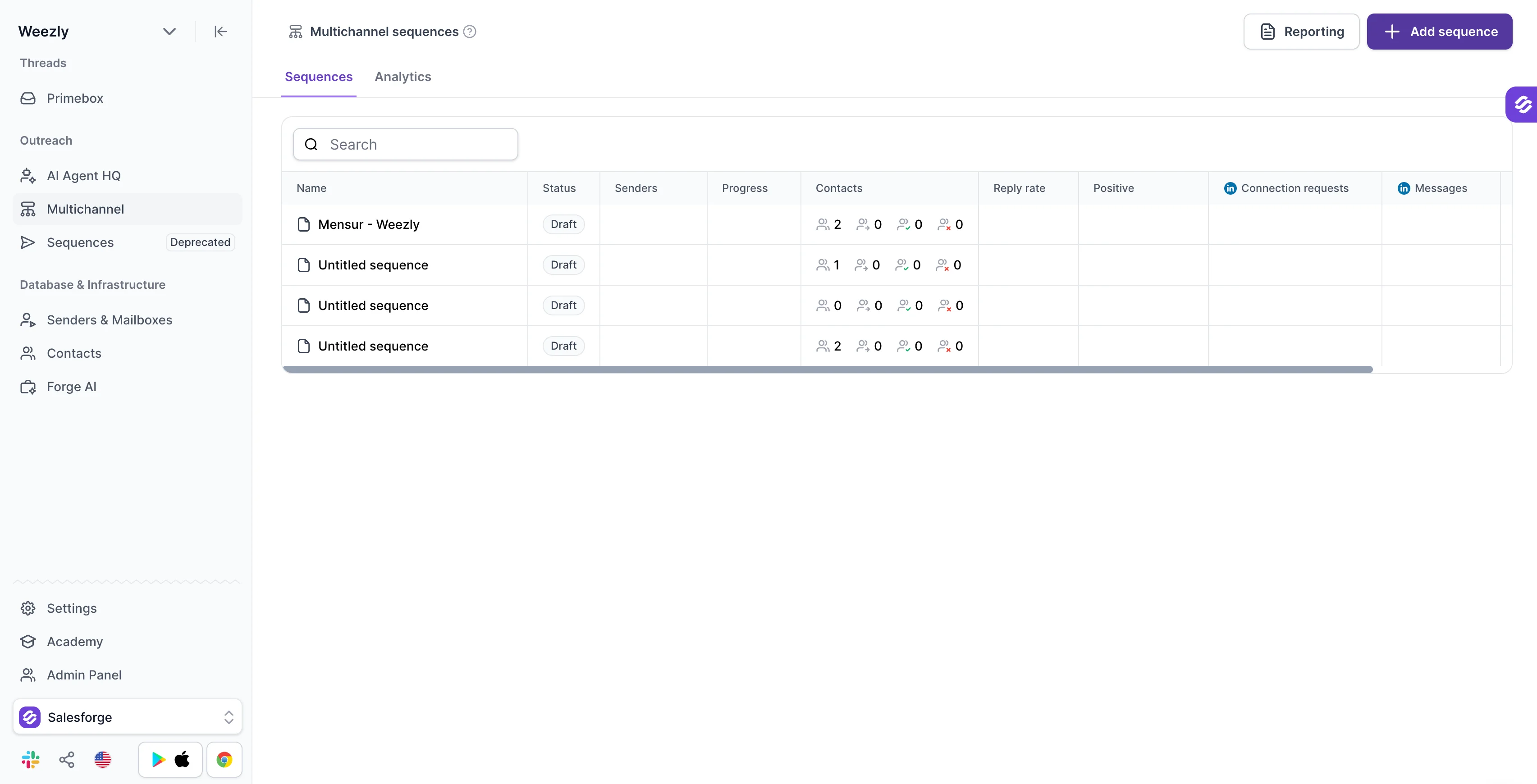
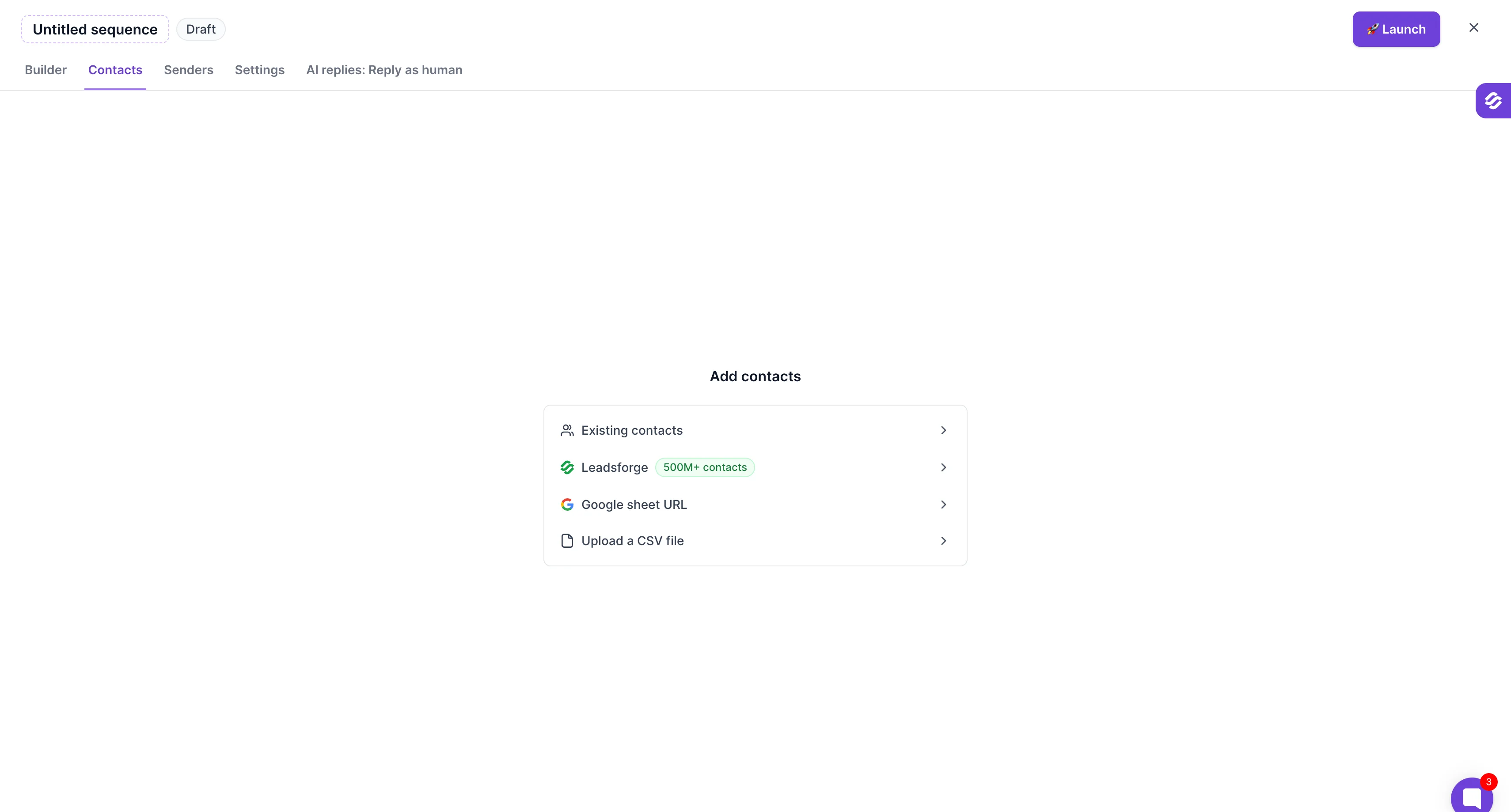
Go to the contacts tab and import the leads you want to reach out to. Click Add Contacts and upload your list. Once they are inside the Salesforge sequence you will see them appear in the contacts table.
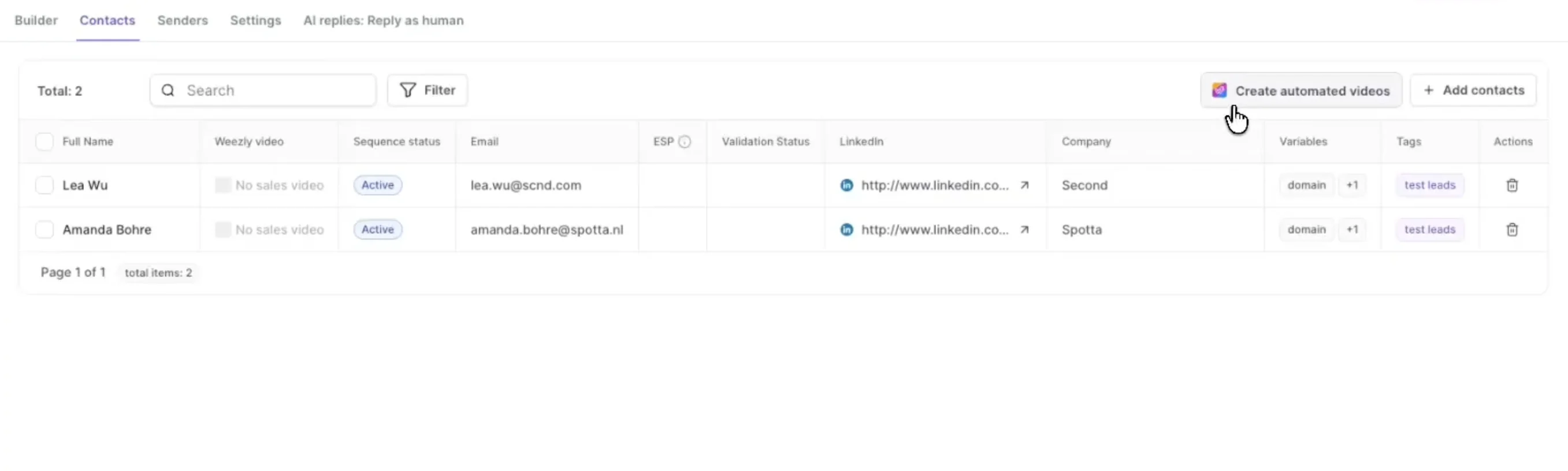
Once your contacts are in and the Chrome extension is installed Salesforge will show you two new things. The first is a Create Automated Videos button at the top of the contacts view. The second is a new column called Weezly Video next to each contact.
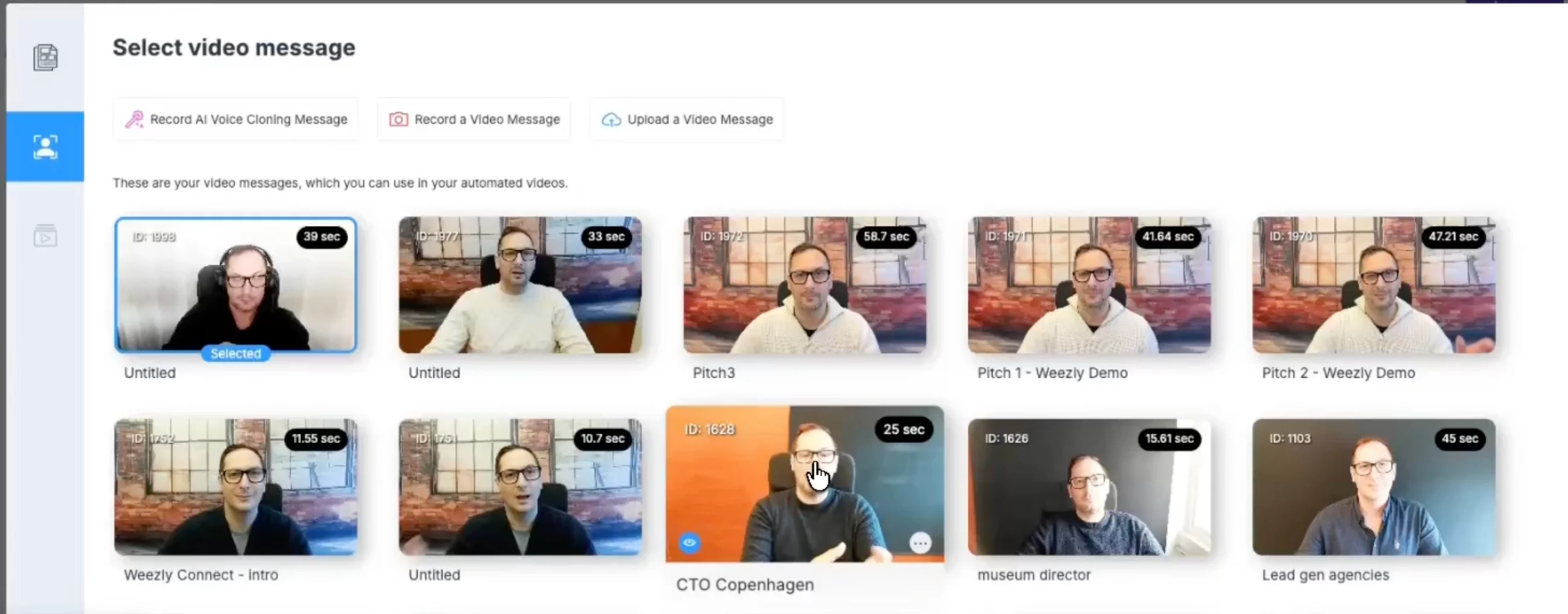
Click the Create Automated Videos button and the Weezly pop-up opens inside Salesforge. This is where you record your message, pick your background option, add captions or a booking page, and hit generate. Weezly then builds a personalized version for every lead in your list using the LinkedIn profile and company website that Salesforge passed over.
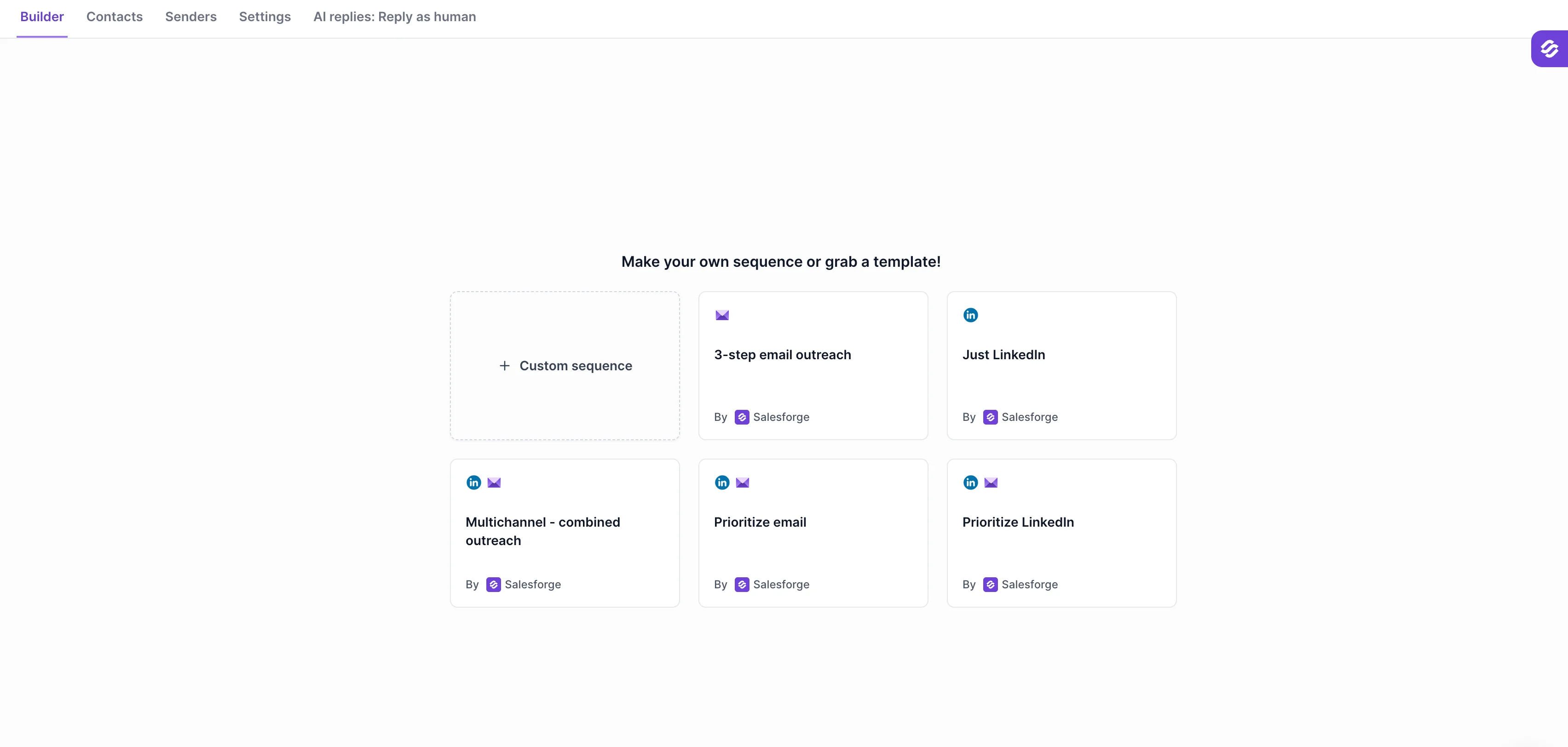
Once your videos are ready head back to the Salesforge sequence builder. This is where you shape the actual outreach flow. Email steps. LinkedIn steps. Wait times. Follow ups. The whole sequence lives here.
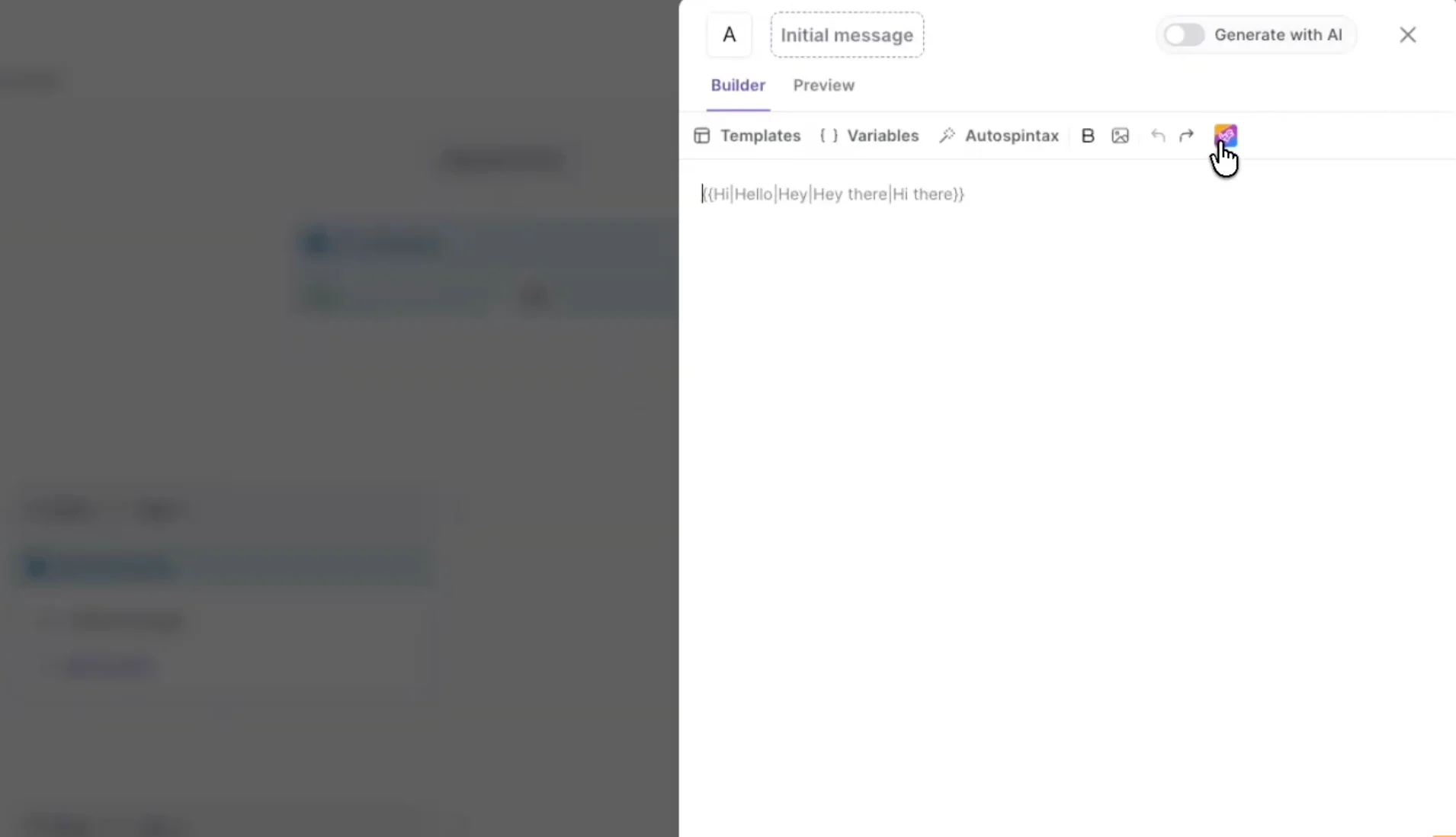
Go to the specific sequence step where you want the video to appear. It can be an email step or a LinkedIn step. Inside the message editor you will see a Weezly icon. Click it. Salesforge inserts the Weezly video preview link into the message.
Important: Do not edit the Weezly link itself. It contains the dynamic variable that Salesforge uses to send the right video to each lead. You can add your own text before or after the link but leave the link untouched.
Add any remaining steps. Set your wait times. Review your contact list one more time. When everything looks good hit launch on the Salesforge sequence. From that point Salesforge takes over. Each lead in the list will receive their own unique personalized video inside their email or LinkedIn message at the right step in the sequence.
This is something I want to call out because it gets missed a lot. The video message itself is the same for every lead in the batch with personalization.
That means you cannot send the same video to a salesperson and an IT person becuase they care about different things. They have different problems,so your message has to match the segment.
Before you click generate inside Salesforge take a few minutes to split your contacts by role or industry. Record one video for each segment. Then run the automation. The output will feel ten times more personal because the message and the visuals both line up with who the person actually is.
Once your videos are generated Salesforge will show them in the Weezly Video column next to each contact. You can preview any of them by clicking the small icon. The fully automated video plays exactly the way it will reach your prospect.
To actually send them you go back to the Salesforge sequence builder and create or open a step. Inside the message editor you will see a Weezly icon. Click it. Salesforge inserts the right variable for that lead's video.
When the Salesforge sequence runs each prospect receives their own unique video link. They see a GIF preview right inside the email or LinkedIn message. They click and the full video plays. If you added a booking page they can schedule a meeting in one click.
Video outreach is not the right move for every campaign. It takes more setup than a plain text sequence. So you want to use it where the extra effort actually pays off.
Here is where I would use it.
This integration is one more piece of the full outbound stack we have been building around Salesforge. Here is how it all connects.
You find your leads in Leadsforge. You send them through Salesforge using mailboxes from Mailforge, Primeforge, or Infraforge. You warm those mailboxes with Warmforge before you start sending. And now Salesforge can also pass lead data to Weezly and send personalized AI sales videos inside any sequence step.
Every part of the stack runs through Salesforge. You do not need to bounce between five different tools to run a serious outbound motion anymore.
Yes. Salesforge handles the sequence side but you need an active Weezly account and the Weezly Chrome extension installed for the video generation to work. The integration sits on top of your existing Weezly subscription.
Yes. You record one video message per segment in Weezly. Salesforge then passes each lead's LinkedIn profile and company website to Weezly which uses that data to personalize the background for every prospect. The audio stays the same but the visuals change for each lead and Salesforge sends the right version to each person inside the sequence.
Multimotion is a feature that lets you build a sequence of background visuals inside a single video. You can start on the lead's LinkedIn profile then switch to their website then show your own product page. The transitions happen automatically while you talk.
Both. Inside the email or LinkedIn message they see a GIF preview of the video. When they click it the full video plays in their browser. If you added a Weezly booking page they can schedule a meeting right from the same screen.
Yes. Salesforge supports both email and LinkedIn inside the same multi-channel sequence. You can drop a Weezly video into either type of step and the prospect will receive the personalized video preview in whichever channel you choose.
The integration itself is included in your Salesforge Growth plan. You only pay for your Weezly subscription separately. Pricing for Weezly depends on how many videos you plan to generate each month.