
Personalized Outbound Strategy
Get The Right Outbound Strategy In Minutes
Enter your email to get a custom plan & stack recommendation for your business
It's being carefully crafted by AI
Please check your mailbox in 5 minutes
If you’ve been using LinkedIn for a while, you’ve probably seen both sides of it. It’s full of decision-makers, founders, and professionals open to business conversations. But turning that into actual leads is where most people struggle.
You post consistently but nothing converts. You send connection requests but get ignored. Or worse, you get replies that never turn into real opportunities. Most LinkedIn lead generation efforts break here, not because the platform doesn’t work, but because there’s no clear strategy behind it.
I’ve heard about this while running outbound campaigns and speaking to teams who say the same thing, “We’re active on LinkedIn, but it’s not driving pipeline.”
In this guide, you’ll learn 9 proven ways to generate leads on LinkedIn, based on what’s actually working right now, so you can focus on what drives pipeline and ignore what doesn’t.
I. Outbound (Fastest way to get leads):
II. Inbound (Builds long-term pipeline):
III. Paid Ads (Scale what works):
LinkedIn lead generation means finding people who can become your customers on LinkedIn and turning them into real business opportunities. The goal is to reach the right people, start useful conversations, and move them toward a call, demo, or deal.
LinkedIn works well for this because you can search people based on their job title, company, industry, and location. This helps you connect with decision-makers who are more likely to need your product or service.
The process usually involves four clear steps:
LinkedIn lead generation can be done in three main ways, outbound (direct outreach), inbound (content and engagement), and paid ads (targeted campaigns). The best results usually come from combining all three instead of relying on just one approach.
LinkedIn is one of the few platforms where business conversations happen naturally. People are already there to connect, learn, and explore opportunities, which makes it easier to turn interactions into leads.
Here’s why it works so well for lead generation:
Because of this, LinkedIn is not just a networking platform, it can become a consistent and scalable source of B2B leads when used with the right approach.
Now that you understand how LinkedIn lead generation works, the next step is execution.
Here are 9 proven LinkedIn lead generation strategies that teams are using right now to build pipeline consistently:
Most LinkedIn outreach fails because it relies on just one channel. People ignore connection requests, miss messages, or simply don’t check LinkedIn regularly. That’s why multichannel outreach works better.
Instead of depending only on LinkedIn, this approach combines LinkedIn and email to reach the same prospect in multiple places. If they miss one, they see the other.
Here’s how it works in practice:
This increases reply rates because the prospect sees your name more than once, in different places, without feeling spammed.
The problem is execution. Doing this manually is hard. You have to switch between LinkedIn and email tools, remember who replied where, and track follow-ups yourself. As outreach grows, messages get missed, follow-ups get delayed, and everything becomes messy.
This is where Salesforge helps. It is a multichannel outreach tool that lets you send LinkedIn and email messages in one sequence.
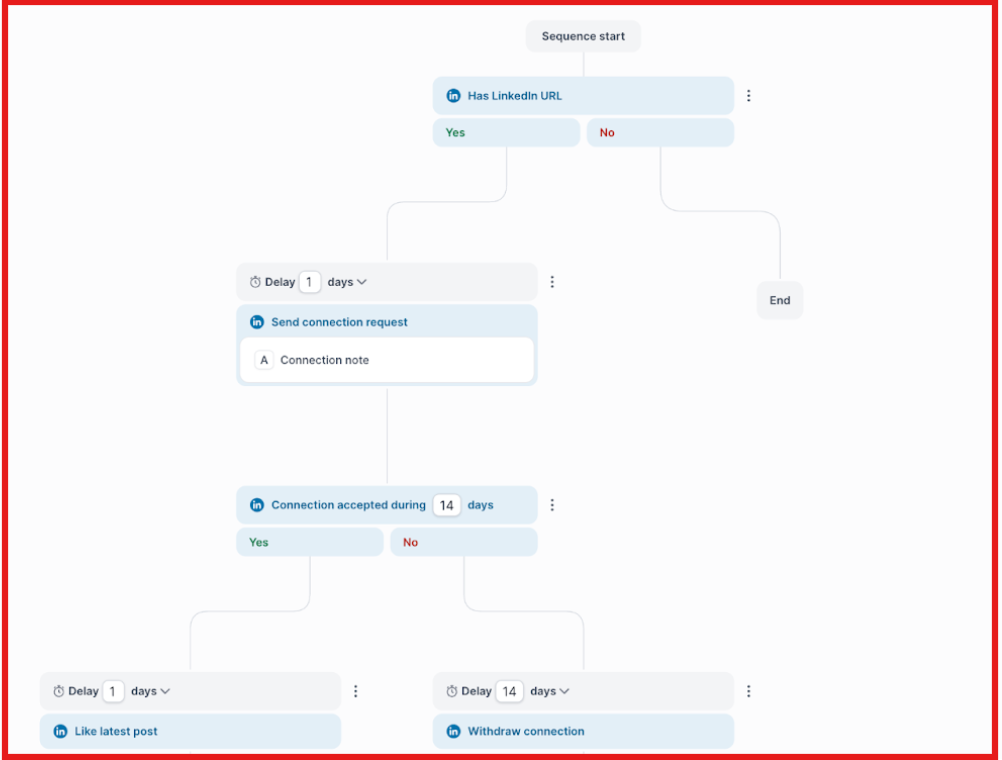
It track replies in one place, and manage everything without switching tools.
This approach is what helped teams like AKOOL and Jungler. AKOOL used Salesforge to run large-scale outbound campaigns and reached over 200,000 prospects while maintaining a 16%+ positive reply rate. That performance came from combining segmentation with consistent multi-touch outreach, not just sending more emails.
Jungler took it further by using LinkedIn engagement signals as triggers. When someone interacted with content, they followed up with contextual outreach across LinkedIn and email using Salesforge. This made messages feel timely and relevant, leading to replies like, “this is the best cold email I’ve gotten in a long time.”
The takeaway is multichannel outreach improves reply rates. But tools like Salesforge make it possible to execute it properly at scale without losing context or control.
Finding leads on LinkedIn becomes much easier when you follow a clear process instead of random search. LinkedIn Sales Navigator helps you do this with precise filters and lead tracking.
Here’s exactly how to find leads step by step:

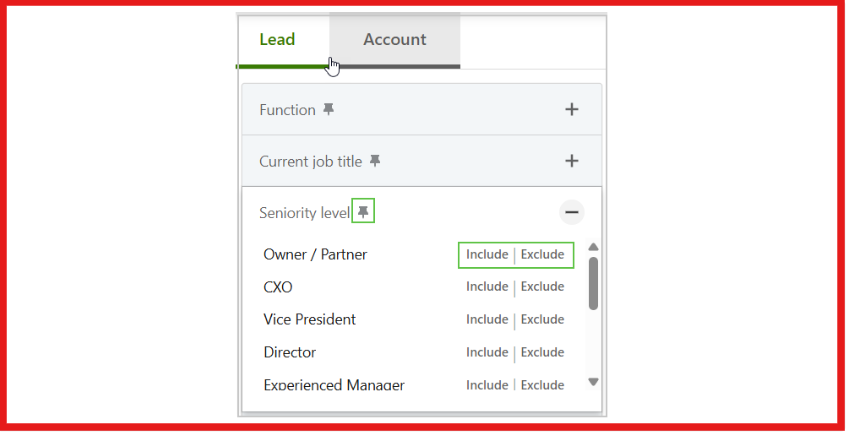
Once the list is ready, you can start outreach with better confidence because every profile already matches your target criteria. This is how you consistently find high-quality leads instead of relying on random LinkedIn searches.
Many decision-makers are hard to reach because they are not in your network. Connection requests get ignored, and regular messages do not go through.
LinkedIn InMail lets you message them directly without connecting first. This makes it easier to reach founders, CEOs, and senior roles. The key is to keep it simple. Send InMails only to high-value prospects, not everyone. Start with a clear reason based on their role, company, or recent activity. Keep the message short and avoid pitching too early.
Timing matters as well. Reaching out when someone changed jobs, posted recently, or is part of a growing company increases replies. Used this way, InMails help you start direct conversations with decision-makers instead of waiting for connections.
Most LinkedIn outreach fails because it targets people who are not ready to buy. The better approach is to focus only on people already showing interest.
High-intent prospects are the ones already showing signals. This includes people posting about problems, asking for recommendations, hiring for a role, or engaging with content related to your category.
The goal is to find these signals and act fast. For example, if someone posts “looking for a cold email tool” or “hiring SDRs,” that is a clear buying signal. Reaching out at that moment feels relevant, not random.
You can find these signals manually by checking posts and activity, or use tools like CommunityTracker to surface such conversations faster.
Once a signal is found, outreach becomes easier. You can reference the exact post or activity, which makes the message feel natural instead of cold.
This is what makes the difference. Instead of reaching out to everyone, you focus only on people who already show intent, which leads to better replies and more qualified leads.
Finding leads manually on LinkedIn is slow. You search profiles, apply filters, then use another tool to find emails. This breaks the workflow.
Prospecting tools fix this by combining search and enrichment in one place.
You start by defining your ideal customer profile. Then use filters to find matching people. After that, you can enrich the list with emails and LinkedIn data so it’s ready for outreach. This is faster because you don’t switch between tools and you get a ready-to-use list.
Now let’s see how to do this using Leadsforge.
With Leadsforge, you don’t need to apply multiple filters manually. You just describe who you want, like a role, industry, or company type, and it generates matching leads. You can also find lookalikes or people connected to competitors, which helps discover better prospects.
The best part is the data is already enriched. You get LinkedIn profiles along with emails, so the list is ready to use.

From there, you can connect on LinkedIn or export the list to Salesforge to run multi-channel outreach.
This way, you get a clean, verified list of LinkedIn leads without switching between multiple tools.
LinkedIn posts can generate leads if done correctly. Instead of reaching out to people, the right content brings people to you. The problem is most content does not work. It is too generic, like “5 tips for sales” or “how to grow your business.”
These posts get views but not leads because they don’t speak to a specific person or problem. The right approach is to focus on one clear problem your audience is facing.
For example, instead of writing, “Cold email tips that work”, write something specific, “Getting 0 replies on cold emails? This is why.” Then explain the issue and give a simple fix, “Most people start with a pitch. That’s why it gets ignored. Start with something relevant instead.”
Here’s an example of the kind of content that gets attention and drives conversations:

Keep each post focused on one idea. When someone reads your post and feels “this is exactly my problem,” they are more likely to engage or message you, which turns content into leads.
Lead magnets are one of the simplest ways to generate leads on LinkedIn. Instead of asking for a call directly, something useful is offered first. This can be a template, checklist, or short guide that solves one clear problem. The more specific the problem, the better the response.
For example, a post can be structured like this, “Built a LinkedIn outreach template that gets replies. Comment ‘template’ and I’ll send it.”
Here’s an example of a LinkedIn post using a lead magnet:

People who are interested comment on the post. The resource is then shared through DMs, which naturally starts a conversation.
Some people ask follow-up questions, while others share what they are currently doing. This makes it easier to continue the discussion and move toward a call if relevant.
This works because it focuses on value first. Instead of pitching, it helps solve a small problem. Every comment becomes a potential lead, making the process simple and scalable.
Comments are a simple way to get in front of the right people without relying only on posts.
Instead of waiting for content to reach the audience, it’s more effective to engage where the audience is already active. This means finding posts from founders, sales heads, or decision-makers and interacting there.
The approach is simple. Identify 10-15 relevant posts daily and comment early so the comment stays visible. Each comment should be short, specific, and add one useful insight or example related to the post.
For example, on a post about outbound not working, you can comment, “Seen this a lot. The issue is usually targeting, not the channel. Wrong audience = no replies.”
These kinds of comments show expertise and make people curious to check the profile. This creates visibility in two ways. First, the person who made the post notices the comment. Second, people reading the comments also see it.
Some of them visit the profile to learn more. If the profile clearly shows value, they either send a connection request or respond later during outreach. This is how comments generate leads. Not by pitching, but by consistently showing up with useful insights.
LinkedIn Ads work when you want to reach the right people without relying only on content or outreach. But most campaigns fail because they stay too broad and don’t use the right formats.
LinkedIn offers different ad types inside Campaign Manager, and each works differently.
Sponsored Content helps you push posts directly into your audience’s feed. Display Ads are more visual and work for brand visibility. Sponsored InMail lets you send direct messages to prospects in their inbox.
To generate leads, the execution needs to be specific.

When used this way, LinkedIn Ads become more than just paid traffic. They become a way to consistently reach, capture, and convert high-quality leads instead of relying on chance.
By now, it’s clear that LinkedIn lead generation is not about using one tactic. Each strategy solves a different problem, and choosing the right one depends on where things are breaking in your process.
Here’s a simple way to decide what to focus on:
In most cases, relying on just one strategy is where things go wrong. The best results come from combining them into a simple flow.
Start by finding the right people. Then reach out across channels so they actually see you. Stay visible through content, and convert them with the right offer.
Enter your email to get a custom plan & stack recommendation for your business
Please check your mailbox in 5 minutes
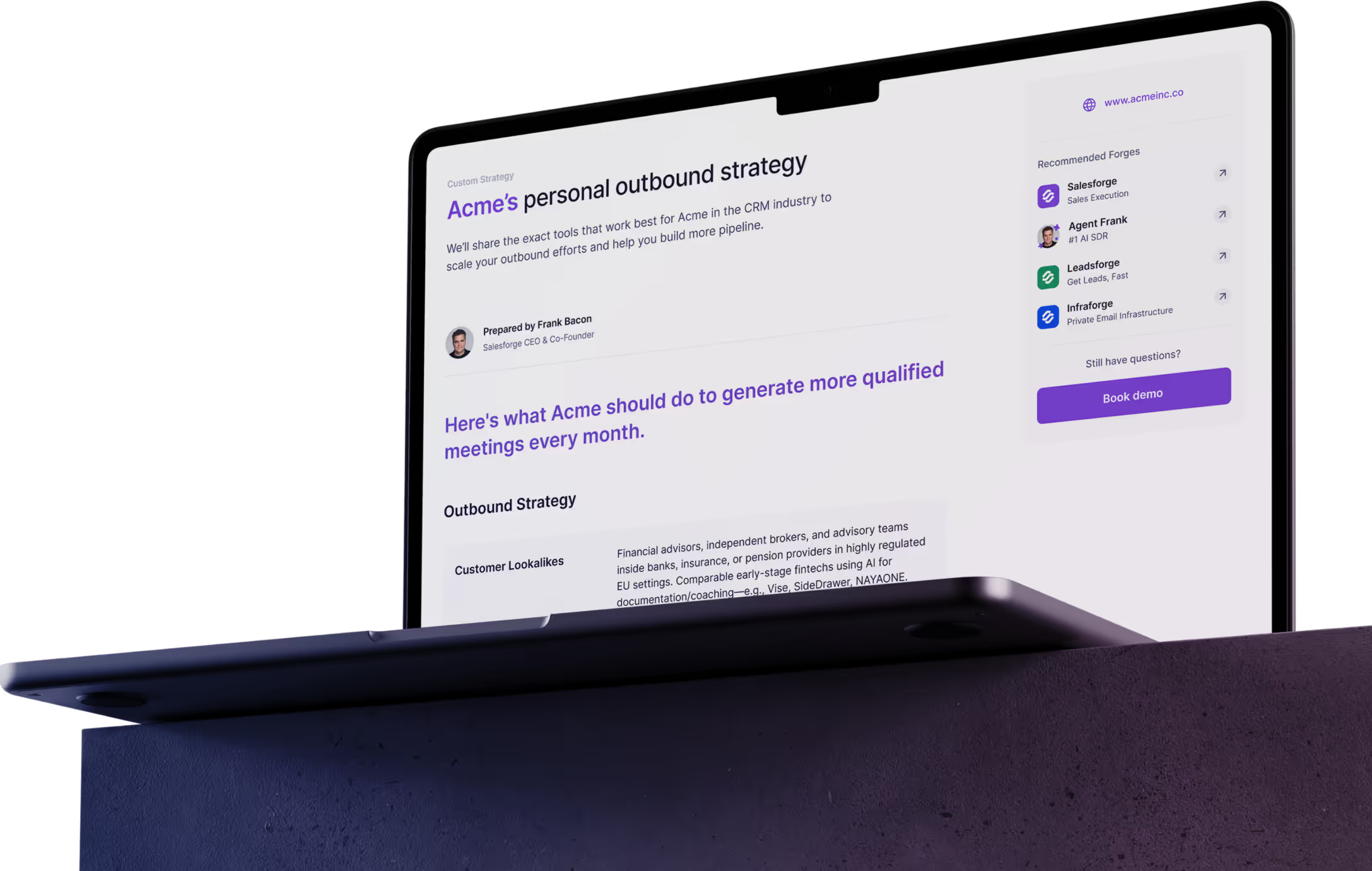
LinkedIn lead generation works when each step is clear. Find the right people, start conversations, and follow up properly. If one step is missing, results drop. Most people don’t fail because of LinkedIn.
They fail because there is no system. Once the process is clear, LinkedIn becomes a steady source of leads. To go beyond manual work, multi-channel outreach helps.
Leadsforge can be used to build lead lists with LinkedIn profiles and contact data. Salesforge can be used to run outreach across LinkedIn and email in one flow. This makes it easier to manage conversations and follow-ups.
If you want to scale beyond manual outreach, try multi-channel outreach with Salesforge and see how it fits your process.
.jpg)

.jpg)

.png)