Personalized Outbound Strategy
Get The Right Outbound Strategy In Minutes
Enter your email to get a custom plan & stack recommendation for your business
It's being carefully crafted by AI
Please check your mailbox in 5 minutes
I was sending connection requests, and suddenly LinkedIn restricted my account.
No warning.
Just a message saying my account was restricted.
I couldn’t send invites, reply to messages, or run outreach.
If you’re seeing this, you’re likely in the same spot.
This usually happens when LinkedIn sees activity that looks unsafe.
Too many requests, low acceptance rates, or automation tools can trigger it.
The good part is this.
Most restrictions are temporary.
If you follow the right steps, you can get your account back and avoid it again.
In this guide, I’ll show you exactly how to fix it.
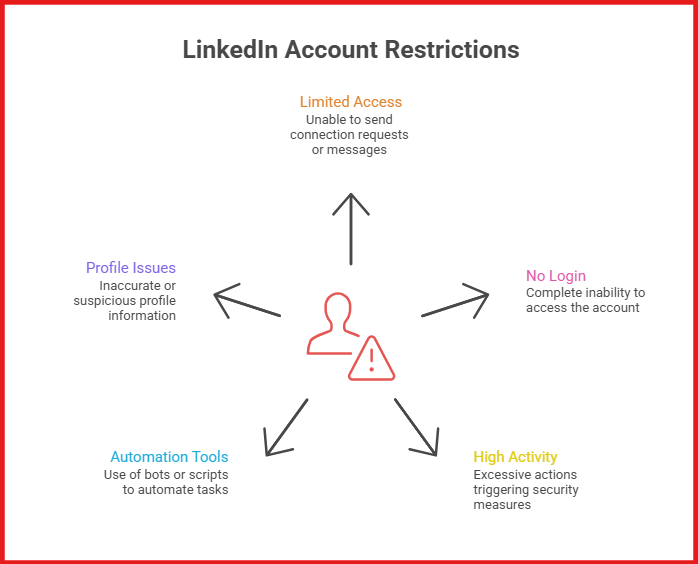
A restricted LinkedIn account means LinkedIn has limited or blocked your access.
You may not be able to send connection requests, message people, or run outreach.
In some cases, you may not be able to log in at all.
This usually happens when LinkedIn detects activity that looks unusual or unsafe.
It can be due to high activity, automation tools, or profile-related issues.
When LinkedIn restricts your account, the first thing to understand is this.
Is it temporary, or is it permanent?
That decides whether you can recover it or not.
From what I’ve seen, LinkedIn rarely restricts accounts randomly.
It usually comes down to patterns that don’t look normal.
Here are the most common ones people run into.
I’ve seen accounts get restricted just from pushing volume too fast.
This happens a lot with new or inactive profiles.
When people ignore your requests or click “I don’t know this person,” it adds up.
LinkedIn reads this as poor targeting.
This is one of the biggest triggers.
Especially tools that run through Chrome extensions or automate actions directly on LinkedIn.
If your name, photo, or details don’t look real, LinkedIn flags it.
I’ve seen accounts locked just for this.
Sending the same message again and again looks like spam.
Even if the message is good, the pattern gets picked up.
Logging in from different locations or devices can trigger checks.
This usually leads to verification or temporary restriction.
When your LinkedIn account gets restricted, it usually means LinkedIn wants to review your activity.
This is not always a ban.
In most cases, you can recover your account if you follow the right steps and don’t rush.
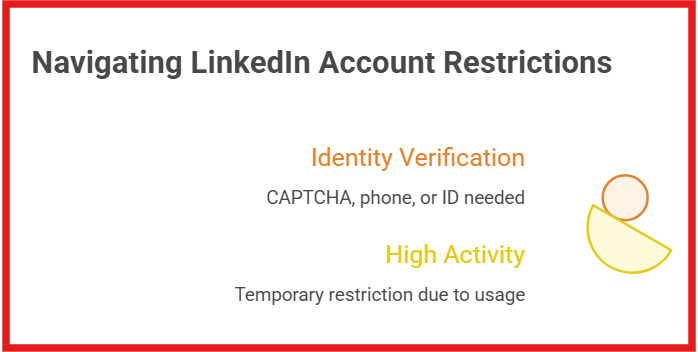
Start by reading the message LinkedIn shows on screen.
If you see requests like CAPTCHA, phone verification, or ID upload, it means LinkedIn wants to confirm your identity.
If there is no verification step, it is usually a temporary restriction caused by high or unusual activity.
This step is important because the solution depends on the type of restriction.
Pause everything on your account.
Do not send connection requests, messages, or visit too many profiles.
Trying to “test” the account can make LinkedIn more suspicious.
Give the account some time to cool down.
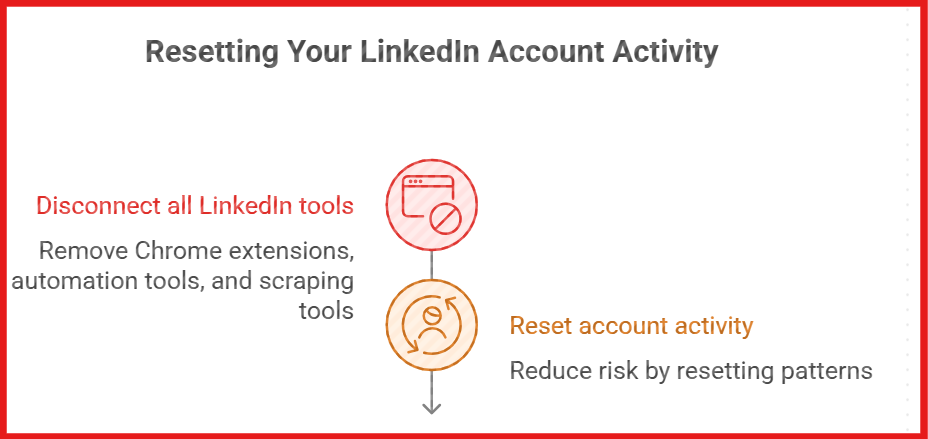
Disconnect every tool linked to your account.
This includes Chrome extensions, automation tools, and scraping tools.
These tools often create patterns that LinkedIn can detect.
LinkedIn does not allow software that automates actions on the platform.
Removing tools helps reset your account activity and reduces risk.
If LinkedIn asks for verification, complete it as soon as possible.
Upload a clear government ID like a passport or driver’s license.
Make sure your profile name and photo match your ID.
If the details do not match, LinkedIn may not approve your request.
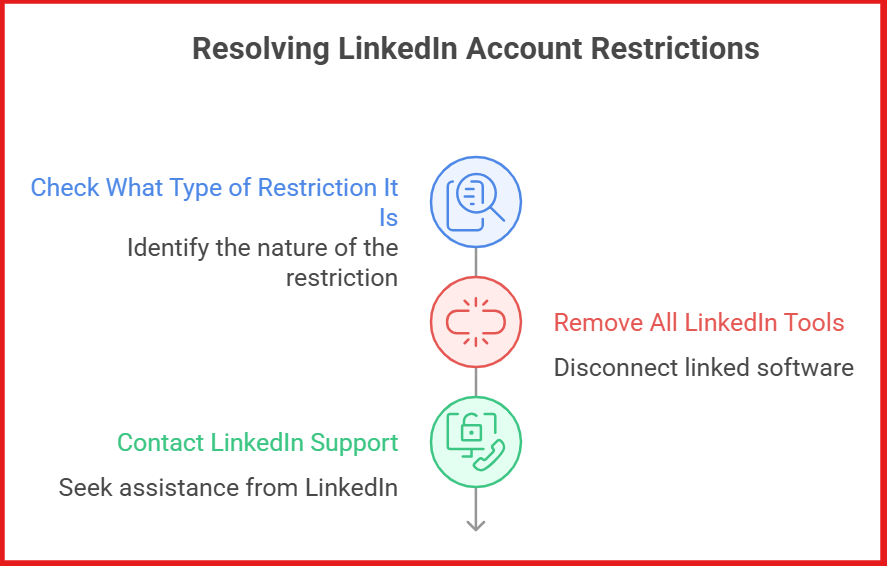
If your account is still restricted after verification, contact LinkedIn support.
Use the official help form and explain your issue clearly.
Add details like when the restriction started and what actions you took.
This helps speed up the review.
Avoid creating a second LinkedIn account.
LinkedIn does not allow multiple accounts for one person.
If detected, both accounts can be restricted or permanently blocked.
This is one of the most common mistakes people make.
Some restrictions are lifted in a few hours.
Others can take a few days.
In some cases, LinkedIn may ask for verification more than once.
If your account gets restored, do not go back to high activity immediately.
Start slow and build activity gradually.
Once your account is back, the goal is to keep it safe.
Most people get restricted again because they repeat the same behavior.
Here’s what helps you avoid that.
Scaling only on LinkedIn is where most problems start.
When I pushed volume on a single account, restrictions showed up quickly.
The safer way is to reduce pressure on LinkedIn and spread outreach across channels.
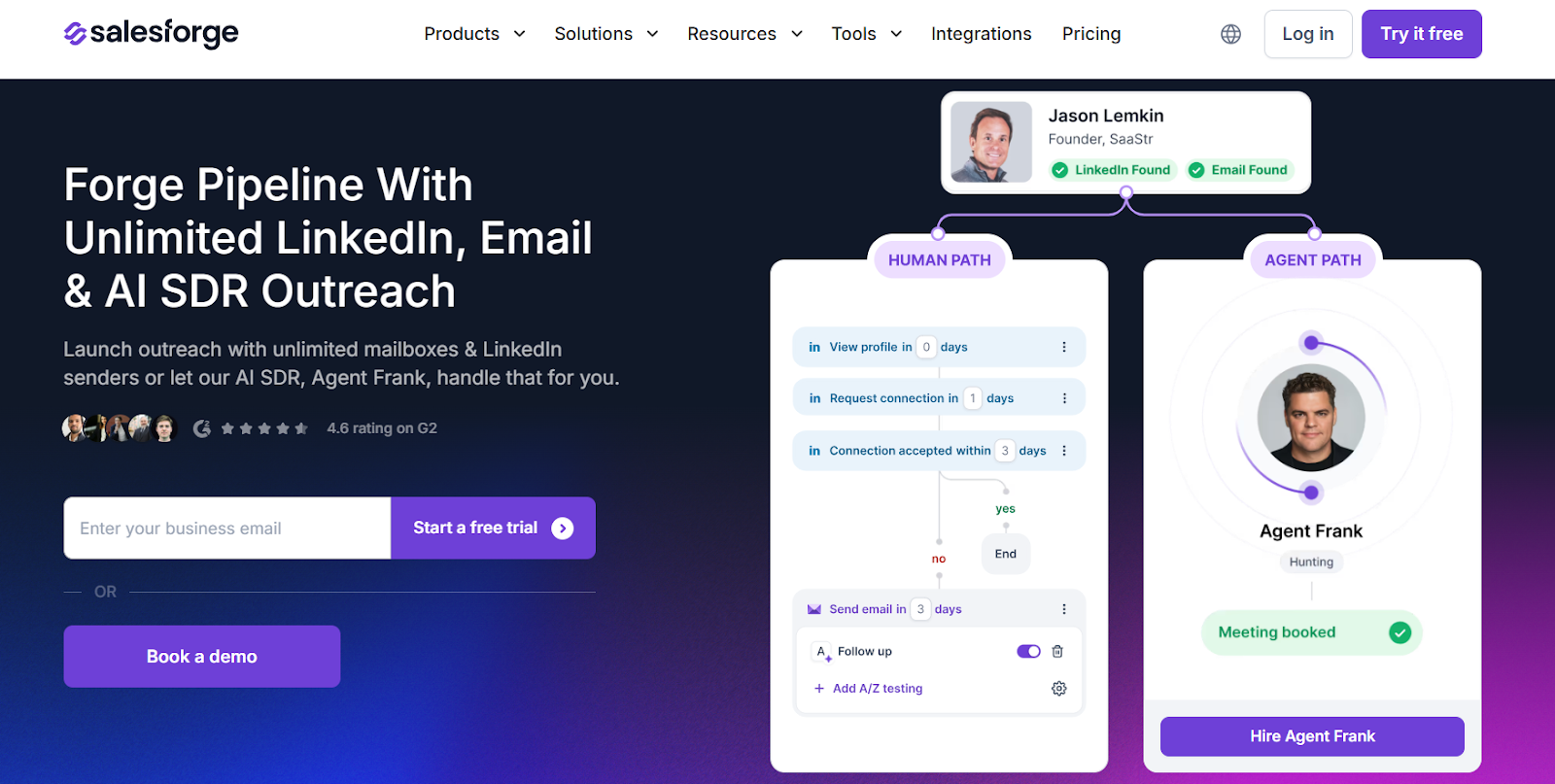
This is where I found Salesforge useful.
Instead of relying only on LinkedIn, I ran outreach across email and LinkedIn in the same sequence.
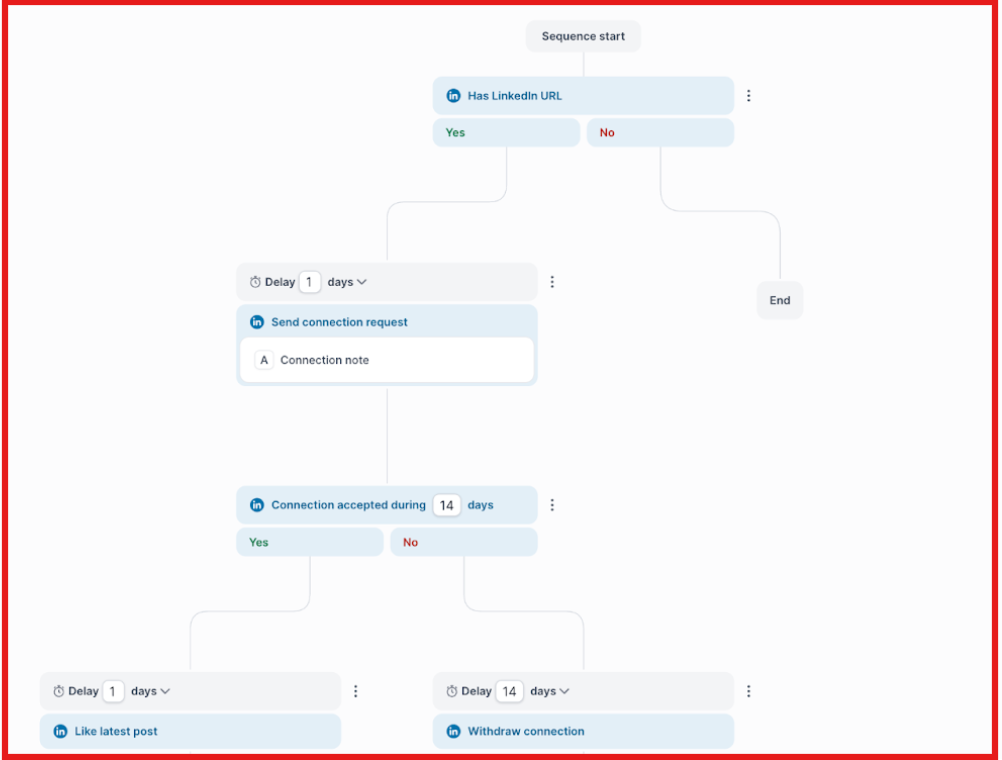
That changed how much I depended on one account.
I didn’t need to send high volumes from LinkedIn anymore.
Another thing that stood out was scale.
Salesforge supports unlimited mailboxes and LinkedIn senders.
So instead of pushing one account harder, I could spread activity across multiple senders.
That keeps activity more natural.
From a workflow side, everything comes into one place.
Replies from email and LinkedIn land in Primebox.
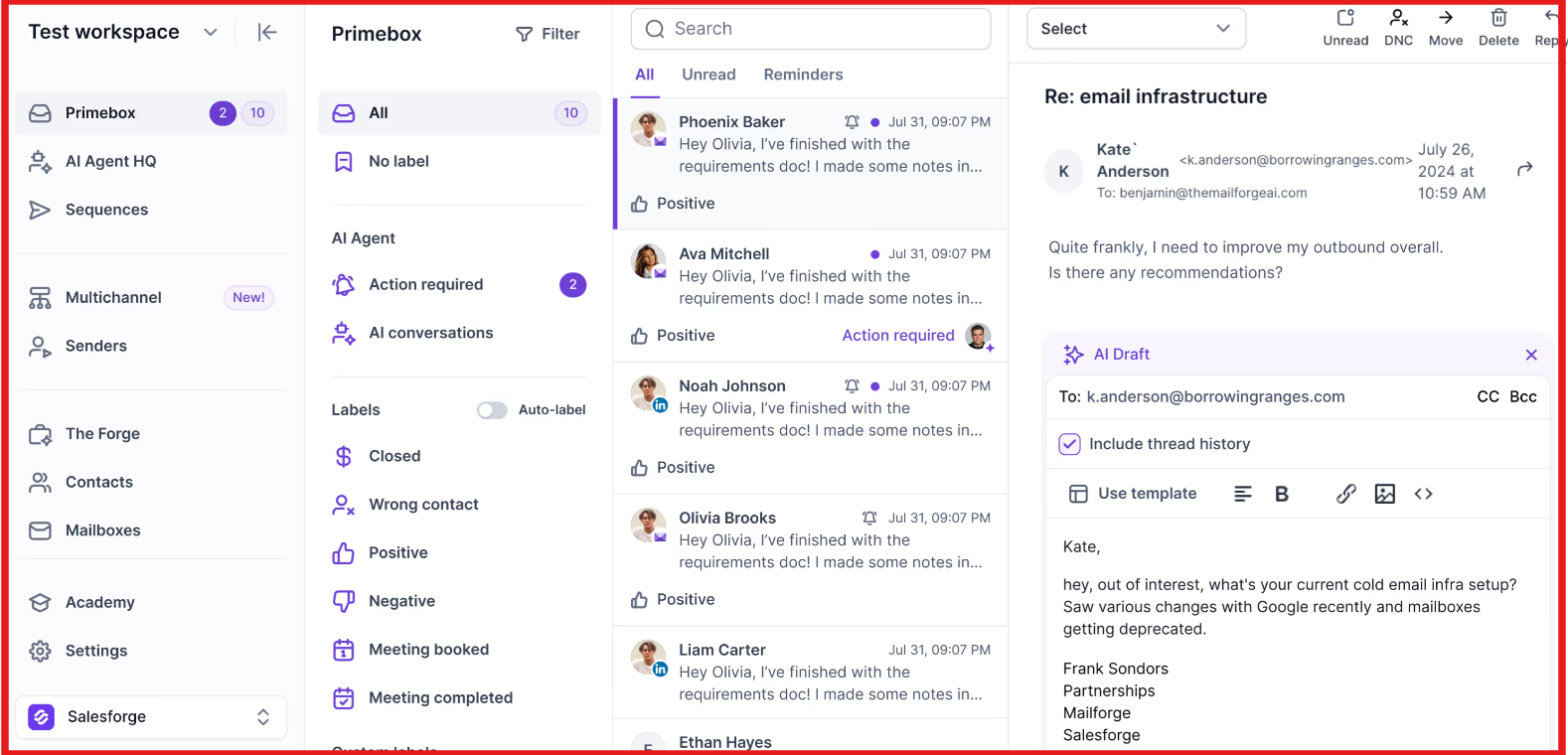
That made it easier to manage conversations without switching tabs.
I also tested Agent Frank.
He handled prospecting and follow-ups without manual work.
That reduced how often I needed to log into LinkedIn and send actions myself.
The main shift was simple.
LinkedIn became one part of the system, not the whole system.
That’s what made scaling feel safer.
Enter your email to get a custom plan & stack recommendation for your business
Please check your mailbox in 5 minutes
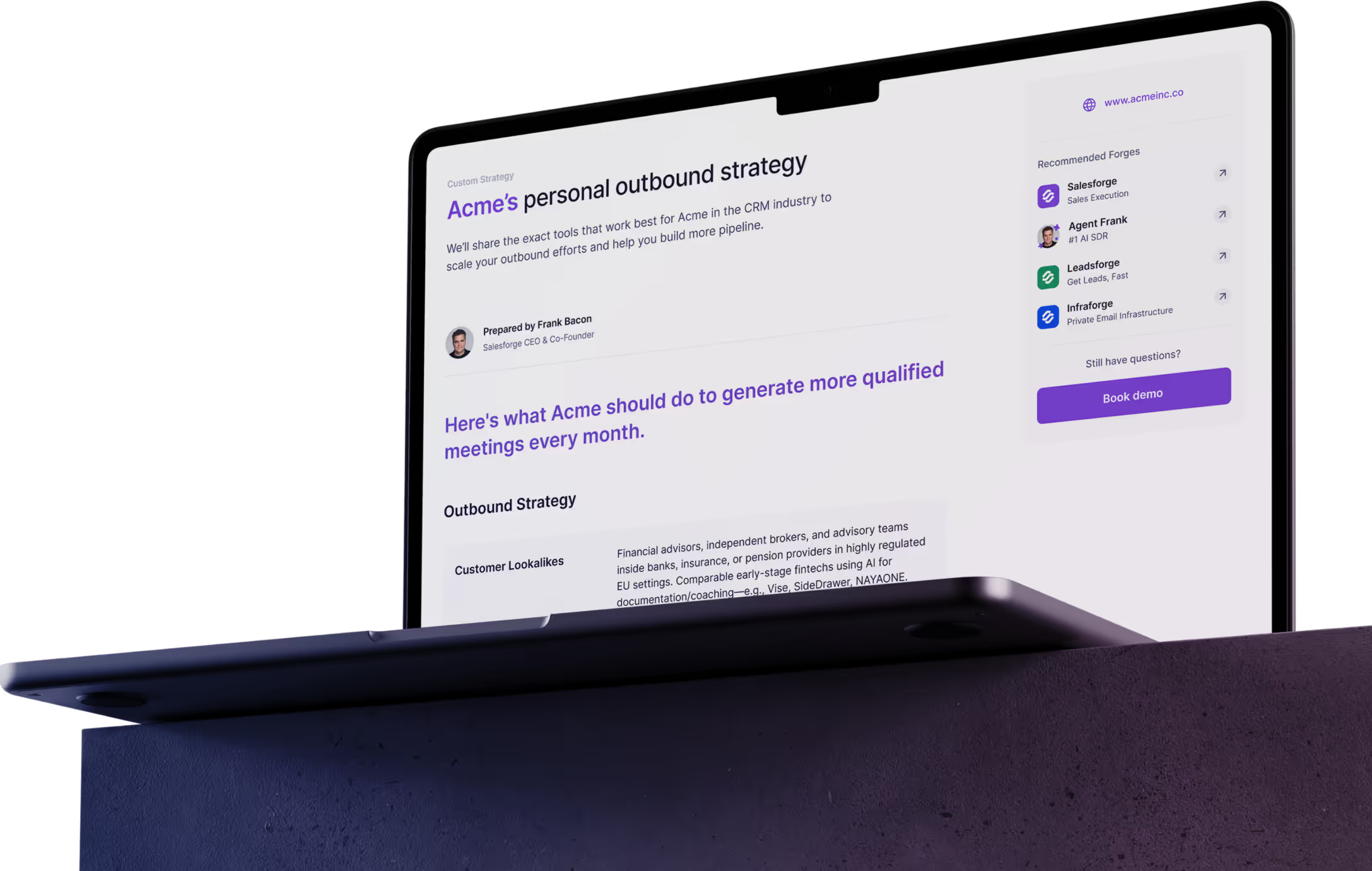
Fixing a restriction is only one part.
Long-term safety depends on how outreach is done after recovery.
Pushing volume on one account creates risk.
I shifted to a multi-channel setup using Salesforge.
Email handled most of the volume, while LinkedIn stayed light and controlled.
That balance made outreach more stable.
Try multi-channel outreach with Salesforge to scale without risking your account.
.png)

.png)